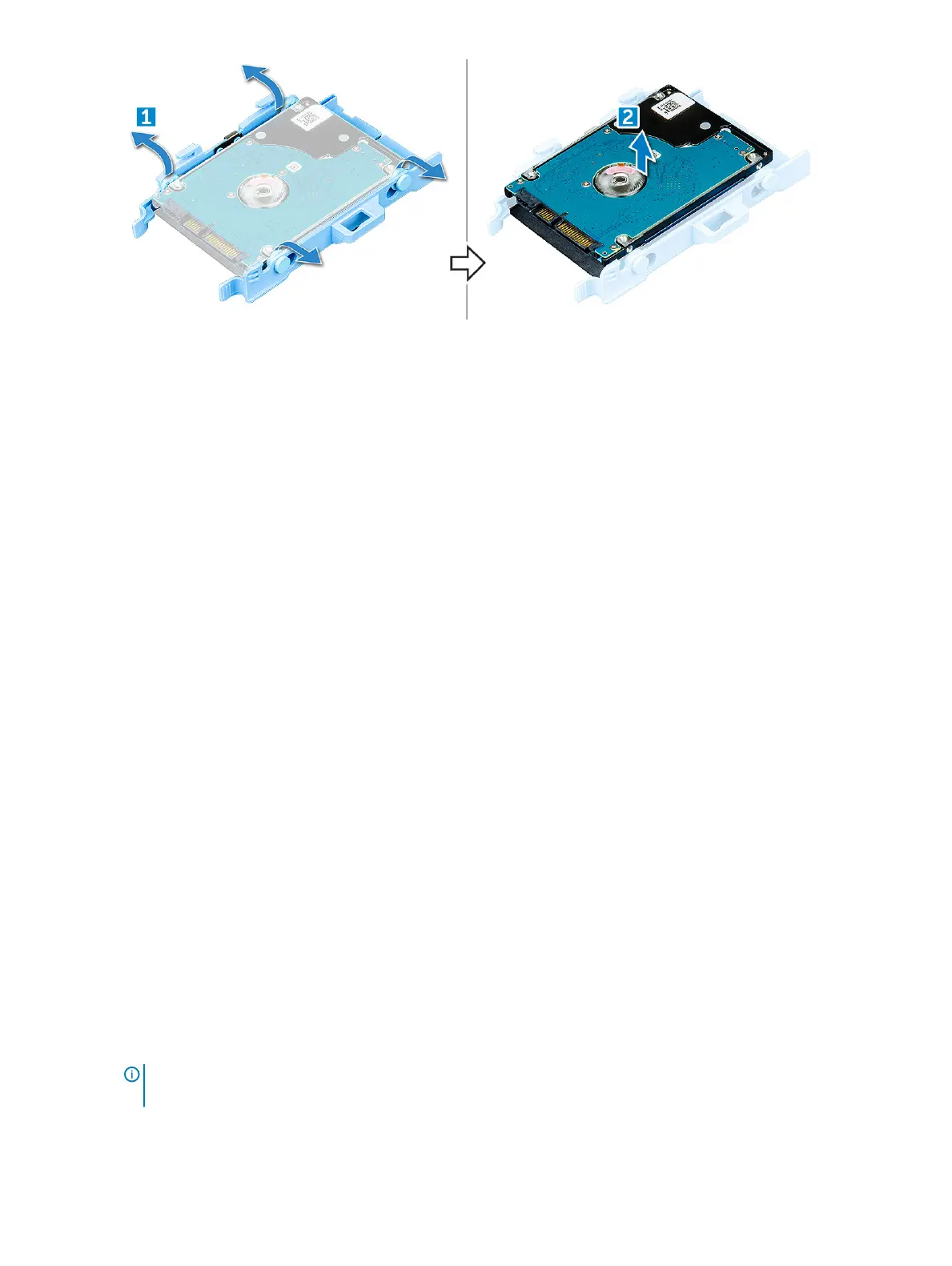
Installing 2.5–inch hard drive into the hard drive bracket
1 Flex the side of the hard drive bracket, to align and insert the pins on the bracket into the hard drive.
2 Insert the hard drive into the hard drive bracket until it clicks into place.
3 Install the:
a 2.5 inch hard drive assembly
b Front bezel
c Back cover
4 Follow the procedure in After working inside your computer.
Installing 2.5–inch hard drive assembly
1 Insert the drive assembly into the slot on the computer until it clicks into place.
2 Close the front panel door.
3 Connect the SATA cable and the power cable to the connectors on the hard drive.
4 Install the:
a Front bezel
b Cover
5 Follow the procedure in After working inside your computer.
Optical drive
Removing optical drive
1 Follow the procedure in Before working inside your computer.
2 Remove the:
a Back cover
b Front bezel
3 Open the Front panel door.
4 To remove optical drive assembly:
a Disconnect the data cable and power cable from the connectors on the optical drive [1].
NOTE
: You may need to unroute the cables from the tabs under the drive cage to allow you to disconnect the cables
from the connectors.
b Close the front panel door [2].
20
Disassembly and reassembly



 To Next Page