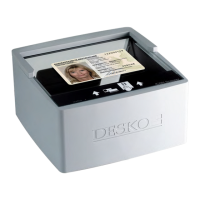
Technical Specification DESKO PENTA Scanner
®
&
Page 23 of 37
DESKO PENTA Scanner
®
BGR & DESKO PENTA Scanner
®
CKI
7 Service
If the scan window is dirty from fingerprints, stain or dust, it can affect the accuracy of
scanning. We therefore recommend cleaning the scan window on a regular basis.
7.1 Clean Glass Window
1. Disconnect the DESKO PENTA Scanner
®
, DESKO PENTA Scanner
®
BGR, DESKO PENTA
Scanner
®
CKI
2. Clean the glass with a soft cloth or sponge slightly moistened with a nonabrasive
glass cleaner.
3. Dry the glass with a chamois or cellulose sponge to prevent spotting.
7.2 Clean Housing
1. Disconnect the DESKO PENTA Scanner
®
, DESKO PENTA Scanner
®
BGR, DESKO PENTA
Scanner
®
CKI
2. Clean the housing with a soft cloth or sponge slightly moistened with a nonabrasive,
solvent free cleaner.
3. Dry the housing with a chamois or cellulose sponge to prevent spotting.
7.3 Clean Multicolor Display
1. Disconnect the DESKO PENTA Scanner
®
, DESKO PENTA Scanner
®
BGR, DESKO PENTA
Scanner
®
CKI
2. Clean the display with a soft slightly alcohol moistened cloth.
8 Maintenance
In general, DESKO products are maintenance free. However, should you require repair or
service assistance, please type repair.desko.com
in your web browser ot open a Return
Material Authorization (RMA) request.
For maintenance regarding firmware upgrade, it is required to install a dedicated DESKO
software package. This can be obtained upon request and contains all necessary tools and
documentation to perform the following action:
• Display detailed information about firmware version and device configuration.
• Update firmware and device configuration.
Please type support.desko.com
into your web browser to open a support ticket, should you
not have received a Quick Installation Guide or need access to our download area.
9 Warranty
Please note that due to improper usage (see section 1.2) or after opening the device with a
tool, warranty cannot be claimed anymore. Warranty also excludes normal wear and tear.


 To Next Page