Part Number
Issue
Date
Page
6159938880
13
01/2018
89 / 249
89 (249) 01/2018
If the Results View mode is set to “Last results” in the “Controller → Configuration” menu
(Delta QC software), the torque result and angle result values are shown in real time (red color for
Not OK result, black color for OK results).
NOTE: For further details about the formulas used by the Delta to calculate the statistics
results, refer to the paragraph “Statistical Computation”. The results of the tests executed by
the Quick Test function are saved in the Delta memory with the Pset number set to zero.
NOTE: For further details about how the Delta performs the test on the various tools, refer to
the following paragraphs: “Testing Click-wrenches”, “Peak Test”, “Testing Nutrunners”,
“Testing Pulse Tools”, “Testing pulse tools with preload”.
NOTE: The “Last peak” option in the “Nutrunner” strategy is available only on Delta 6D and
7D for Psets belonging to the Measurement → Tools menu
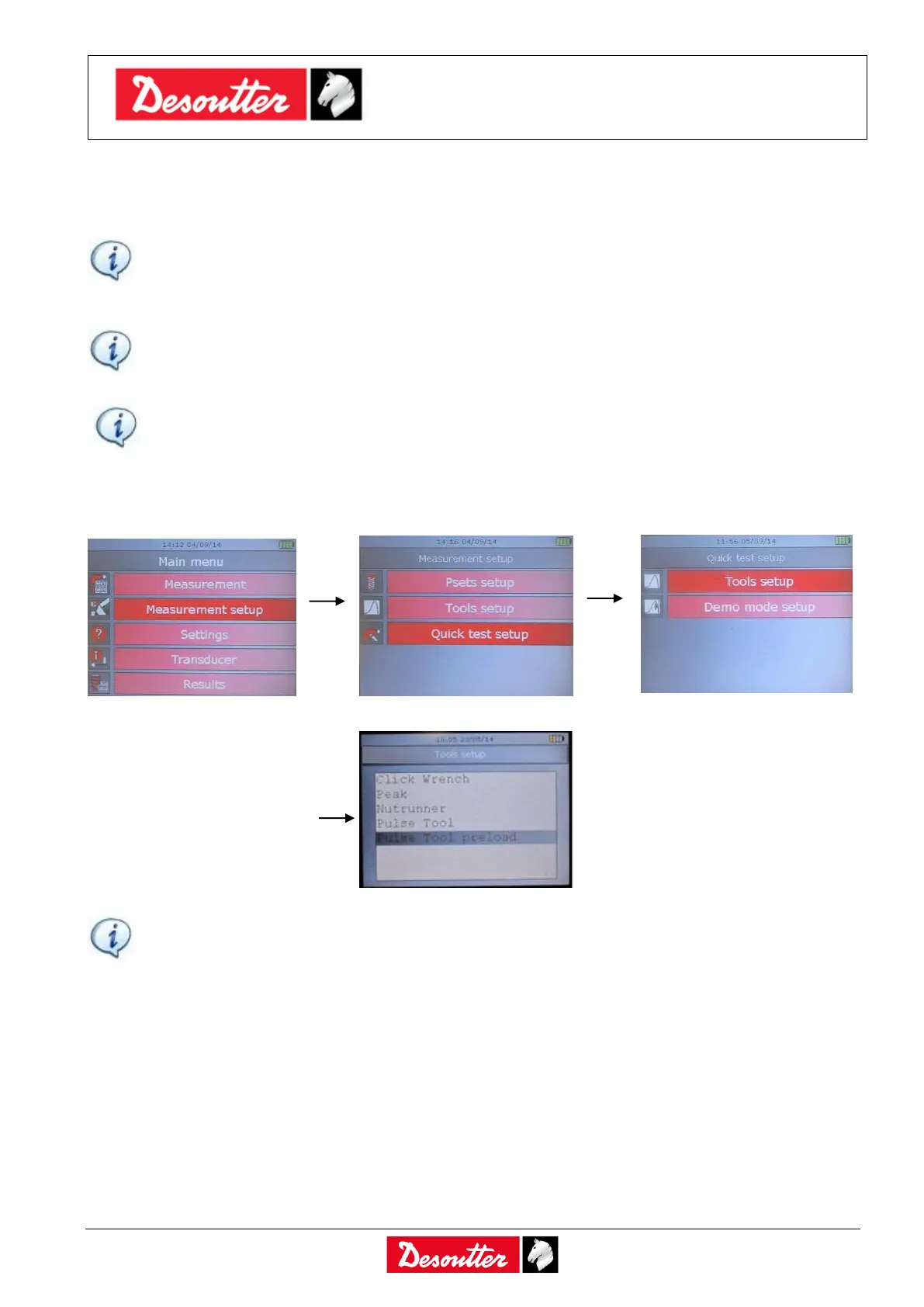
To configure the general parameters for the different tool types, select the Measurement Setup →
Quick test setup → Tools setup:
NOTE: For further details about how these parameters are used to test a tool, refer to the
following paragraphs: “Testing Click-wrenches”, “Peak Test”, “Testing Nutrunners”, “Testing
Pulse Tools” and Testing pulse tools with preload
8.2 Execute a Test (Tool Test, Joint Test, Production
Tightening)
To test a Tool with the Delta 6D/7D, the following sequence is required:
1. Create one (or more) Pset containing the test data for the tool to be tested.
2. Create a Tool.
3. Associate a maximum of five Psets to the tool.
4. Start the Pset and test the Tool.



 To Next Page