TC500 Ethernet Cabling Certifier Operation Manual
12
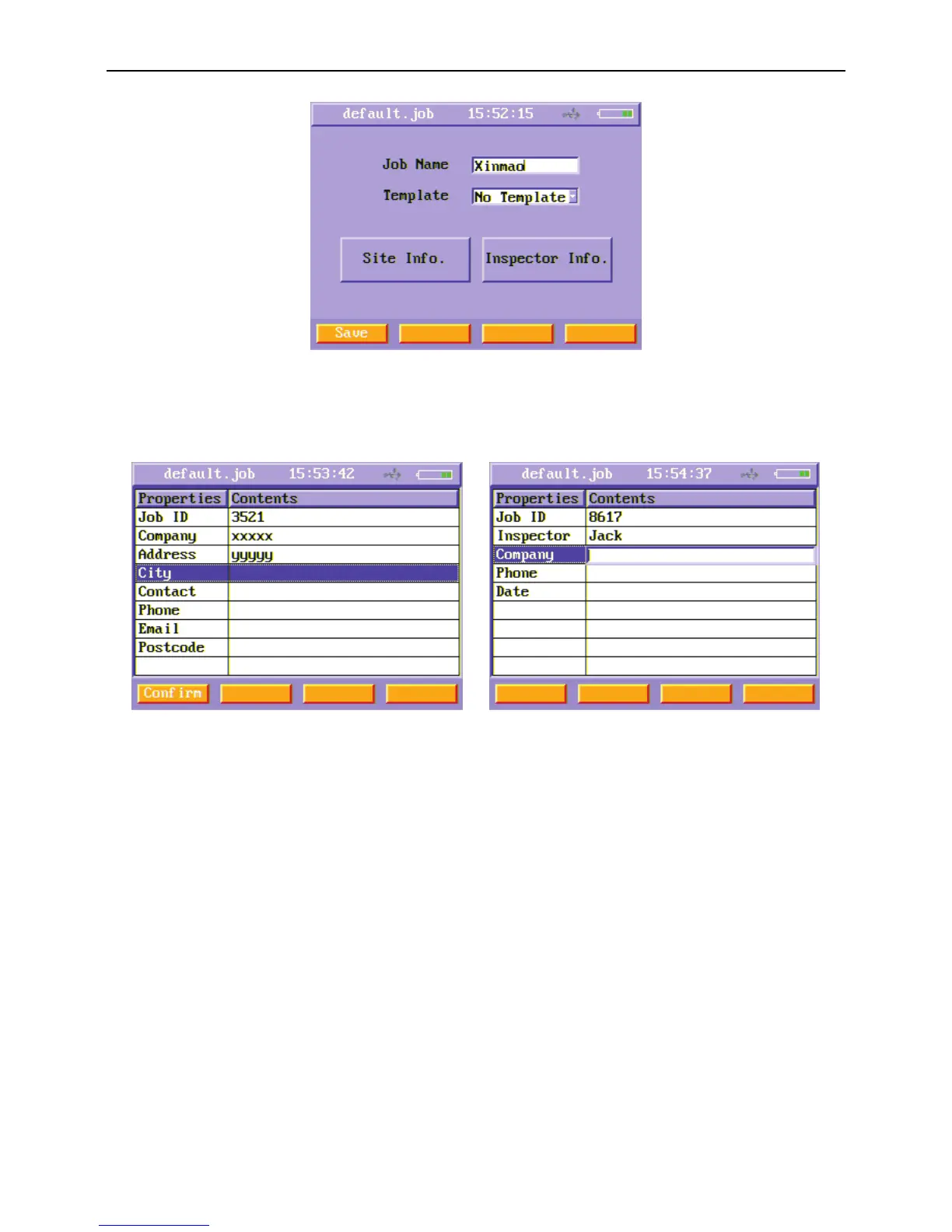
Figure11 Setting new job’s name menu
In the setting new job’s name menu, users can set job name, job template (mentioned in 6.5), Site information and inspector
information. Just press “Site Info.” or “Inspector Info.” function button to enter site information and inspector information menu.
Figure12 Site information Figure13 Inspector information
In these two menus, users can edit some useful information.
After setting the information of a new job, press Save (F1) soft function key to create the new job and you can see the new created
job on the job list. But the new created job is not the current job unless you choose it and press Open (F2) soft function key to set it
as the current job, and you can see the job name on the title changed.
When users find there is not enough memory space in the instrument, users can copy the job folders to an USB disk and then delete
them. Users do this as the following operation. First you should use up and down key to choose one job and press Tag(F4) to tag it
on the job list, then press Delete(F1) or To U-disk (F2) to delete this job folder or copy it to USB disk. You can also tag more jobs at
once and then delete them or copy them to USB disk.
6.5. Job Templates Setting
When you set the information of a new job, one item is choose template. You can edit inspector information and site information
for a job template. When you select a job template when creating a new job, the inspector information and site information are
copied to these two pieces of information of the new job created and users do not edit the information for the new job.


 To Next Page