www.dfi .com
16
Chapter 2 Hardware Installation
Chapter 2
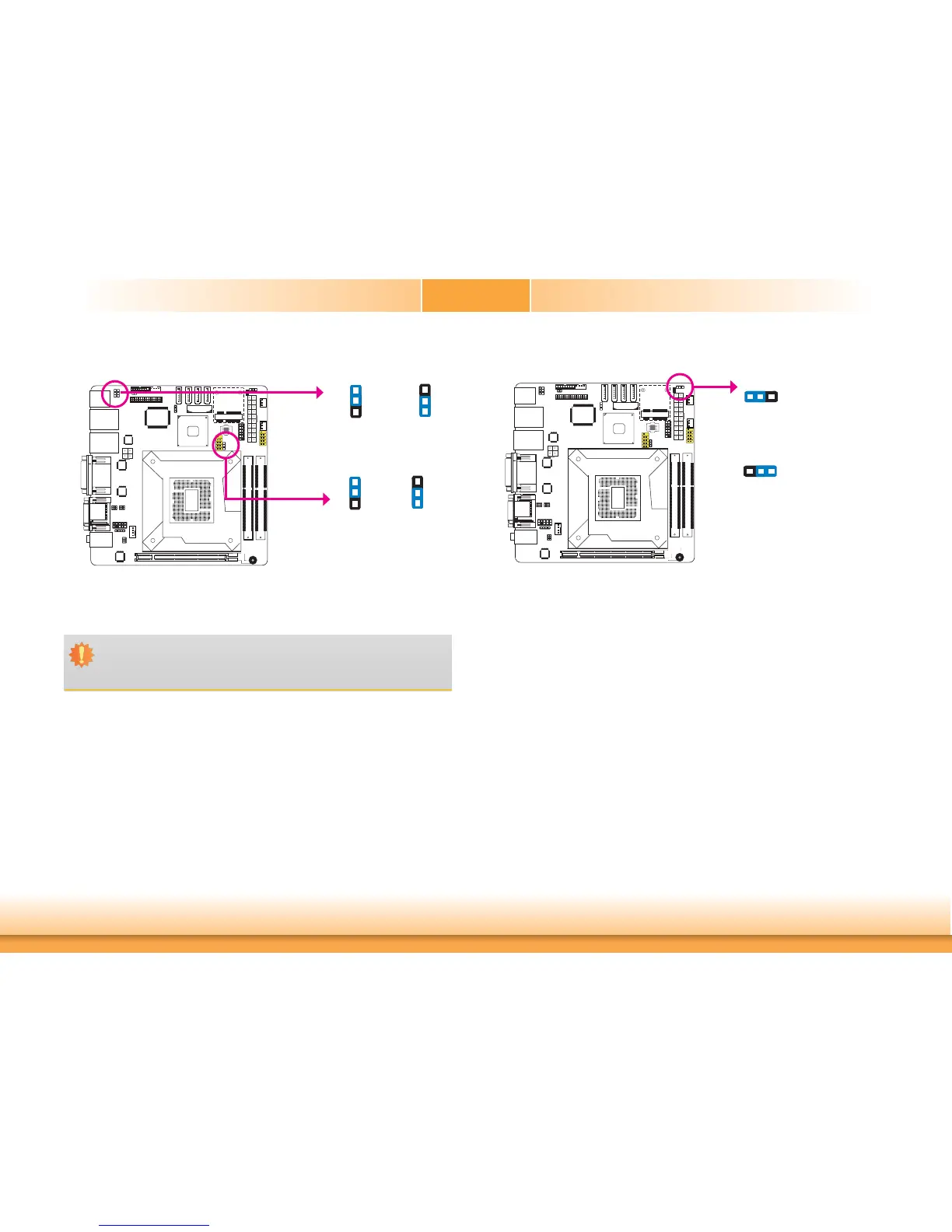
These jumpers are used to select the power of the USB ports. Selecting +5V_standby will al-
low you to use a USB device to wake up the system.
USB Power Select
USB 0-1/8-9
(JP4)
1
3
2
1
3
2
USB 2-3/10-11
(JP7)
2-3 On:
+5V_standby
1-2 On: +5V
(default)
1
3
2
1
3
2
2-3 On:
+5V_standby
1-2 On: +5V
(default)
Important:
If you are using the Wake-On-USB Keyboard/Mouse function for 2 USB ports, the
+5V_standby power source of your power supply must support ≥1.5A. For 3 or more
USB ports, the +5V_standby power source of your power supply must support ≥2A.
Power-on Select
To power-on via WOL after G3:
1. Set JP8 pins 2 and 3 to On.
2. Set the “After G3” field to Power Off/WOL.
3. Set the “GbE Wake Up From S5” to Enabled.
The BIOS fields are in the “South Bridge Configuration” submenu (Chipset menu) of the AMI
BIOS utility.
To power-on via AC Power:
1. Set JP8 pins 2 and 3 to On.
2. Set the “After G3” field to Power On.
1-2 On:
Power-on via power button
(default)
2-3 On:
Power-on via AC power; or
Power-on via WOL after G3
JP8
312
312


 To Next Page