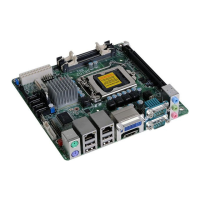
HDMI
Graphics Interfaces
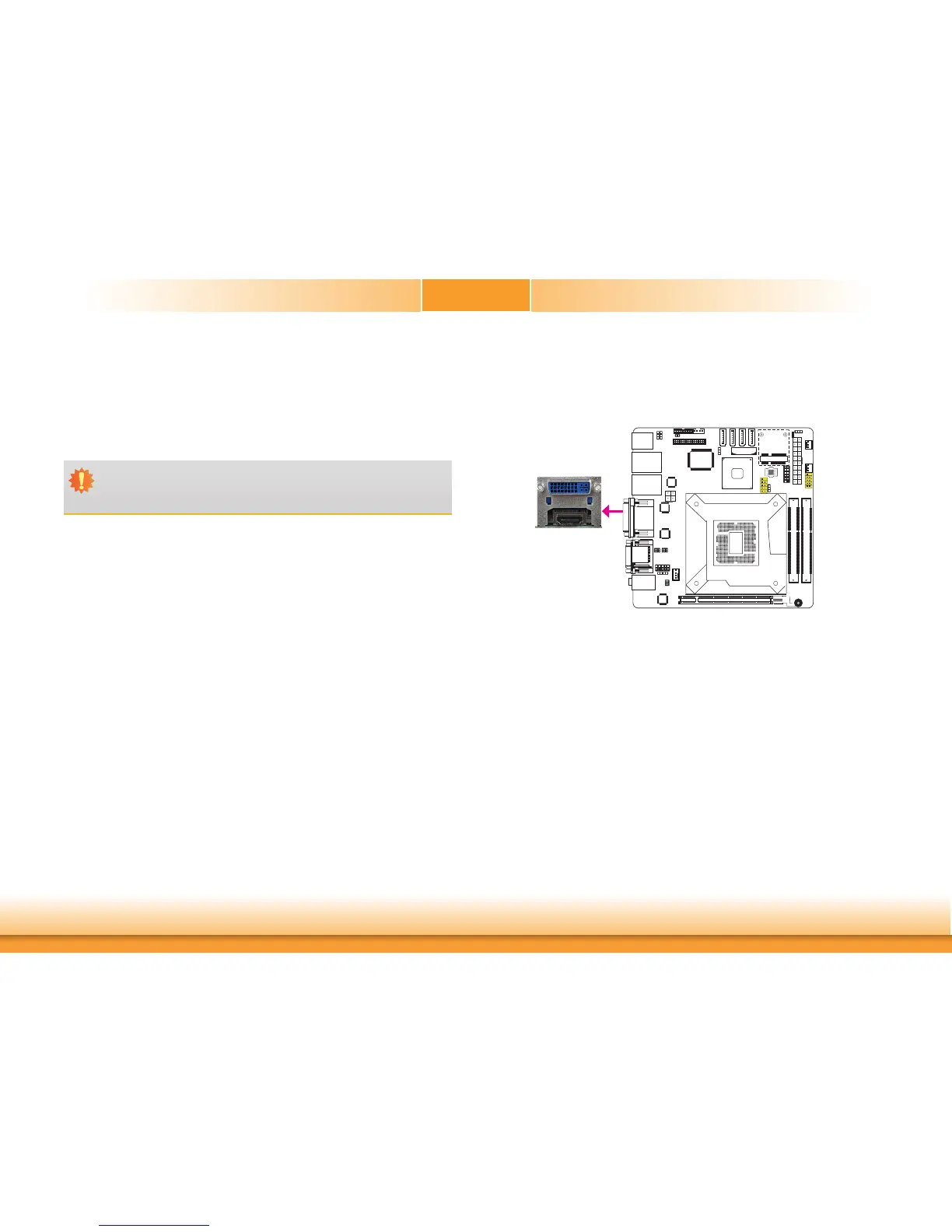
TheHDMIportwhichcarriesbothdigitalaudioandvideosignalsisusedtoconnectaLCD
monitorordigitalTVthathastheHDMIport.
DVI-I
Thedisplayportsconsistofthefollowing:
• HDMIport
• DVI-Iport
HDMI Port
DVI-I Port
TheDVI-IportisusedtoconnectanLCDmonitor.
Connectthedisplaydevice’scableconnectortotheDVI-Iport.Afteryouplugthecablecon-
nectorintotheport,gentlytightenthecablescrewstoholdtheconnectorinplace.
BIOS Setting
ConfigurethedisplaydeviceintheChipsetmenu(“NorthBridgeConfiguration”submenu)of
theBIOS.Refertochapter3formoreinformation.
Important:
IfyouareusingtheWake-On-USBKeyboard/Mousefunctionfor2USBports,the
+5V_standbypowersourceofyourpowersupplymustsupport≥1.5A.For3ormore
USBports,the+5V_standbypowersourceofyourpowersupplymustsupport≥2A.
Wake-On-USB Keyboard/Mouse
TheWake-On-USBKeyboard/MousefunctionallowsyoutouseaUSBkeyboardorUSBmouse
towakeupasystemfromtheS3(STR-SuspendToRAM)state.Tousethisfunction:
• Jumper Setting
JP6mustbesetto“2-3On:+5V_standby”.Referto“USBPowerSelect”inthischapterfor
moreinformation.


 To Next Page