Chapter 7: Plug-in Controls 49
Chapter 7: Plug-in Controls
Plug-ins and D-Command
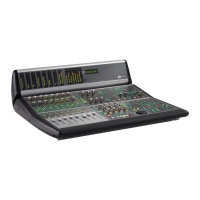
D-Command provides dedicated Dynamics and EQ sections
for plug-ins that support dynamics and EQ plug-in mapping.
These sections include encoders and switches that map to
standard controls for each plug-in type.
Plug-ins of all types can be focused across multiple D-Com-
mand channels using Custom Fader Plug-ins mode. See
“Plug-In Mode” on page 104.
Plug-in Channel Formats
D-Command supports mono, stereo, multichannel and
multi-mono plug-in channel formats up to six channels wide.
With D-Command, you can display, edit, and link specific
channels of multi-mono dynamics and EQ plug-ins directly
from the Channel Select switches in the corresponding sec-
tion.
Assigning and Removing Plug-ins
You can make plug-in assignments directly from D-Command
in several ways. In Inserts mode, plug-ins can be added on an
insert-by-insert basis. In Assign Inserts mode you can assign
plug-ins to insert positions on multiple tracks.
To assign a plug-in in Inserts mode:
1 Press the Inserts switch to display inserts on the channel
where you want to assign the plug-in.
2 If the insert location where you want to assign a plug-in is
not showing, press the Page Up or Page Down switches on the
channel where you want to make the assignment until the ap-
propriate location is displayed.
3 Do one of the following:
• If the insert location you want to use is empty, press the
corresponding encoder Select switch.
• If a plug-in is already present in the insert location you
want to use, press and hold the corresponding encoder
Select switch.
4 At the insert position where you want to make the assign-
ment, turn the encoder knob to select from the first level of
menu choices.
5 Press the encoder Select switch to move down and the By-
pass/Mute/Pre switch to move up through menu levels.
6 When the plug-in you want to assign is displayed, press the
encoder Select switch to confirm your selection.
To assign plug-ins to multiple tracks:
1 Press the Assign Inserts switch to enter Inserts Assign mode.
The first two send or insert positions will show on the encoder
displays by default.
2 To display and edit other insert positions, press the Page Up
or Page Down switches on the channel where you want to
make the assignment.
3 At the insert position where you want to make the assign-
ment, turn the encoder knob to select from the first level of
menu choices.
4 Press the encoder Select switch to move down and the By-
pass/Mute/Pre switch to move up through menu levels.
5 When the plug-in you want to assign is displayed, press the
encoder Select switch to confirm your selection.
6 Repeat steps 2–5 to make additional insert assignments.
7 Press the flashing Assign switch to confirm the assignments
and exit Inserts Assign mode.
To remove a plug-in:
1 Press the Set to Default switch.
2 Press the encoder Select switch for each plug-in you want to
remove.
3 Press the flashing Set to Default switch to exit Set to Default
mode.
Default Plug-in Preferences
You can set a default EQ plug-in and default Dynamics plug-in
in Pro Tools, which makes them available for quick assign-
ment from D-Command.
To set a default EQ or Dynamics plug-in:
1 In Pro Tools, choose Setup > Preferences and click Mixing.
2 Under Setup, choose a plug-in from the Default EQ or De-
fault Dynamics pop-up menu.
3 Click OK to close the Preferences window.


 To Next Page