Chapter 7: Plug-in Controls 53
Dynamics Section
The Dynamics section includes standard controls for compressor, gate, and limiter plug-ins, an array of controls for managing the
display and editing of plug-in parameters, and for selecting or linking channels in multi-mono plug-ins.
Dynamics Plug-in Support
Dynamics processing plug-ins may have widely varying con-
trols, depending on their applications. The D-Command Dy-
namics Section provides dedicated knobs and switches to ac-
commodate a wide range of possible plug-ins. Not all plug-ins
will require all the Dynamics controls, while others may have
more parameters than can be displayed in the Dynamics sec-
tion at one time. To display all controls in any plug-in, use
Custom Fader Plug-ins mode. (See “Plug-In Mode” on
page 104.)
Displaying Dynamics Plug-ins
The D-Command Dynamics section automatically focuses the
first dynamics plug-in on the channel displayed in the Focus
Channel section on the Main Unit.
To display successive dynamics plug-ins that are on the fo-
cused channel, press the Cycle switch in the Dynamics sec-
tion.
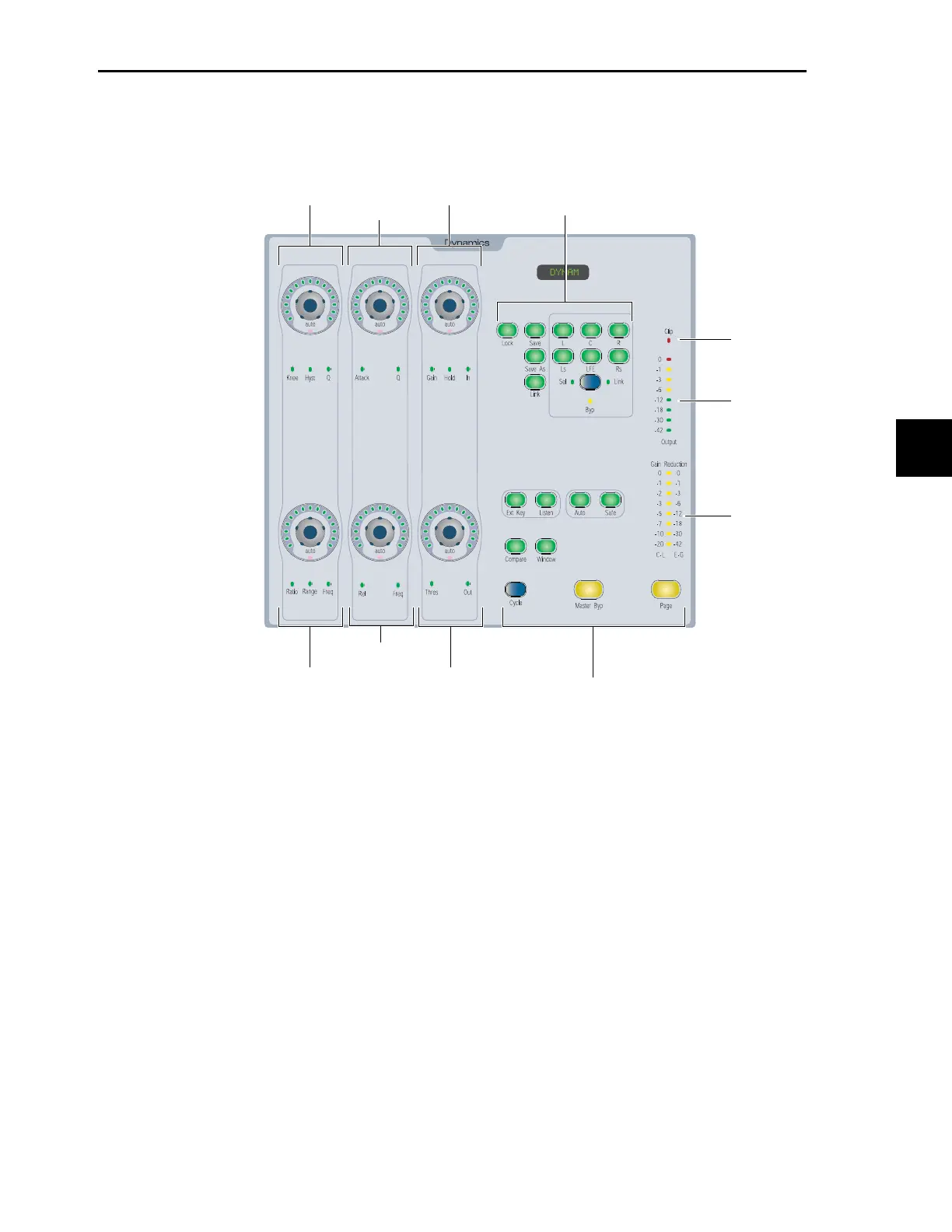
D-Command Dynamics section
Knee/Hysteresis/Q
Attack/Q
Gain/Hold/Input Level
Ratio/Range/Frequency
Release/Frequency
Threshold/Output Level
Gain Reduction
meter
Channel Select
switches
Dynamics Edit/Display/Page controls
control
control
control
control
control
control
Output
meter
Clip
indicator


 To Next Page