Chapter 9: Management Sections 77
Edit Controls
Edit Function 1 Switch (Basic Edit Commands)
The Edit Function 1 switch displays the following commands:
Page 1
•Cut: Edit > Cut
• Copy: Edit > Copy
• Paste: Edit > Paste
• Clear: Edit > Clear
• TCE To TLSel: Edit > TCE Edit to Timeline Selection
Page 2
• CutSP AllAut: Edit > Cut Special > All Automation
• CopySP AllAut: Edit > Copy Special > All Automation
• CutSP PanAut: Edit > Cut Special > Pan Automation
• CopySP PanAut: Edit > Copy Special > Pan Automation
• CutSP PI Aut: Edit > Cut Special > Plug-in Automation
• CopySP PI Aut: Edit > Copy Special > Plug-in Automation
Page 3
• PsteSP Merge: Edit > Paste Special > Merge
• ClrSP AllAut: Edit > Clear Special > All Automation
• PsteSP RepFil: Edit > Paste Special > Repeat to Fill Selec-
tion
• ClrSP PanAut: Edit > Clear Special > Pan Automation
• PsteSP ToCurr: Edit > Paste Special > To Current Automa-
tion Type
• ClrSP PI Aut: Edit > Clear Special > Plug-in Automation
Edit Function 2 Switch
The Edit Function 2 switch displays the following commands:
Page 1
• Trim to Sel: Edit > Trim > To Selection
• Cpture Region: Edit > Capture Region
• Seprte: Edit > Separate Region
• Heal Seprtn: Edit > Heal Separation
• Consolidate: Edit > Consolidate Selection
• Time Stamp: Audio Regions List > Time Stamp Selected
Page 2
• SendTo Back: Region > Send to Back
• SendTo Front: Region > Bring to Front
• Group Region: Region > Group
• Ungrp Region: Region > Ungroup
• Ungrp All: Region > Ungroup All
• Regrp Region: Region > Regroup
Edit Function 3 Switch (Manipulation Commands)
The Edit Function 3 switch displays the following commands:
Page 1
• Duplicate: Edit > Duplicate
•Repeat: Edit > Repeat
• Shift: Edit > Shift
• Insert Silnce: Edit > Insert Silence
• Lock Region: Region > Lock/Unlock
• Mute Region: Region > Mute/Unmute
Page 2
• Loop Region: Region > Loop Region
• Unloop Region: Region > Unloop Region
• ID/Rem SyncPT: Region > Identify/Remove Sync Point
• Rename Rgns: Region > Rename Regions
• Quantz ToGrid: Region > Quantize to Grid
• RgnDrop: Region List > Timeline Drop Order >
L to R/Top to Bottom
Edit Modes Switch
The Edit Modes switch displays the Pro Tools Edit modes:
• Shuffl: Shuffle Mode
•Spot: Spot Mode
• Slip: Slip Mode
• Grid Rel: Relative Grid Mode
• Grid Abs: Absolute Grid Mode
Edit Tools Switch
The Edit Tool Tools switch displays the Pro Tools Edit Tools.
To cycle through multiple versions of the same tool, repeat-
edly press the corresponding Soft Key.
• Zoom: Normal/Single Zoomer tools
• Trim: Standard/Scrub/TCE Trimmer tools
• Select: Selector tool
• Grabbr: Time/Separation/Object Grabber tools
•Scrubber tool
• Pencil: Square, Random, Free, Line, Triangle, Arc,
S-Curve
To select the Smart Tool, press any two buttons for the Trim-
mer, Selector or Grabber simultaneously.
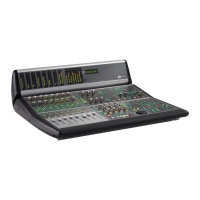
Edit controls
Function 1
switch
Function 2
switch
Function 3
switch
Modes
switch
Tools
switch


 To Next Page