DK50018 - Bluetooth accessory and switching decoder Bluetooth connecon
DK50018 - Bluetooth accessory and switching decoder
www.digikeijs.com
*R-Bus, B-Bus are registered trademarks of Modelleisenbhan GmbH. XpressNet and RS-Bus are registered trademarks of Lenz 13www.digikeijs.com
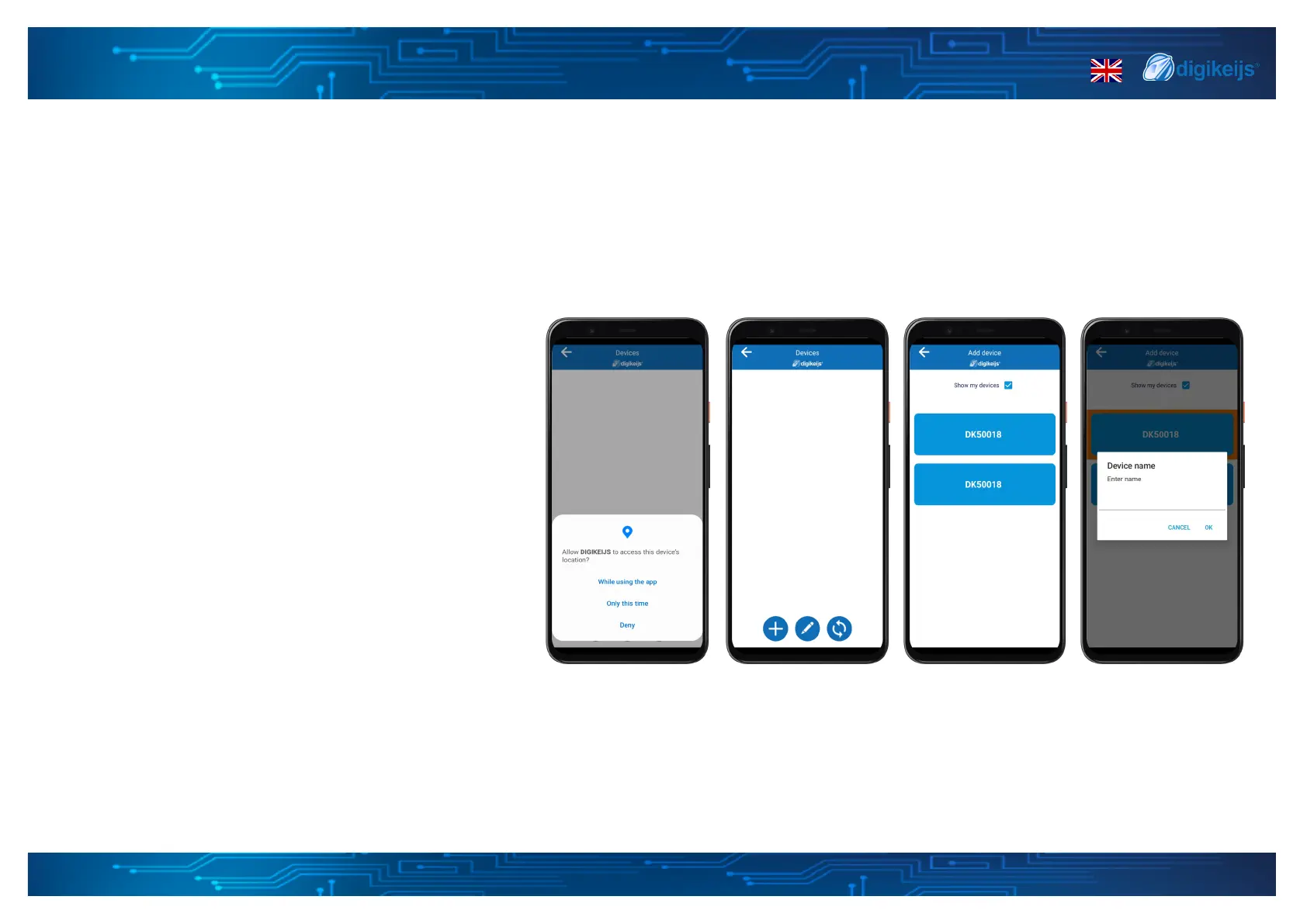
3.1.2 How to add your device to the Digikeijs App
Now that the app is congured we can start with adding
your DK50018.
This process is very simple. Firstly navigate to the My
devices page. The rst me you open this page it will ask
you to give permissions to use your locaon. This is needed
in combinaon with Bluetooh (BLE), otherwise you will not
be able to nd and add any devices. Please note we do not
save or track your locaon!
When the proper permission is given you can hit the +
buon to search for devices. Please make sure your
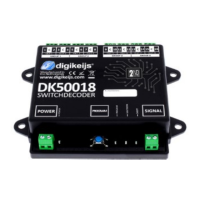
DK50018 is powered on and the green led is lit.
In the add devices screen the app will show all powered on
devices. If you already added devices and do not want to
show them in the list you can toggle the “show my devices”
checkbox. Ticked = Show all, Not cked = Show devices that
are not added yet.
To add the device select the one you want to add and give
the device a name. Aer that the device will be added to
the my devices page.


 To Next Page