D
D
D
L
L
L
P
P
P
P
P
P
r
r
r
o
o
o
j
j
j
e
e
e
c
c
c
t
t
t
o
o
o
r
r
r
—
—
—
U
U
U
s
s
s
e
e
e
r
r
r
’
’
’
s
s
s
M
M
M
a
a
a
n
n
n
u
u
u
a
a
a
l
l
l
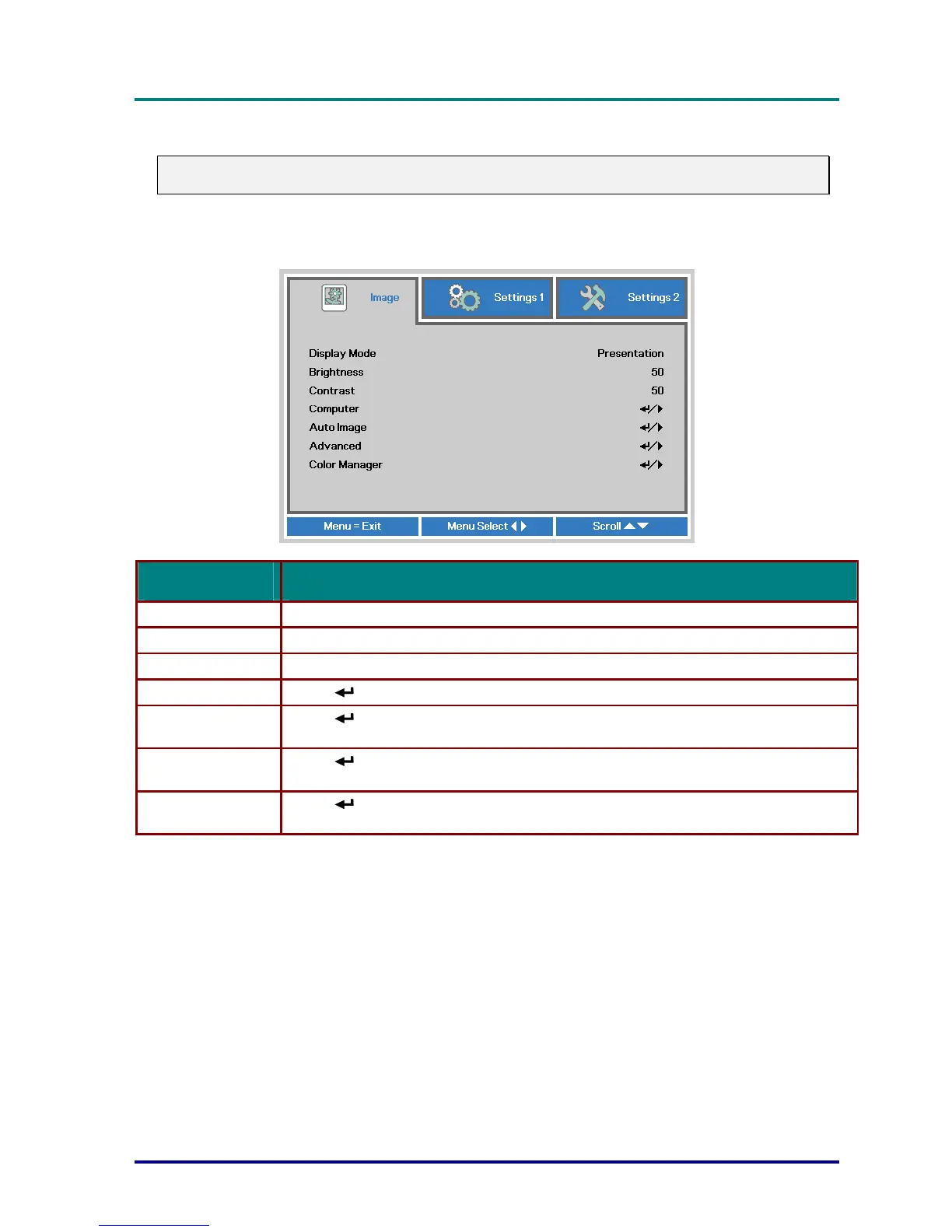
Image Menu
Attention !
All of display mode parameters when changed will be saved to user mode.
Press the MENU button to open the OSD menu. Press the cursor ◄► button to move to the
Image Menu. Press the cursor ▲▼ button to move up and down in the Image menu. Press ◄►
to enter and change values for settings.
ITEM DESCRIPTION
Display Mode Press the cursor ◄► button to enter and set the Display Mode.
Brightness Press the cursor ◄► button to enter and adjust the display brightness.
Contrast Press the cursor ◄► button to enter and adjust the display contrast.
Computer Press (Enter) / ► to enter the Computer menu. See Computer Menu on page 26.
Auto Image
Press
(Enter) / ► to automatically adjustment for phase, tracking, size and
position.
Advanced
Press
(Enter) / ► to enter the Advanced menu. See Advanced Feature on page
27.
Color Manager
Press
(Enter) / ► to enter the color manager menu. See page 28 for more
information on Color Manager.
– 25 –


 To Next Page
 Loading...