EasyManua.ls Logo

Digital Projection E-Vision Laser 5000 XGA - User Manual

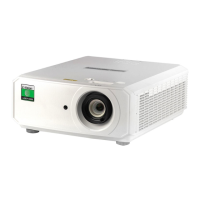
Digital Projection E-Vision Laser 5000 XGA
91 pages
Print Icon
To Next Page IconTo Next Page
Loading...
Rev A December 2017
E-Vision Laser 5000 Series
High Brightness Digital Video Projector
4USER MANUAL
119-127A

Table of Contents

Questions and Answers

  • J
    John NewtonAug 16, 2025
    What to do if Digital Projection E-Vision Laser 5000 XGA remote control not working?
    • B
      Brian ArroyoAug 16, 2025
      If your Digital Projection projector isn't responding to the remote control, ensure the remote is aimed at the IR sensor on the projector and that nothing is blocking the path between them. Also, try turning off any fluorescent lights or other Infrared-enabled devices nearby. Check that the batteries are correctly inserted and try replacing them. If problems persist, the remote control may need to be serviced.
  • H
    Heather MaxwellAug 19, 2025
    Why is there no light output from my Digital Projection E-Vision Laser 5000 XGA?
    • W
      webernicoleSep 12, 2025
      If you're not getting any light output from your Digital Projection projector, start by checking that the power cable is securely connected and that the power source is working correctly by testing it with another electrical device. Then, restart the projector and confirm that the Power LED is on.
  • J
    Jennifer GainesAug 21, 2025
    How to fix no sound on Digital Projection Projector?
    • M
      Monica AllisonAug 22, 2025
      If there is no sound from your Digital Projection projector, first, adjust the volume on the remote control and ensure that the audio source isn't muted. Check the audio cable connections and test the audio output with other speakers. If the problem persists, the projector may require servicing.
  • K
    Katie BatesAug 25, 2025
    How to fix blurred image on Digital Projection Projector?
    • D
      Deborah HuntAug 26, 2025
      If the image from your Digital Projection projector is blurred, try adjusting the focus. You can also press the Auto button on the remote control or projector. Ensure that the projector-to-screen distance is within the specified lens range and check that the projector lens is clean.
  • P
    Pamela AllisonAug 27, 2025
    What to do if Digital Projection Projector image is streaked?
    • K
      kevin59Aug 27, 2025
      If the image from your Digital Projection projector is streaked, set the Frequency and Tracking settings on the Image->Computer menu of the OSD to the default settings. To ensure the problem is not caused by a connected PC’s video card or poor quality signal cable, connect to another computer.
  • S
    Samantha OlsonAug 30, 2025
    How to correct trapezoid effect on Digital Projection Projector?
    • M
      Manuel BerryAug 30, 2025
      If the image from your Digital Projection projector is wider at the top or bottom (trapezoid effect), position the projector so it is as perpendicular to the screen as possible and use the Keystone button on the remote control or projector to correct the problem.
  • R
    Ruben SmithSep 2, 2025
    How to troubleshoot no image on Digital Projection E-Vision Laser 5000 XGA Projector?
    • R
      Rachel ArmstrongSep 2, 2025
      If your Digital Projection projector displays no image, verify the settings on your Laptop or desktop PC. If that doesn't work, turn off all equipment and power it up again in the correct order.
  • K
    Kevin RogersSep 4, 2025
    What causes distorted sound on Digital Projection E-Vision Laser 5000 XGA?
    • M
      Matthew MillerSep 4, 2025
      If the sound from your Digital Projection projector is distorted, check the audio cable connection. Test the source's audio output with other speakers. If the problem persists, the projector may need to be serviced.
  • K
    Karen NunezSep 7, 2025
    How to adjust color on Digital Projection E-Vision Laser 5000 XGA Projector?
    • E
      Edward FloresSep 7, 2025
      If the color of the projected image from your Digital Projection projector does not match the source image, adjust the Color Temperature and Gamma settings on the Image->Advanced menu of the OSD.
  • R
    Robert WatkinsSep 10, 2025
    How to fix reversed image on Digital Projection Projector?
    • R
      Rodney OrtizSep 12, 2025
      If the image from your Digital Projection projector is reversed, check the Projection setting in the Settings 1 menu of the OSD.

Summary

Safety and Laser Precautions

Important Safety Information

Crucial safety guidelines and warnings for projector use.

Symbols Used

Explains warning symbols and styles used in the manual.

General Safety Information

Provides essential safety guidelines for projector operation.

Notice

States the intended user and advises recording model/serial numbers.

CLASS 3 R LASER PRODUCT

Details the laser classification and necessary precautions.

Laser Parameters

Lists technical specifications related to the laser.

Location of Laser Aperture

Shows the projector's laser aperture location and warns against direct viewing.

Safety Interlock Switch

Explains the safety interlock switch for preventing laser leakage.

Power Safety

Guidelines for safe power usage and handling.

Sun Light Warning

Warns against using the projector in direct sunlight.

Installation and Basic Setup

Projector Installation Notice

Guidelines for proper projector placement and ventilation.

Verify the Installation Location

Instructions for ensuring a suitable and safe installation environment.

Cooling Notes

Provides guidelines for proper airflow and cooling for the projector.

Packing Checklist

Lists the items included in the projector package.

Views of Projector Parts

Identifies and describes the physical parts of the projector.

Front-right View

Identifies and describes the parts visible from the front-right of the projector.

Top View - Controls and Indicators

Details the projector's top view, including OSD buttons and indicator LEDs.

Rear View

Identifies and describes the connectors and ports on the rear of the projector.

Bottom View

Identifies and describes the mounting points and feet on the bottom of the projector.

Reference Drawings for Stand

Provides dimensional requirements for designing a projector stand, especially for portrait mode.

Adjusting the Projector Level

Instructions on how to adjust the projector's tilt using the adjuster feet.

Adjusting Projected Image Position Using Lens Shift

Explains how to use lens shift to adjust image position horizontally and vertically.

Lens Offset

Details the projector's fixed offset lens and available manual shift adjustments.

Operation and Controls

Main Features

Lists the key features and capabilities of the projector.

Remote Control

Describes the projector's remote control unit and its buttons.

Starting and Shutting Down the Projector

Provides instructions for powering the projector on and off.

Setting an Access Password (Security Lock)

Guides users on setting a password to prevent unauthorized projector use.

Adjusting Zoom, Focus, and Keystone

Provides instructions for adjusting image zoom, focus, and correcting keystone distortion.

Adjusting the Volume

Guides users on controlling the audio volume and mute function.

3 D Setting

Configuration options for 3D display modes and formats.

OSD Menu Navigation and Settings

OSD Menu Controls

Explains how to navigate and use the projector's OSD menus.

Navigating the OSD

Describes how to use remote/projector buttons to navigate OSD menus.

Setting the OSD Language

Instructions for changing the language displayed in the OSD menu.

OSD Menu Overview

Provides a quick reference to OSD settings and their ranges.

Settings 1 Menu

Details the options available within the Settings 1 menu.

Image Menu

Explains how to access and adjust image-related settings like Display Mode and Brightness.

Computer Menu

Covers settings specific to PC input sources, like position and frequency.

Advanced Feature

Details advanced image settings such as Sharpness, Gamma, and Color Temperature.

White Balance

Explains how to adjust Red, Green, and Blue gain and offset for white balance.

Color Manager

Guides users through adjusting Hue, Saturation, and Gain for individual colors.

Audio

Details the audio settings available in the OSD menu.

Alignment

Covers image alignment settings such as aspect ratio, digital zoom, and keystone.

Keystone

Instructions for correcting vertical and horizontal keystone distortion.

4 Corner

Allows adjustment of the four corners of the projected image.

Advanced 1 Feature

Details settings in the Advanced 1 menu, including Language and Security Lock.

Advanced 2 Feature

Covers settings in the Advanced 2 menu, such as Test Pattern and Image Shift.

Settings 2 Menu

Details the options available within the Settings 2 menu.

Status

Displays information about the projector's current status, like active source and light hours.

Connectivity and Control

Advanced 1 Feature (from Settings 2)

Details settings in Advanced 1 menu, including Low Power Mode and Network.

Network

Configuration for network connectivity and remote control.

HDBaseT Control Function Table

A table detailing HDBaseT control functions and their projector modes.

Source Filter

Allows enabling or disabling specific input sources for the projector.

LAN_RJ45

Information regarding wired LAN connectivity via the RJ45 port.

Wired LAN Terminal Functionalities

Explains remote control and monitoring via wired LAN.

Supported External Devices

Lists external devices and controllers compatible with the projector's LAN port.

Projector Info

Displays detailed information about the projector's system status and configuration.

Crestron (Projector Control)

Describes how to control the projector using Crestron system interfaces.

Crestron (Setup Options)

Outlines the setup options for Crestron control integration.

Preparing Email Alerts

Guides on setting up email alerts for projector status notifications.

RS232 by Telnet Function

Explains how to use RS232 commands via Telnet for projector control.

Quick Start-Guide for “RS232 by TELNET”

Provides a concise guide to setting up RS232 control via Telnet.

Specifications and Compliance

Specifications

Lists detailed technical specifications for the projector models.

Projection Distance vs. Projection Size

Provides tables for projector distance and corresponding image sizes.

Timing Mode Table

Lists supported PC signal frequencies and resolutions.

Supported Frequencies for 3 D Mode

Lists compatible signal frequencies specifically for 3D display modes.

Projector Dimensions

Shows the physical dimensions of the projector with diagrams.

REGULATORY COMPLIANCE

Information regarding FCC, Canada, and safety certifications.

Troubleshooting and Support

Common Problems and Solutions

Offers general troubleshooting tips and common solutions for projector issues.

Tips for Troubleshooting

Provides methods for efficiently diagnosing and resolving projector problems.

LED Error Messages

Lists LED error codes and their corresponding meanings for diagnostics.

Image Problems

Addresses common issues related to image display, such as no image or blurred image.

The Image is Reversed

Explains how to correct a reversed image display.

The Image is Streaked

Provides steps to troubleshoot streaked images.

The Image is Flat with No Contrast

Offers solutions for improving image contrast.

The Color of the Projected Image Does Not Match the Source Image

Guides on adjusting color temperature and gamma for accurate color reproduction.

Light Source Problems

Troubleshooting steps for when the projector shows no light output.

Remote Control Problems

Solutions for when the remote control fails to operate the projector.

Audio Problems

Troubleshooting steps for when no audio is produced by the projector.

Having the Projector Serviced

Instructions on what to do if projector issues cannot be resolved.

Digital Projection E-Vision Laser 5000 XGA Specifications

General IconGeneral
Brightness5000 ANSI Lumens
Resolution1024 x 768 (XGA)
Light SourceLaser
TechnologyDLP
Light Source Life20, 000 hours
Projection Size30 - 300 inches
ConnectivityHDMI, VGA
Lamp Life20000 hours
Input ConnectorsHDMI, VGA

Related product manuals