'8
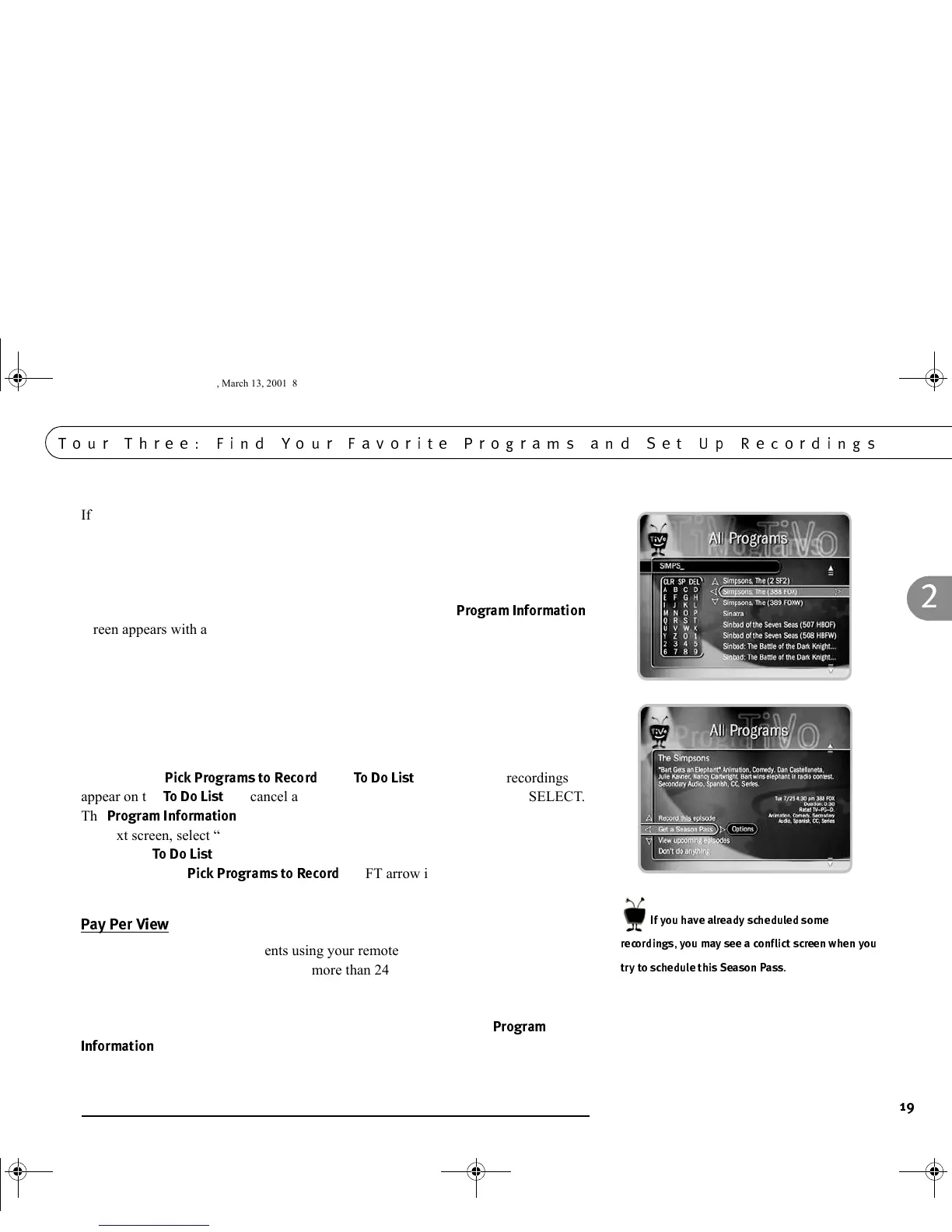
If you make a mistake entering text, select DEL (onscreen) or press BACK on the
remote. To clear all text, use CLR on the screen or press the CLEAR button. Enter
letters until you see “Simpsons, The” in the list. Notice, the list alphabetizes without
“A” or “The.” Press the RIGHT arrow until you move off the onscreen keypad and
onto the list of programs. Press the UP or DOWN arrow to highlight “Simpsons, The”
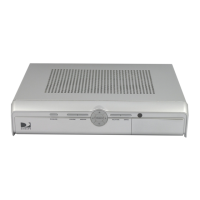
(if there is more than one, choose one), then press SELECT. The
$&&
screen appears with a program description and options to set up a recording.
Highlight “Get a Season Pass,” and press SELECT. A screen appears to confirm your
choice. Confirmation screens like this one help you make sure the Receiver is doing
what you want. Press SELECT again, and you have a Season Pass to The Simpsons. (If
you have already scheduled recordings, you may see a conflict screen. In that case,
select “Don’t get this Season Pass.”)
To delete the Season Pass (of course, you can keep it if you like), press the TiVo
button. Select
"$&*
, then
%
. All scheduled recordings
appear on the
%
. To cancel a recording, highlight the title and press SELECT.
The
$&&
screen appears. Select “Cancel/edit this Season Pass.” On
the next screen, select “Cancel this Season Pass.” Press SELECT on the confirmation
screen. The
%
appears again; notice that The Simpsons is gone. Press LEFT
arrow to return to
"$&*
. LEFT arrow is often a quick way to
return to a previous screen.
$#$%
You can order Pay Per View events using your remote control. Some events have
dedicated channels that allow ordering more than 24 hours in advance, but for most
events, pricing information becomes available within 24 hours before the event begins.
Once that information is available, you can select and record the event as you would
any other program. When you select an event, a special Pay Per View
$&
&
screen will appear with options to purchase it. For a complete description,
see page 77.
3
)
'('$%)$
GC Viewer's Guide.book Page 19 Tuesday, March 13, 2001 8:59 AM



 To Next Page