,23
41
0
%
To see the
screen, first press the MENU button to see the
,
then select
. The
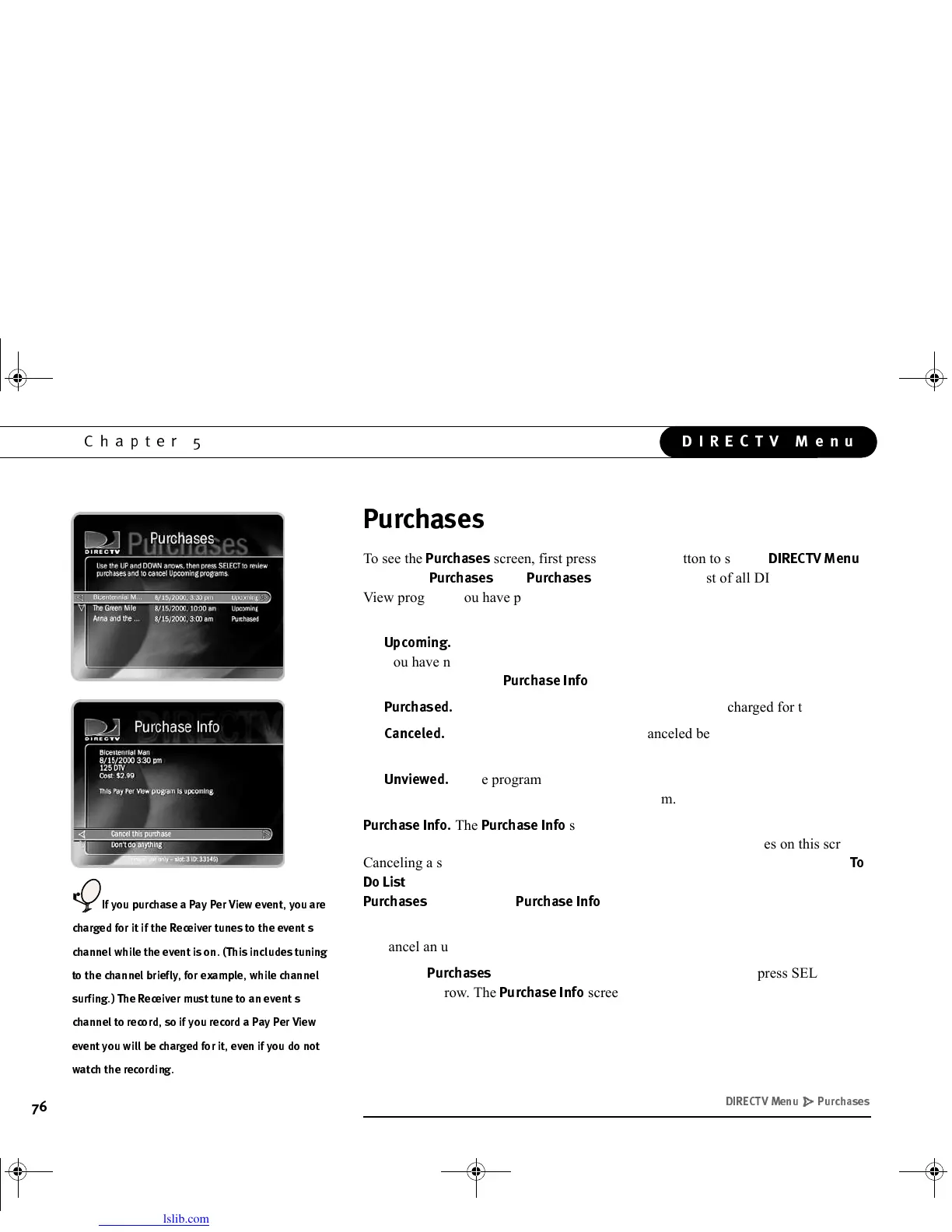
screen displays a list of all DIRECTV Pay Per
View programs you have purchased, along with their date and time. Each program in
the list is also marked either “Upcoming,” “Purchased,” “Canceled,” or “Unviewed.”
•
;&$
These programs are scheduled to be purchased but have not aired yet.
You have not yet been charged for them. You can cancel upcoming purchases by
selecting them. The
screen, described below, will appear.
•
*
These programs have been viewed. You were charged for them.
•
!*
Purchase of these programs was canceled before the programs aired.
You were not charged for them.
•
;*
These programs were scheduled to be purchased but were not viewed
and not recorded. You were not charged for them.
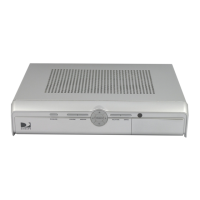
The
screen shows a selected Pay Per View event’s date,
time, channel and purchase price. You can cancel upcoming purchases on this screen.
Canceling a scheduled Pay Per View recording in another place—for example, the
%
—does not cancel the purchase. You must cancel the purchase from the
screen. To see
, highlight a program title and press SELECT
or RIGHT arrow.
To cancel an upcoming purchase:
•On the
screen, highlight an upcoming purchase and press SELECT or
RIGHT arrow. The
screen appears.
.3
(33
30
1(33
.
33
"(+ #
GC Viewer's Guide.book Page 76 Tuesday, March 13, 2001 8:59 AM



 To Next Page