1.
.
$
The
%
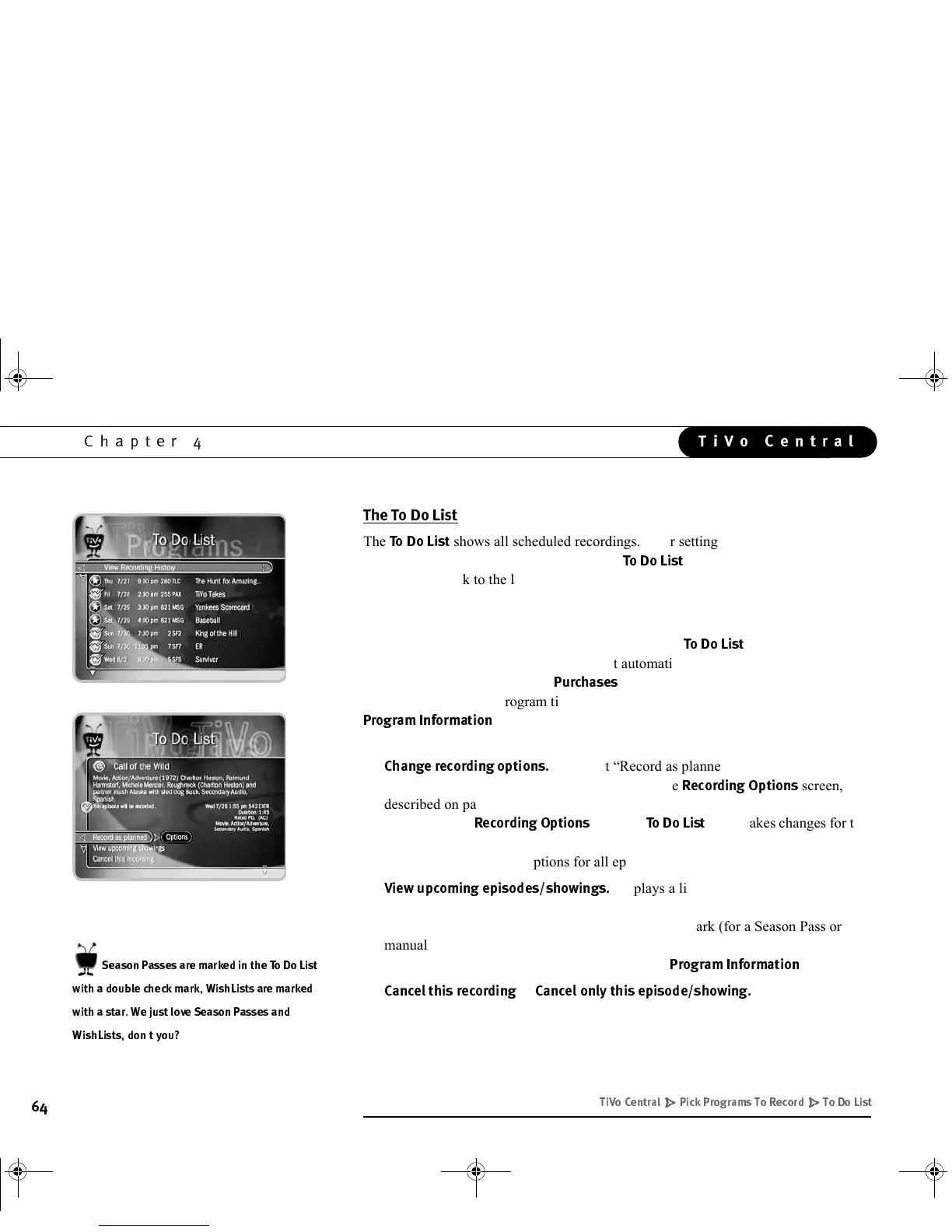
shows all scheduled recordings. After setting up a recording, you can
confirm that it is scheduled by checking the
%
. Individual recordings have a
single check mark to the left of the program title. Season Passes and manual Season
Passes have a double check mark, and WishLists have a star. Season Passes with no
upcoming episodes to record appear at the bottom of the list.
You can cancel or edit a scheduled recording from the
%
. Canceling the
recording of a Pay Per View event does not automatically cancel the purchase. You
must cancel the purchase on the
screen, described on page 76. To cancel a
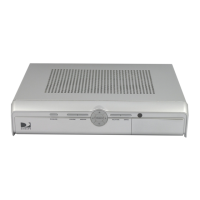
program, highlight the program title and press SELECT or RIGHT arrow to access the
$&&
screen, described on page 57. You can take the following
actions:
•
$*$
Highlight “Record as planned,” then press RIGHT
arrow to highlight “Options.” Press SELECT. The
*$:
screen,
described on page 60, displays. If the program you selected is part of a Season
Pass, changing
*$:
from the
%
only makes changes for the
selected episode and not for the whole Season Pass. Choose “Cancel/edit the
Season Pass” to change options for all episodes.
&$*E$
Displays a list of upcoming episodes/
showings of the selected program. Programs scheduled to record have a check
mark (for an individual recording), a double check mark (for a Season Pass or
manual Season Pass), or a star (for a WishList). Highlighting a program and
pressing RIGHT arrow or SELECT displays the
$&&
screen.
•
!*$
or
!!*E$
Cancels the
recording of the currently selected program.
)',/
''C/'
CE3)
C/
( " - )*
GC Viewer's Guide.book Page 64 Tuesday, March 13, 2001 8:59 AM



 To Next Page