42
Dirtywave M8 Operation Manual
Sample Editor
SAMPLE
RECORD START ARM SONG-ROW
VOLUME C0 10 00
SELECT 00000000 00FF1234
PROCESS TRIM NORMALIZE UNDO
CONVERT MONO 8BIT DOWNSAMPLE
NAME -------------------
SAVE OVERWRITE
T>120
1 ---
2 ---
3 ---
4 ---
5 ---
6 ---
7 ---
8 ---
G
SCPIT
M
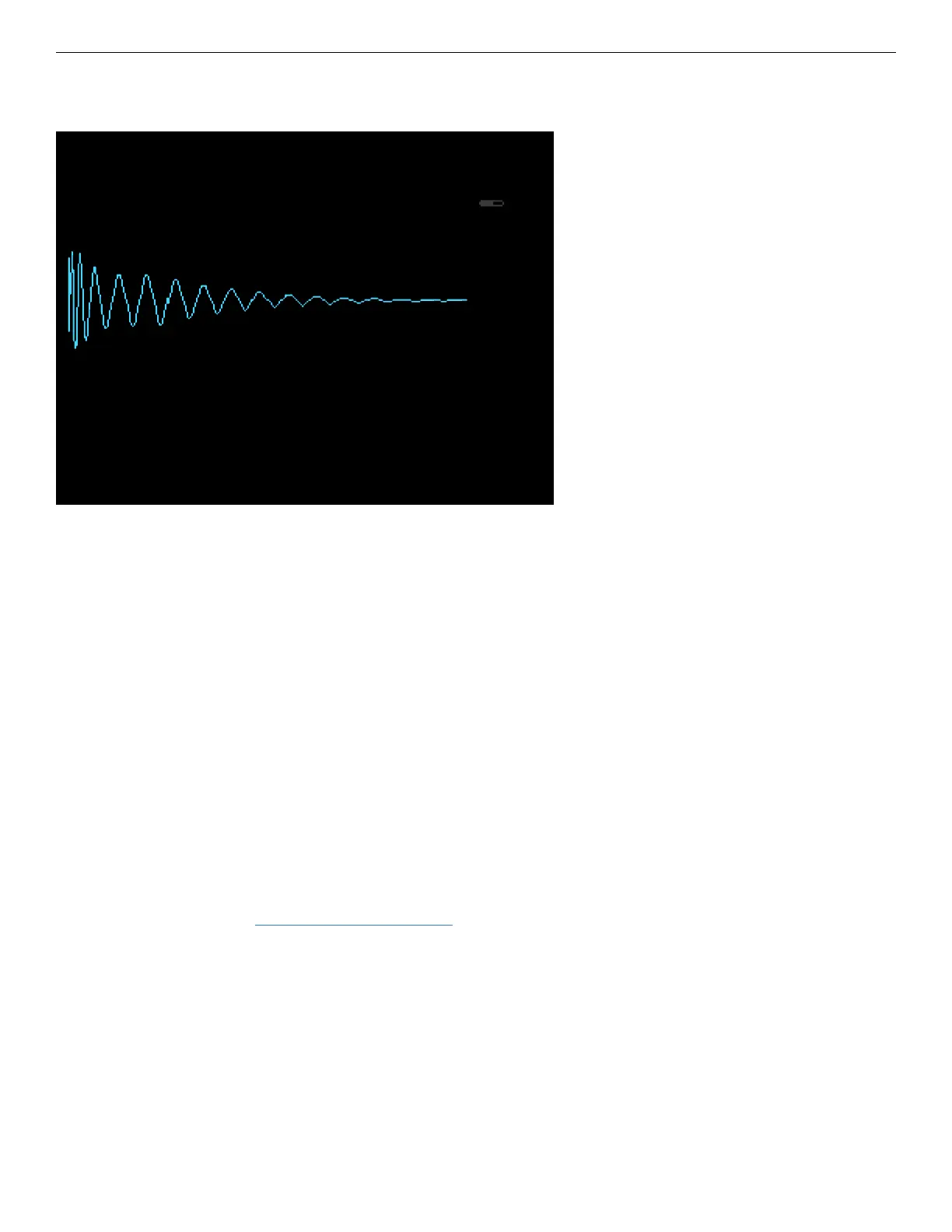
The sample editor can be accessed in the Instrument View by selecting “SAMPLER” as
the instrument type and pressing [EDIT] on “REC.” (or “EDIT” if there is a sample load-
ed). Exit the sample editor view by pressing [OPTION].
Recording Audio
Recording can be performed by pressing [EDIT] on one of the 3 recording modes:
“START”, “ARM”, or “SONG ROW”. Once you have nished recording you can process
the sample and give it a name. Save the sample before exiting this view.
• START - Starts recording audio immediately. Adjust the volume with the value below.
• ARM - Starts recording when the input volume reaches above the given threshold.
• SONG ROW - Will start playing the song (without any samples) at the song row po-
sition indicated below. This is useful for recording external music gear that is being
controlled from a MIDI Out Instrument.
Sample Editor Actions
• SELECT - Selects a start and end range using the two values provided. Using
[EDIT]+[UP or DOWN] in large increments with [EDIT]+[LEFT or RIGHT] displaying
a zoomed in view for small increments.


 To Next Page