63
Controlling Other Components
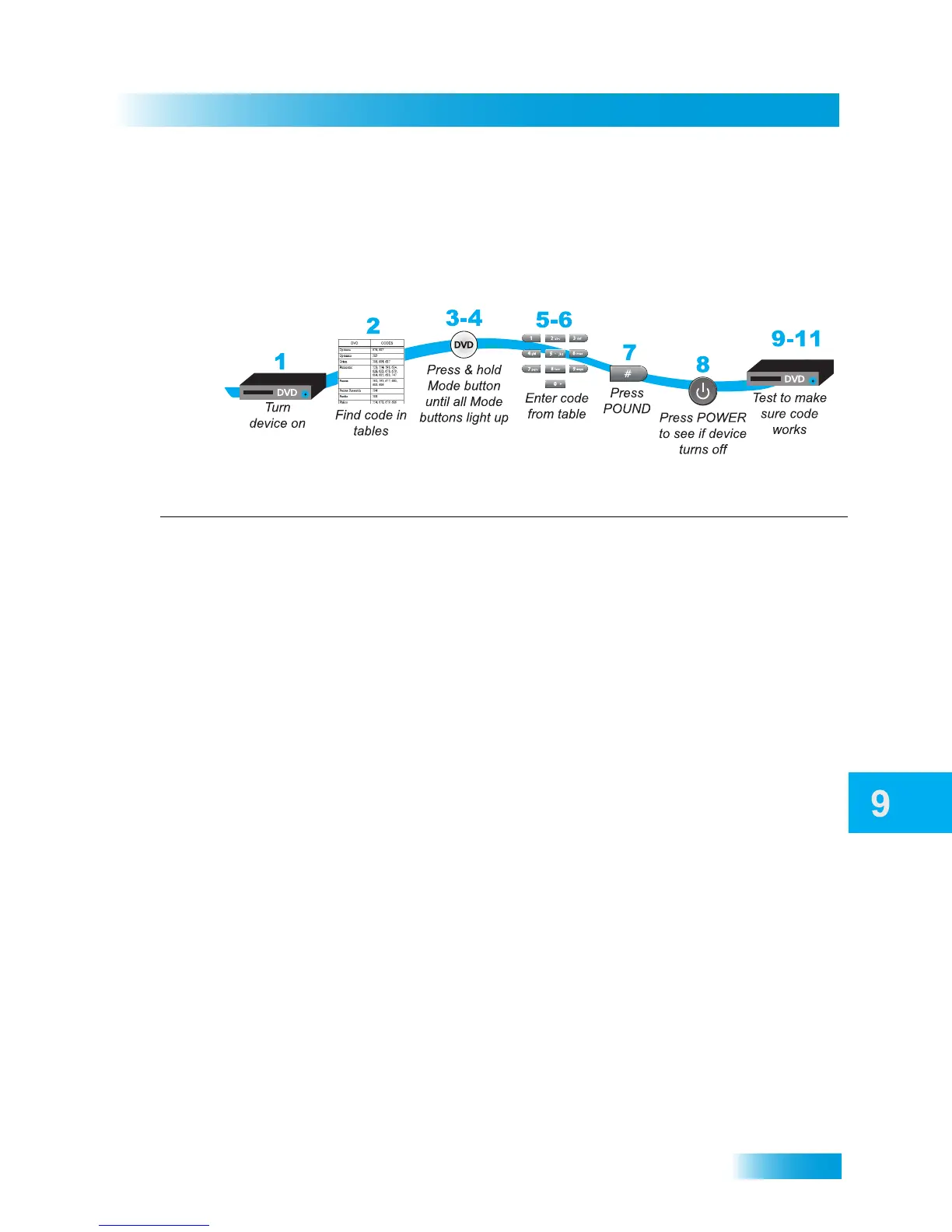
Setting Up Using Device Code Tables
Set up the remote to control other devices using the device codes listed on page 118. In
the instructions below, the column on the left contains the instructions and the column on
the right provides additional information.
Instructions Additional Information
1 Turn the device on.
Use the device’s front-panel buttons or its original
remote control.
2 Find the brand name of the device in the
device code lists included with remotes.
If your device brand isn’t listed, then see Setting Up
Using Device Codes Scan on page 64.
3 Press and hold the mode button until all the
mode buttons light up, and then release the
device mode button. The button flashes.
For example, for a TV, hold the TV mode button until
all of the other device mode buttons light. When you
let go of it, the TV mode button will start flashing.
4 For AUX mode only. Press 0 for a TV, 1 for
a VCR, or 2 for a tuner or amplifier.
If you’re not programming in
AUX mode, then skip to
step 5.
5 Enter one of the three-digit device codes
from the list using the number buttons.
The three-digit device code is for the brand name of
your device that you found listed in step 2.
6 If you want to program Limited Mode, then
press 1. If not, then skip to step 7.
See Limited Mode on page 62 for more information.
7 Press POUND (#).
If you entered the code correctly, then the device
mode button flashes three times.
8 Press POWER to turn off the device. If the
device does not turn off, skip to step 10.
If the selected code works, the device should turn
off.
9 Turn the device back on and try some other
buttons to make sure they work. If the code
works for other remote buttons, stop here.
Sometimes
POWER works when other buttons
don’t. If in Limited Mode, try
VOLUME or MUTE.
10 If the code doesn’t work, then repeat steps
3 through 9 with another device code from
the tables.
Try every code listed for your device brand until one
works for your device.
11 If you can’t find a code that works, then try
the section, Setting Up Using Device Codes
Scan, that follows.







 To Next Page