24
Changing Channels
CHANGING CHANNELS
There are two basic ways to change the channel on your satellite TV receiver:
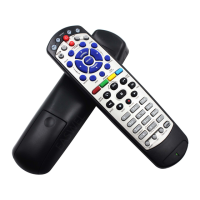
• Use the UP and DOWN ARROWS on your remote control
• Enter a channel number with the remote control NUMBER PAD
Using the Up and Down Arrows
While watching live TV, if you want to change the channels one at a time
to see what’s on, press the UP and DOWN ARROWS on your remote
control. You can also change the channels the same way using the UP
and DOWN ARROWS on the receiver front panel.
Entering a Channel Number
While watching live TV, if you know the specific channel you
want to watch, enter the channel number using the
NUMBER PAD on the remote control.
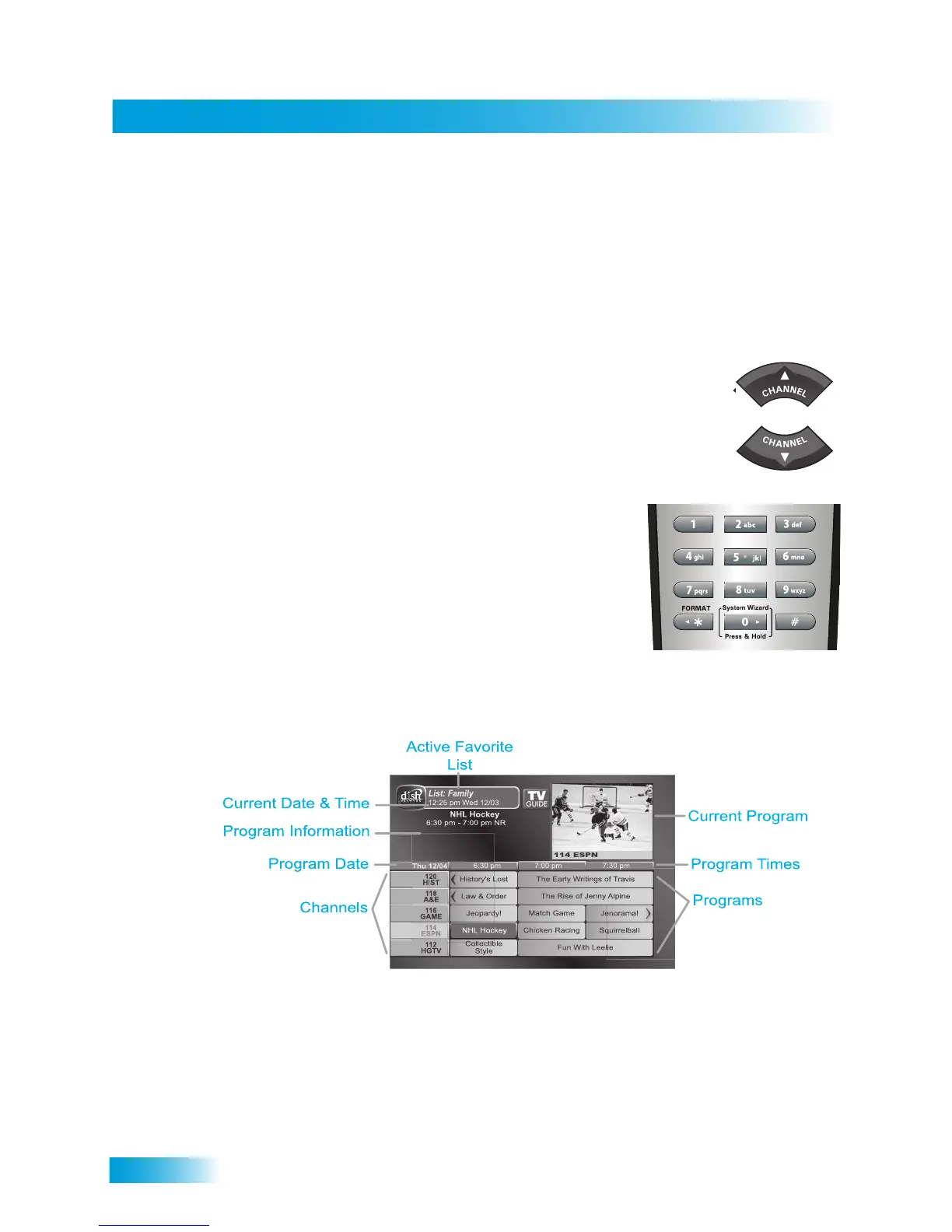
USING THE PROGRAM GUIDE
You can use the Program Guide to see what programs are on, to change channels, and to
set up recordings. To access the guide, press the GUIDE button on the remote control
• A red background behind a channel usually means the channel in not included with
your current DISH package. You can watch it if you upgrade your package. Visit the
www.mydish.com website and select Upgrades, or call 1-800-333-DISH (3474).
• A yellow background behind a channel is for digital over-the-air (OTA) channels. See
page 98 for instructions to connect an over-the-air antenna to your DISH receiver.
• A green background behind a channel means that you can use the SELECT button on
your remote control to go to or add the channel to your existing DISH package.







 To Next Page