It's also important to set up the beat tempo before recording. To do
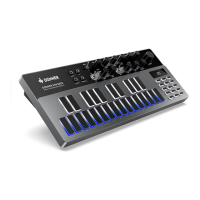
that, press TEMPO/TAP button to enter TEMPO page. The BPM of
current BEAT is shown here, BPM: 120.0 etc. Rotate the VALUE
encoder to set the BPM. Hold SHIFT and turn the VALUE encoder to
change the BPM in the step of 0.1.
You can also set the BPM in tap tempo manner. Just hit the TEMPO/TAP button in the speed you want
to set.
As mentioned in SETTING UP AND GETTING STARTED section, Essential D1 features two mainstream
workflows in drum machine world, finger drumming and step sequencing. This section will get you
throught the whole process of beat programming on Essential D1.
4. BEAT PROGRAMMING
4.1 BEAT EDIT
4.2 TEMPO/TAP
If there is no change for about 3 seconds, it will return to MAIN page automatically.
●
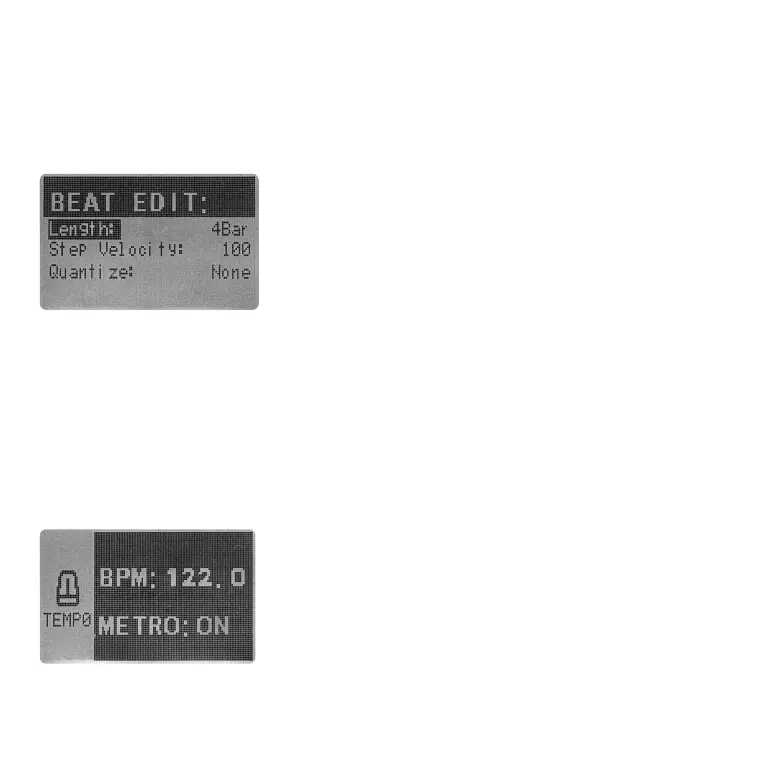
Length: It's recommend to do the basic setup of the BEAT before
any actual programming was made. Press SHIFT + [EDIT] to enter
the BEAT EDIT page. Here you can set the length of current loaded
BEAT via the Length parameter, from 1Bar all the way up to 4Bar
at maximum.
●
Step Velocity: Is used for setting up the default velocity of newly
active step while using the step sequencer. When you activate a
●
Quantize: Is used to set the quantization behavior when press down the QUANTIZE button. By
default, this is set to None in order to prevent pressing QUANTIZE button by accident. Depends on
how you want to quantize the notes, you can set this parameter before you press down QUANTIZE
button to perform the quantization.
To exit BEAT EDIT page, press SHIFT + [EDIT] again.
new step in SEQ mode, this value will be the velocity of the step by default. You can edit the step
velocity later in PARAMETER LOCK page of course, more on that later.
05 06 07
08 09 10 11 12 13 14
15 16 17 18 19 20 21
22
23 24 25 26 27 28
29 30 31 32



 To Next Page