METRO: This parameter is used to show the status of the built-in metronome. You can turn on / off
the metronome via pressing SHIFT + [METRO]. Metronome is useful when recording the BEAT in
realtime which we will talk about it later.
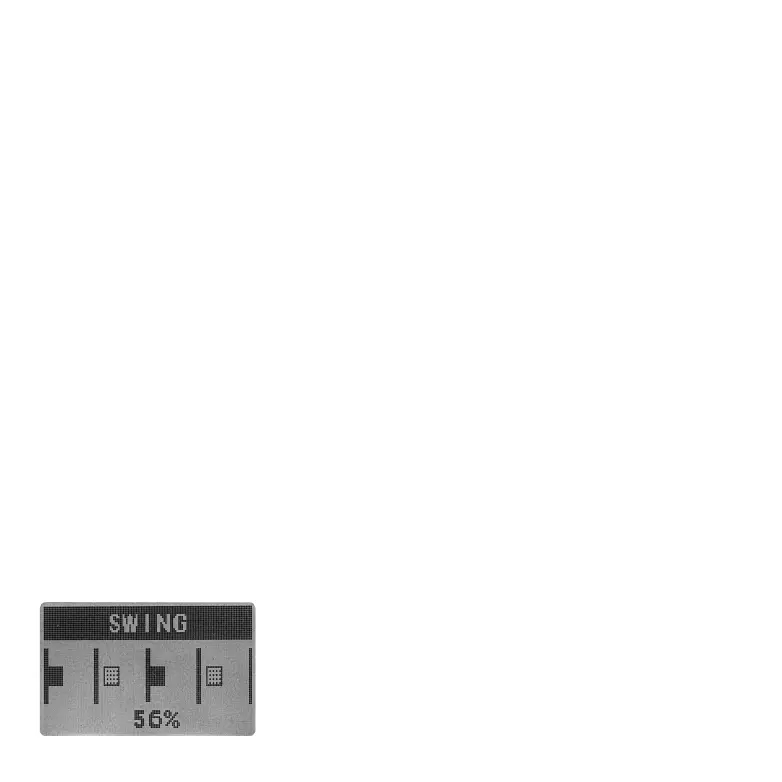
4.5 SWING
Press SHIFT + [SWING] can access SWING page, where you can set
the swing value for the current BEAT. Simply rotate the VALUE
encoder to edit. The swing value is saved within the BEAT.
To exit SWING page, press SHIFT + [SWING] again.
4.3 FINGER DRUMMING
After setting up the beat length and tempo, it's about time to record our beat. Let's do it in finger
drumming manner first. To record in realtime, press REC button to activate the beat record mode as
the button will light up in red.
Then press PLAY button to start recording. There will be one bar count in with metronome (even
though the METRO in TEMPO page is set to OFF) for you to get ready.
It's also possible to activate beat record mode while the BEAT is playing. In this situation, there will
be no count in and will record your idea immediately.
4.4 QUANTIZE
Human are not perfect. It's most likely that you will need to quantize your record after the realtime
recording. In BEAT EDIT page (SHIFT + [EDIT]), you can set how tight you want the quantization take
place. By default, it's set to None so you won't mess up the BEAT content by accident.
After setting up the Quantize in BEAT EDIT page, you can press QUANTIZE button to quantize all 12
channels for once. By holding QUANZITE button and press one of the pads from BD to SMP4, you can
quantize specific channel without messing up others.
It's also possible to quantize different channels with different quantize settings. Such as quantizing
the BD in quarter note (1/4) while the CH in 16th note triplets (1/16T).
It's recommend to set the Quantize in BEAT EDIT page back to None when you don't need to quantize
the BEAT in case you hit the QUANTIZE button accidentally.
05 06 07
08 09 10 11 12 13 14
15 16 17 18 19 20 21
22 23
24 25 26 27 28
29 30 31 32



 To Next Page