102 Experiencing Multimedia
Use shortcuts in Camera mode
While in Camera mode, you can use the following buttons and icons on your device as a
shortcut when performing operations.
The ENTER button
Press ENTER to take a picture when you are capturing still image. Press ENTER to start
recording video; press it again to stop recording.
The NAVIGATION control
• Press NAVIGATION up or down to increase or decrease the zoom level.
• Press NAVIGATION left or right to go to the previous or next sequential capture mode.
The CAMERA button
Press the CAMERA button on the device to switch to Camera mode. If already in Camera
mode, press once to take a still image or to start recording a video clip.
Camera mode icons
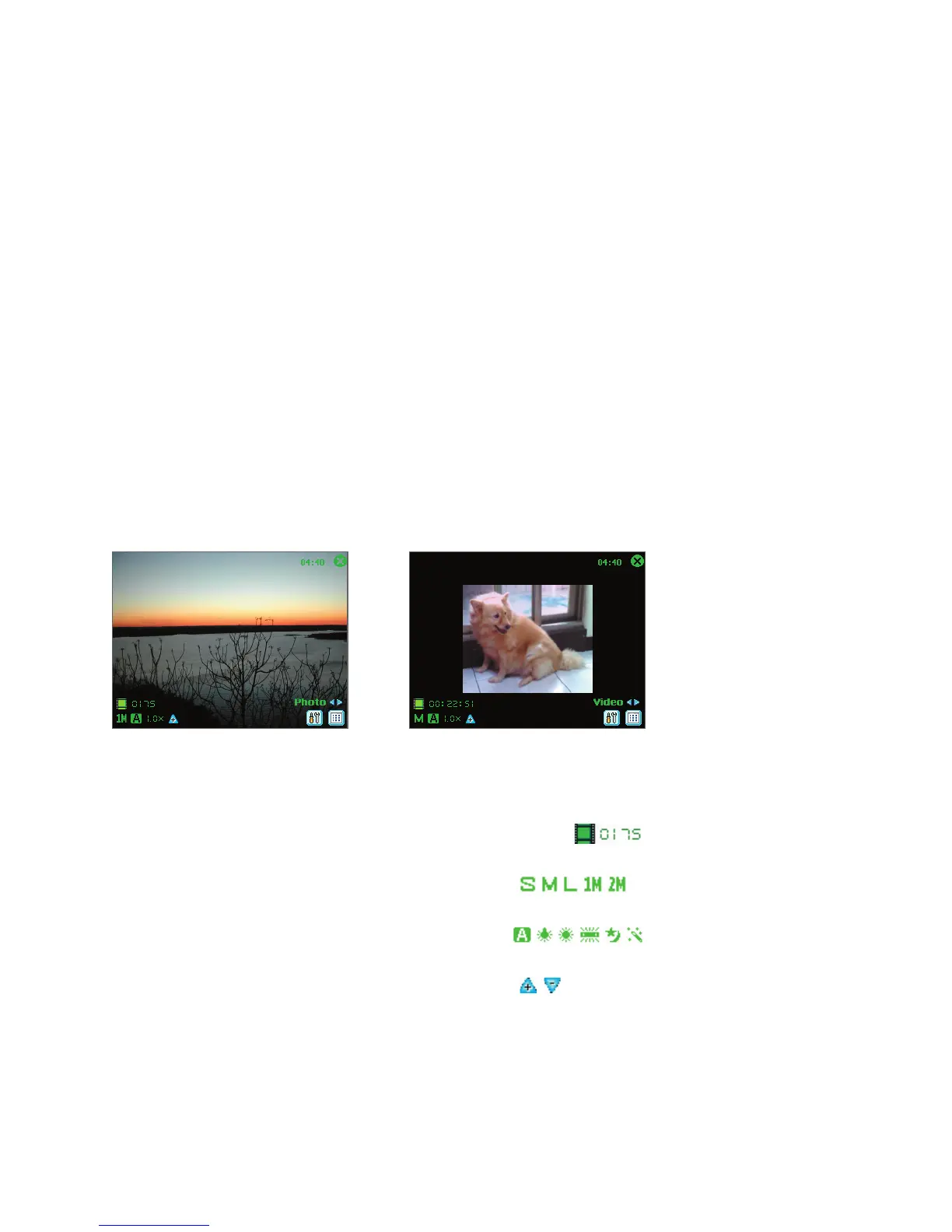
Photo mode Video mode
• Current time indicator. The time indicator which is displayed on the upper right corner
of the screen tells you the current time.
• Remaining information indicator. The film icon ( ) displays the remaining,
available shots of pictures based on current settings.
• Resolution indicator. The resolution icon (
/ / / /
) indicates the current
resolution.
• Ambience indicator. The ambience icon ( / / / / / ) indicates the current
ambience.
• Zoom button. Tapping the up/down arrow (
/
) on the screen allows you to zoom
in and zoom out.



 To Next Page