Entering and Searching Information 23
To enter punctuation and symbols
Transcriber comes with an on-screen keyboard that provides an easy way to add punctuation
or a special symbol to existing text.
• From a program, tap on the Transcriber toolbar.
The keyboard remains visible until you tap the button again.
Tips • To reposition the keyboard, tap and hold the title bar, then drag to the desired location.
• When no text is selected, you can also open the keyboard by doing the
gesture.
To edit text
1. In a program, draw a line across the text you want to edit.
2. After you lift the stylus from the screen, the line will disappear and the selected text will
be highlighted.
3. Do either of the following:
• Rewrite the text.
• Use gestures to capitalize letters, insert a space, and so on. For information about
using gestures, see “Transcriber Gestures” in this chapter.
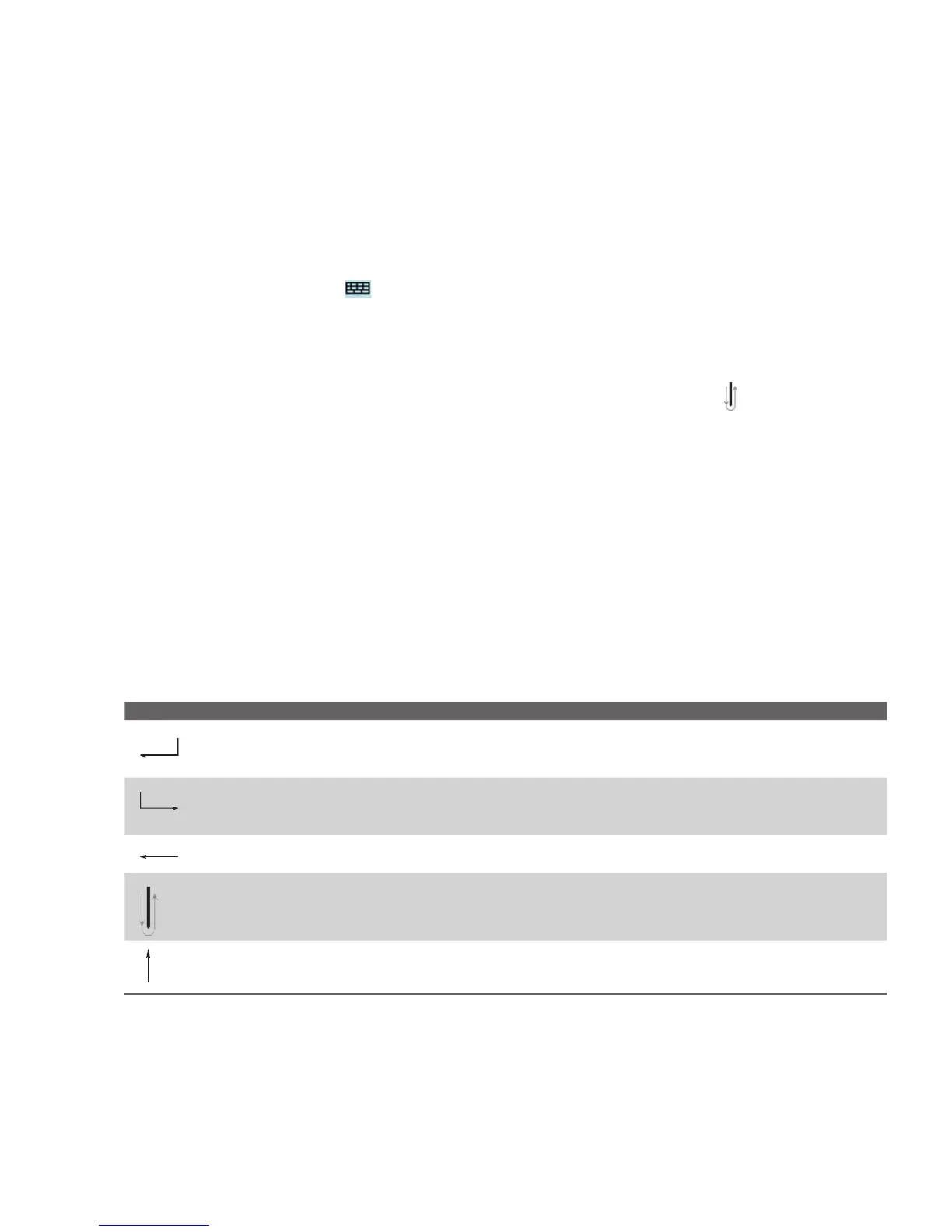
Transcriber Gestures
Use quick strokes of the stylus to edit your text or to insert returns, spaces, or tabs.
Do To
Insert a paragraph return at the cursor.
The horizontal portion of the gesture must be at least two times longer than the vertical
portion.
Insert a space at the cursor.
The horizontal portion of the gesture must be at least two times longer than the vertical
portion.
Move the cursor one space back and erase any text.
Do the gesture by drawing a line from right to left.
Open the menu of alternate words if a word is selected or the on-screen Transcriber
keyboard if no text is selected.
Do the gesture by drawing a line straight down and back up.
Change the capitalization of a selected letter, word, or block of text.
Do the gesture by drawing a line straight up.



 To Next Page