Experiencing Multimedia 107
Setting Allows you to
Capture mode Switch between different capture modes such as Photo, Video, Contacts
Picture, and more.
Capture format Select the desired file format.
Capture size Select the desired size.
Capture
frequency
Select a capture frequency (in Sport or Burst mode).
Record limitation Specify the maximum time or file size for recording.
Template Select a template (in Picture Theme mode only).
Browse Navigate to a folder containing templates (in Picture Theme mode only).
Burst count Select a count of automatic capturing (in Sport mode only).
Ambience Select an ambience type such as Fluorescent, Night, etc. to suit your lighting
environment, or
choose a special effect such as Grayscale, Sepia, etc.
After you configure settings, tap OK or Start Camera on the Camera Settings screen to go
back to the Camera screen.
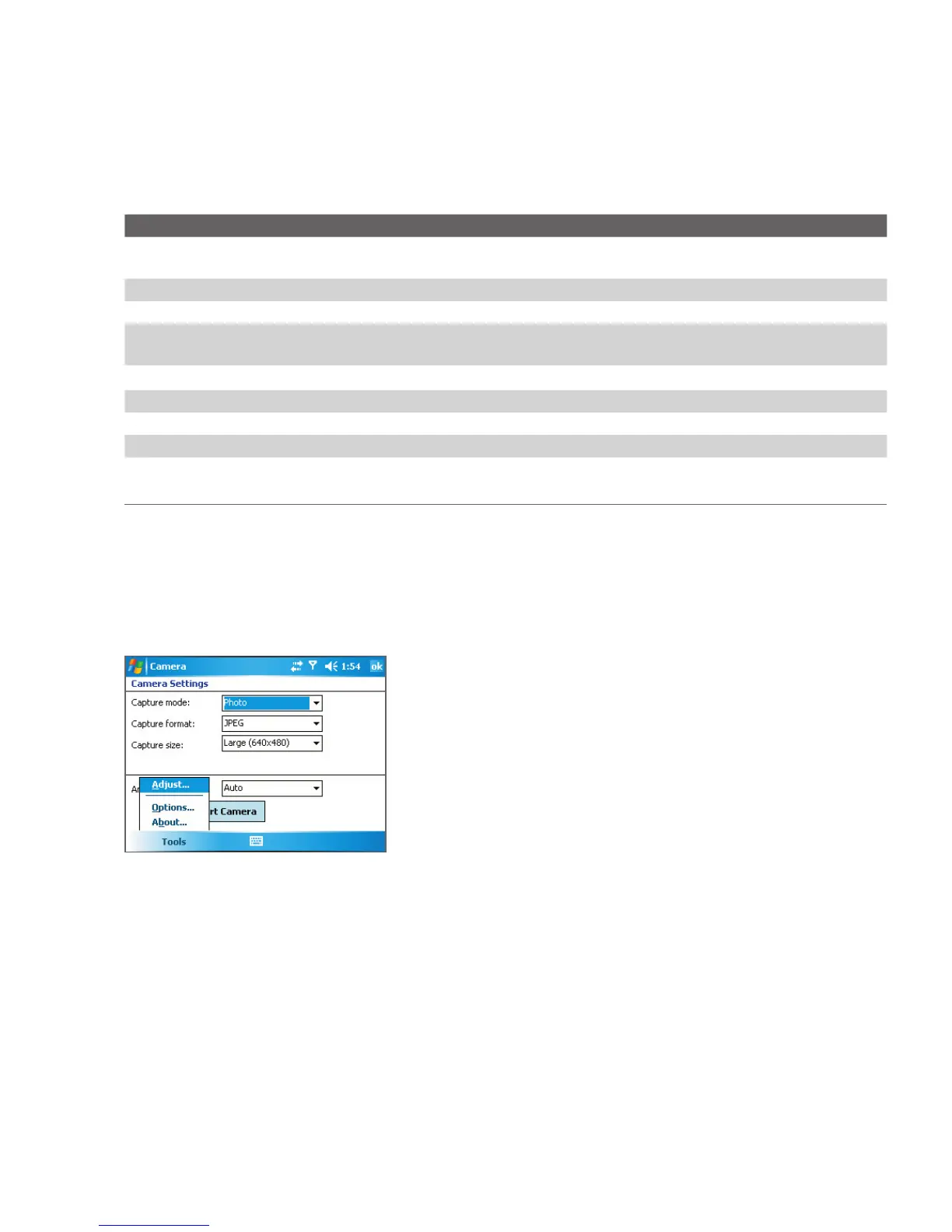
Use the Tools menu
The Tools menu on the Camera Settings screen provides the following advanced options for
customizing the Camera mode functions.
The Adjust item
Tap Tools > Adjust to adjust the camera display properties, such as Contrast, Brightness,
Saturation, Hue, and Sharpness. Select one of these properties from the list and move
the slider (or tap the slider) to change the value. The preview window on the Adjust screen
displays the effect of changes you make on the Adjust screen. Tap
OK to save the settings.
You can tap Reset at any time to reset all properties to their default.



 To Next Page