Entering and Searching Information 29
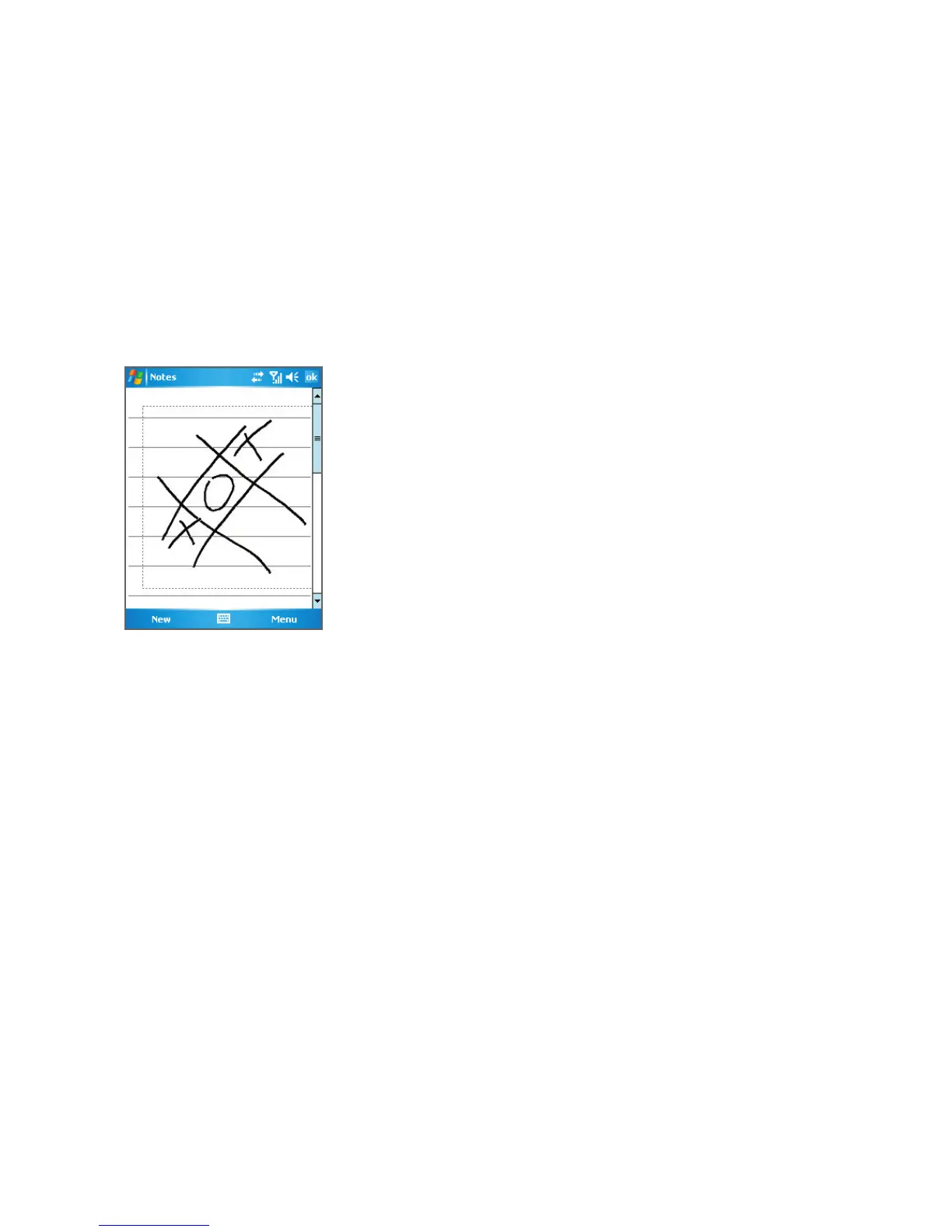
2.7 Drawing and Writing on the Screen
With your device, you can draw directly on the screen, or write on the screen and save notes
in your own handwriting. To do this, you must set the input mode in Notes to Writing
. If you
prefer to use handwriting or frequently add drawings to your notes, you may find it helpful to
set Writing as the default input mode. If you prefer typed text, set Typing
as the default input
mode.
Drawing on the Screen
For more information on what you can do with Notes, see “Notes” in Chapter 7.
To set the input mode for Notes
1. Tap Start > Programs > Notes.
2. In the note list, tap Menu > Options.
3. In the Default mode box, select one of the following:
• Writing if you want to draw or enter handwritten text in a note.
• Typing if you want to create a typed note.
4. Tap OK.
To write a note
1. Tap Start > Programs > Notes.
2. In the note list, tap New.



 To Next Page