110 Experiencing Multimedia
Note You can also copy pictures and video files from your PC to your device using a memory card.
Insert the memory card into the memory card slot on your device, then copy the pictures and
video files from your PC to the folder you created on the memory card.
To view pictures
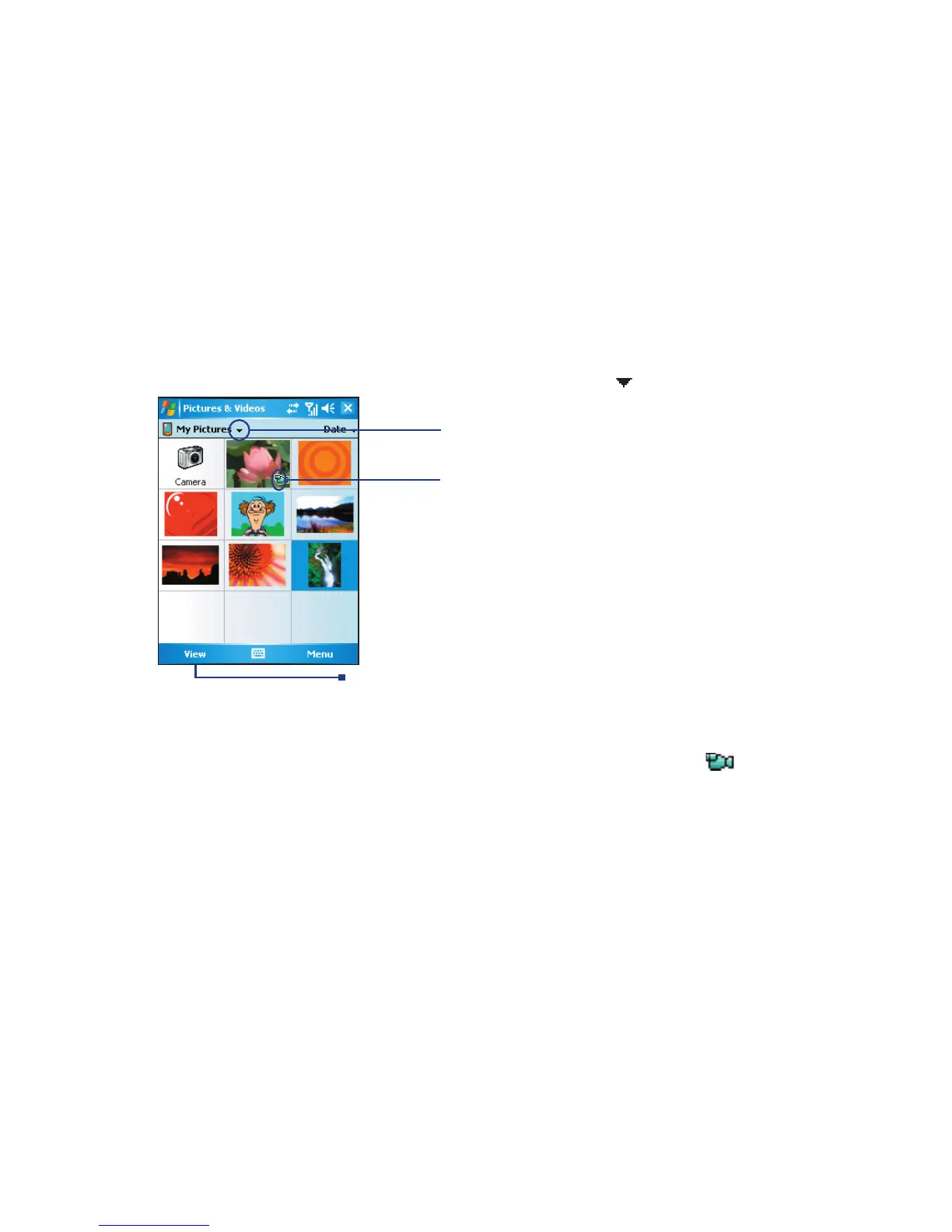
1. Tap Start > Programs > Pictures & Videos. The images in the My Pictures folder
appear as thumbnails by default.
2. Select a picture and tap View. If you cannot find a picture in the default My Pictures
folder, go to another folder by tapping the Down arrow (
).
The down arrow
The media icon
Tap to view the selected image
To play videos with audio
1. Tap Start > Programs > Pictures & Videos. The video files in the My Pictures folder
appear as thumbnails by default, which appear with a media icon ( ).
2. Select a video and tap the thumbnail to play it with the built-in Windows Media Player.
To view slide shows
You can view your pictures as a slide show on your device. Pictures are shown in full-screen
view with 5-second intervals between slides.
1. Tap Start > Programs > Pictures & Videos.
2. Tap Menu > Play Slide Show.
Note You can specify how pictures are scaled to optimize their display in a slide show. Tap Menu >
Options, then tap Portrait Pictures or Landscape Pictures on the Slide Show tab.



 To Next Page