Vigor2750 Series User’s Guide
257
6
6
.
.
6
6
B
B
a
a
c
c
k
k
i
i
n
n
g
g
t
t
o
o
F
F
a
a
c
c
t
t
o
o
r
r
y
y
D
D
e
e
f
f
a
a
u
u
l
l
t
t
S
S
e
e
t
t
t
t
i
i
n
n
g
g
I
I
f
f
N
N
e
e
c
c
e
e
s
s
s
s
a
a
r
r
y
y
Sometimes, a wrong connection can be improved by returning to the default settings. Try to
reset the router by software or hardware.
Warning: After pressing factory default setting, you will loose all settings you did before.
Make sure you have recorded all useful settings before you pressing.
S
S
o
o
f
f
t
t
w
w
a
a
r
r
e
e
R
R
e
e
s
s
e
e
t
t
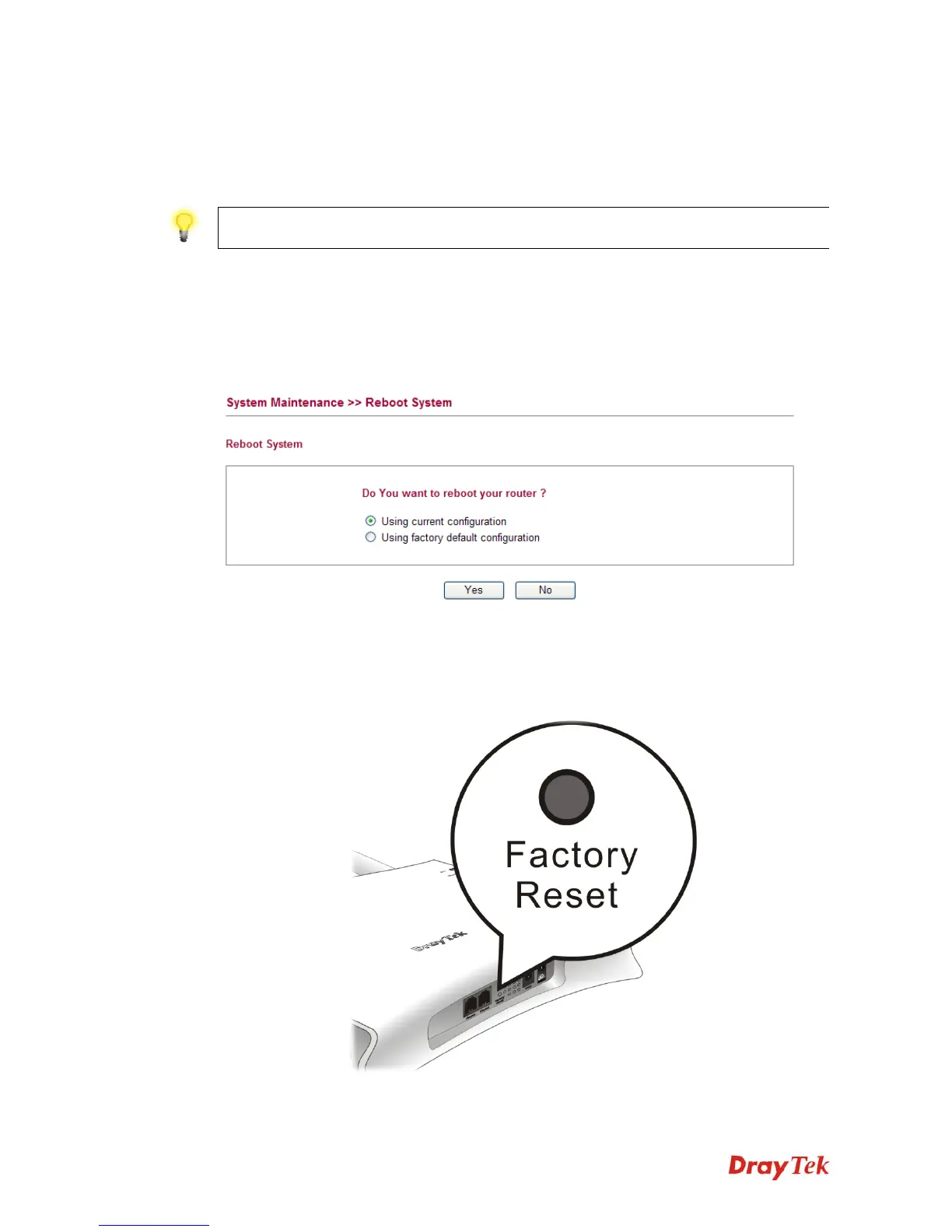
You can reset the router to factory default via Web page.
Go to System Maintenance and choose Reboot System on the web page. The following
screen will appear. Choose Using factory default configuration and click OK. After few
seconds, the router will return all the settings to the factory settings.
H
H
a
a
r
r
d
d
w
w
a
a
r
r
e
e
R
R
e
e
s
s
e
e
t
t
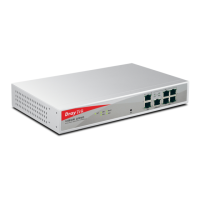
While the router is running (ACT LED blinking), press the Factory Reset button and hold for
more than 5 seconds. When you see the ACT LED blinks rapidly, please release the button.
Then, the router will restart with the default configuration.
After restore the factory default setting, you can configure the settings for the router again to
fit your personal request.







 To Next Page