Installation and Wiring: 2.6 Keypad Assignment
7
2.6 Keypad Assignment
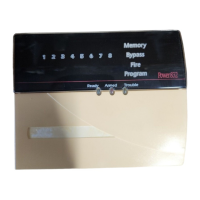
There are 8 available slots for keypads. LED (PC55XX) and
LCD5501Z keypads by default are assigned to slot 1. The
LCD5500Z is assigned by default to slot 8. Keypads can each be
assigned to a different slot (1 to 8) which offers two advantages.
The panel can supervise the keypad connection to indicate a
trouble condition if it is removed. Also keypads can be assigned
to operate a specific partition, or to operate as a global keypad.
How to Assign Keypads
NOTE: All keypad assignment must be done at each keypad on
the system. When using LCD5500(Z) keypads, one keypad must
remain in slot 8. Do not assign more than one keypad to the
same slot.
NOTE: Please see the PC5020 Module Compatibility Chart on the
back cover for compatible versions.
1. Enter Installer Programming
2. Press [000] for Keypad Programming
3. Press [0] for Partition and Slot Assignment
4. Enter a two digit number to specify the partition and slot
assignment.
1st digit enter 0 for Global operation, or
enter 1-8 for Partitions 1-8
2nd digit enter 1 to 8 for Slot Assignment
5. Press the [#] key twice to exit programming.
6. Continue this procedure at each keypad until all have been
assigned to the correct slot and partition.
How to Program Function Keys
Each of the 5 function keys on each keypad may be programmed
for different operation.
1. Enter Installer Programming.
2. Press [000] for Keypad Programming.
3. Enter [1] to [5] to select function key to program.
4. Enter a 2-digit number for function key option - [00] to [21].
5. Continue from step 3 until all function keys are programmed.
6. Press [#] key twice to exit Installer Programming.
For a complete list of Function Key options, see section 4.4 Func-
tion Keys on page 16.
2.7 Confirming Module Supervision
By default, all modules are supervised upon installation. Supervi-
sion is enabled at all times so that the panel can indicate a
trouble if a module is removed from the system.
To check which modules are currently connected and supervised:
1. Press [*] [8] [Installer Code] to enter Installer Programming.
2. Press [903] to display all modules.
3. The LCD keypad will allow you to scroll through the modules.
NOTE: Module supervision will not display correctly at an
LCD5500Z v2.x and lower keypad.
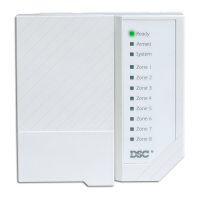
In LED keypads, zone lights will be turned on according to
what modules the panel has found on the system. Refer to
the following chart:
Keypad Light Module/Device Present
[1] Keypad 1
[2] Keypad 2
[3] Keypad 3
[4] Keypad 4
[5] Keypad 5
[6] Keypad 6
[7] Keypad 7
[8] Keypad 8
[9] Zones 9 to 16
[10] Zones 17 to 24
[11] Zones 25 to 32
[12] Zones 33 to 40
[13] Zones 41 to 48
[14] Zones 49 to 56
[15] PC5100
[16] Zones 57 to 64
[17] PC5132
[18] PC5208
[19] PC5204
[20] PC5400
[21] PC5936
[22] LINKS2X50/Skyroute™
[23] DLM-4L v1.0
[24] Escort5580
[25] Future Use
[26] PC520X-1
[27] PC520X-2
[28] PC520X-3
[29] PC520X-4
If a module is connected but does not show as being present, it
may be due to any of the following reasons:
• it is not connected to the Keybus
• there is a Keybus wiring problem
• the module is more than 1,000'/305m from the panel
• the module does not have enough power
• the PC5132 does not have any devices added
2.8 Removing Modules
If a module is no longer required on the system, the panel must
be told to stop supervising the module. To do this:
1. Remove the module from the Keybus.
2. Press [*] [8] [Installer Code] to enter Installer Programming.
3. Press [902] to enable supervision. The panel will automatically
search for all modules on the system, will see that the module
has been removed, and will stop supervising it.
4. Once the search is complete (it will take about 1 minute) enter
section [903] to confirm that the correct modules are super-
vised on the system.
2.9 Zone Wiring
For a complete description of the operation of all zone types, see
section 5.3 Basic Programming on page 20.
There are several different ways in which zones may be wired,
depending on which programming options have been selected.
The panel can be programmed to supervise normally closed, End
of Line, or Double End of Line loops. Refer to the following sec-
tions to study each type of individually supervised zone wiring.
NOTE: Any zone programmed for Fire or 24 Hour Supervisory
must be wired with a single End of Line (EOL) resistor regardless of
the type of zone wiring supervision selected for the panel (section
[013], options [1] and [2]). See Zone Definitions [001] [004]. If you
change the zone supervision options from DEOL to EOL or from
NC to DEOL (section [013], options [1] or [2]), power the system
down completely, and then power it back up for correct operation.
Normally Closed (NC) Loops
To enable normally closed loops, programming section [013],
option [1] must be ON.
NOTE: This option should only be selected if Normally Closed (NC)
devices/contacts are being used.



 To Next Page
 Loading...