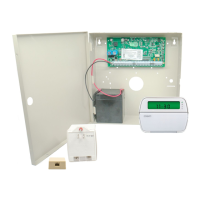
Keypad Commands: 4.3 [*] Commands
15
[*] [3] Alarm Memory
The ‘Memory’ light will be on if any alarm occurred during the
last armed period or if an alarm occurred while the panel was
disarmed (24 hour zones). Instructions on viewing alarms in
memory are located in the PC5020 Instruction Manual (“Disarm-
ing the System”).
[*] [4] Door Chime On/Off
If enabled the keypad will beep 6 times rapidly when a zone is
tripped and restored. The panel will only do this for zones with
the Door Chime attribute enabled and if the door chime feature
is enabled (See Section 5.4 Advanced Programming PWS
Sect 4 {101]-[164]). The door chime feature is explained in
greater detail in the PC5020 Instruction Manual (“Door Chime
Feature”).
[*] [5] Programming Access Codes
All access codes can be programmed in this section. For com-
plete instructions on programming access codes, see the
Power864 Instruction Manual (“Programming Access Codes”).
For information on access code partition and attribute program-
ming, see section 4.1 Access Codes on page 12.
NOTE: Only one partition at a time can use [*][5] programming.
[*] [6] User Functions
NOTE:
Only one partition at a time can use [*][6] programming.
To program user functions, perform the following:
1. Press [*] [6] [Master Code]. The keypad will flash the ‘Pro-
gram’ light.
2. Press the number [1] to [5] for the item to be programmed.
• [1] - Time and Date
See the Power864 Instruction Manual for instructions on set-
ting the time and date (“Setting the Time and Date”).
• [2] - Auto-Arm Enable/Disable
Enter [2] to enable (three keypad beeps) or disable (one long
beep) the auto-arm feature.
• [3] - Auto-Arm Schedule
Enter [3] to change the auto-arm time for each day of the
week.
Scroll to the day of the week you want to change, or enter
the number of the day (1-7 for Sunday to Saturday). On an
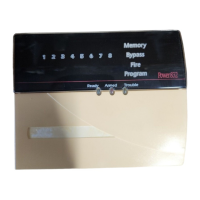
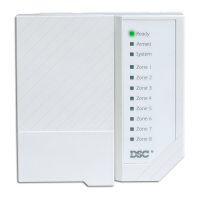
LED keypad, zone lights 1-7 will represent Sunday to Satur-
day.
When you have selected a day, enter the auto-arm time in 24-
hour format (i.e. enter a 4-digit number in [hhmm] format).
The system will return you to the day selection menu. Scroll to
the next day you want to program, or to exit auto-arm pro-
gramming, press [#].
NOTE:
To change the auto-arm schedule at another partition,
users with access to that partition will have to select the partition
on the keypad, before entering the Auto-Arm Schedule menu. See
section 4.5
“Global and Partition Keypad Operation” on page
18 for more information.
NOTE: Only LCD5500 v2.0 or greater keypads support the
[*][6][3] menu option.
• [4] - System Test
When [4] is pressed the panel will perform the following. For
step-by-step instructions on performing a system test, see the
Power864 Instruction Manual (“Full System Test”).
- sound the alarm output for two seconds
- light all lights and display pixels on the keypad
- sound the keypad buzzer for two seconds
- test the main panel/PC5200/PC5204 battery
- send a System Test Reporting code, if programmed.
• [5] - Enable DLS (Downloading)
When [5] is pressed the panel will turn on the downloading
option for 6 hours. During this time the panel will answer
incoming downloading calls (See Section 5.7 Downloading
Options PWS Sect 7)
• [6] – User Initiated Call-Up
When [6] is pressed, the panel will initiate a call to the down-
loading computer.
LCD Keypad User Functions
Additional features are available using on the LCD keypad. These
features do not have numbers assigned. Use the arrow keys (< >)
to scroll through the [
✱] [6] menu and press the [✱] key to select
the following commands.
View Event Buffer: The 256 Event Buffer can be viewed through any
LCD keypad.
3 Telephone Line Monitoring Trouble (TLM): There is a problem with the telephone line. If the system has a LINKS1000, or
an Alternate Communicator, this trouble can be reported to the central station by programming reporting codes in sections
[349] and [350].
4 Failure to Communicate (FTC): The communicator failed to communicate with any of the programmed telephone numbers
(See Section 5.6 Communicator Programming PWS Sect 6)).
5 Zone Fault (including Fire Zone): A zone on the system is experiencing trouble, meaning that a zone could not provide an
alarm to the panel if required to do so (e.g. a fire zone is open, or there is a short on a DEOL zone, or a supervisory fault on a
wireless zone). When a zone fault occurs, the keypad(s) on the system will start to beep. Press [5] while in Trouble mode to
view the affected zones.
NOTE: A Fire zone trouble will be generated and displayed in the armed state.
6 Zone Tamper: A zone configured for Double End Of Line resistor supervision has a tamper condition, or the tamper switch is
open on a wireless device. When a tamper condition occurs, the keypad(s) will start to beep (if the system is armed, an alarm
will occur). Press [6] while in the Trouble mode to view the affected zones. If a zone is tampered or faulted, it must be fully
restored to clear the trouble.
NOTE: Once a zone is tampered or faulted, it must be completely restored before the trouble condition will clear.
7 Device Low Battery: A wireless device has a low battery condition. Press [7] one, two, or three times to view which devices
are experiencing battery failure. An LED keypad will indicate battery failure using zone lights. The following will occur:
Keypad beeps: Keypad displays:
Press [7] 1 Zones with low batteries (LED keypad - zone lights 1 to 32)
Press [7] again 2 Handheld keypads with low batteries (LED keypad - zone lights 1 to 4)
Press [7] again 3 Wireless keys with low batteries (LED keypad - zone lights 1 to 16)
8 Loss of System Time: When the panel is powered up, the internal clock needs to be set to the correct time. This trouble is
cleared when an attempt is made to reset the clock.
Light Trouble



 To Next Page
 Loading...