5
XTL
™
500
User Guide
The labels available for you to choose from are filtered to show only those
label cartridges appropriate for the label application you selected.
3 Do one of the following:
• Enter the part number of the label cartridge you wish to use.
• Scroll through the list of labels and select a specific label.
• Select Enter cartridge properties. You are asked to select the properties
for the label you wish to create.
Removing the Label Backing
DYMO XTL
™
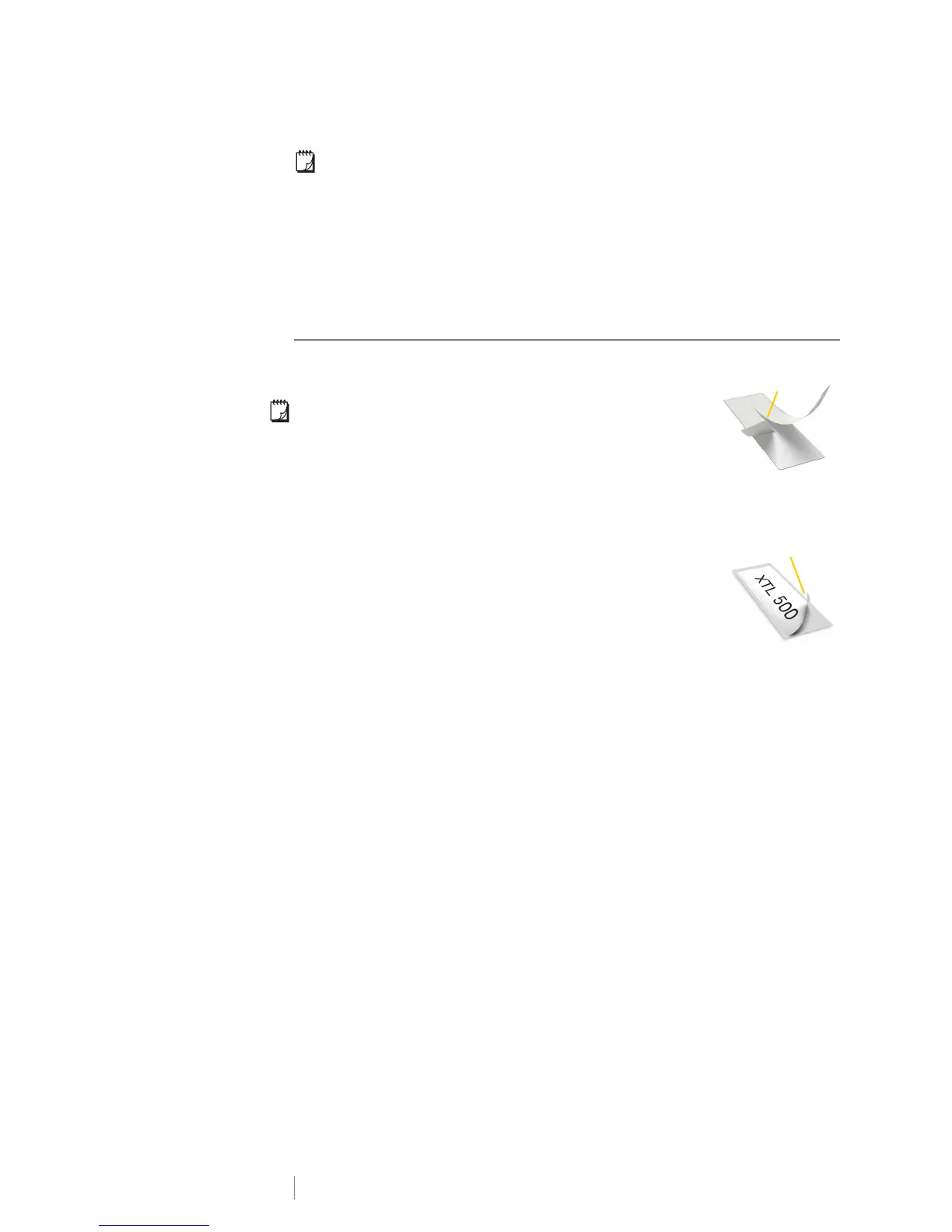
continuous labels have an easy-to-peel split
back for easy removal of the label backing.
Does not apply to heat-shrink tubing or pre-sized labels.
To remove the continuous label backing
1 Locate the split on the label backing.
2 Gently pinch the label lengthwise, folding toward the
printed side of the label. The label backing will separate.
3 Carefully peel away the backing from the label.
To remove pre-sized labels from the backing
Gently lift the corner of the label and peel the label from
the backing.
Remove split
backing
Continuous labels
Figure 8
Pre-sized labels
Peel label
from backing
Figure 9







 To Next Page