11
XTL
™
500
User Guide
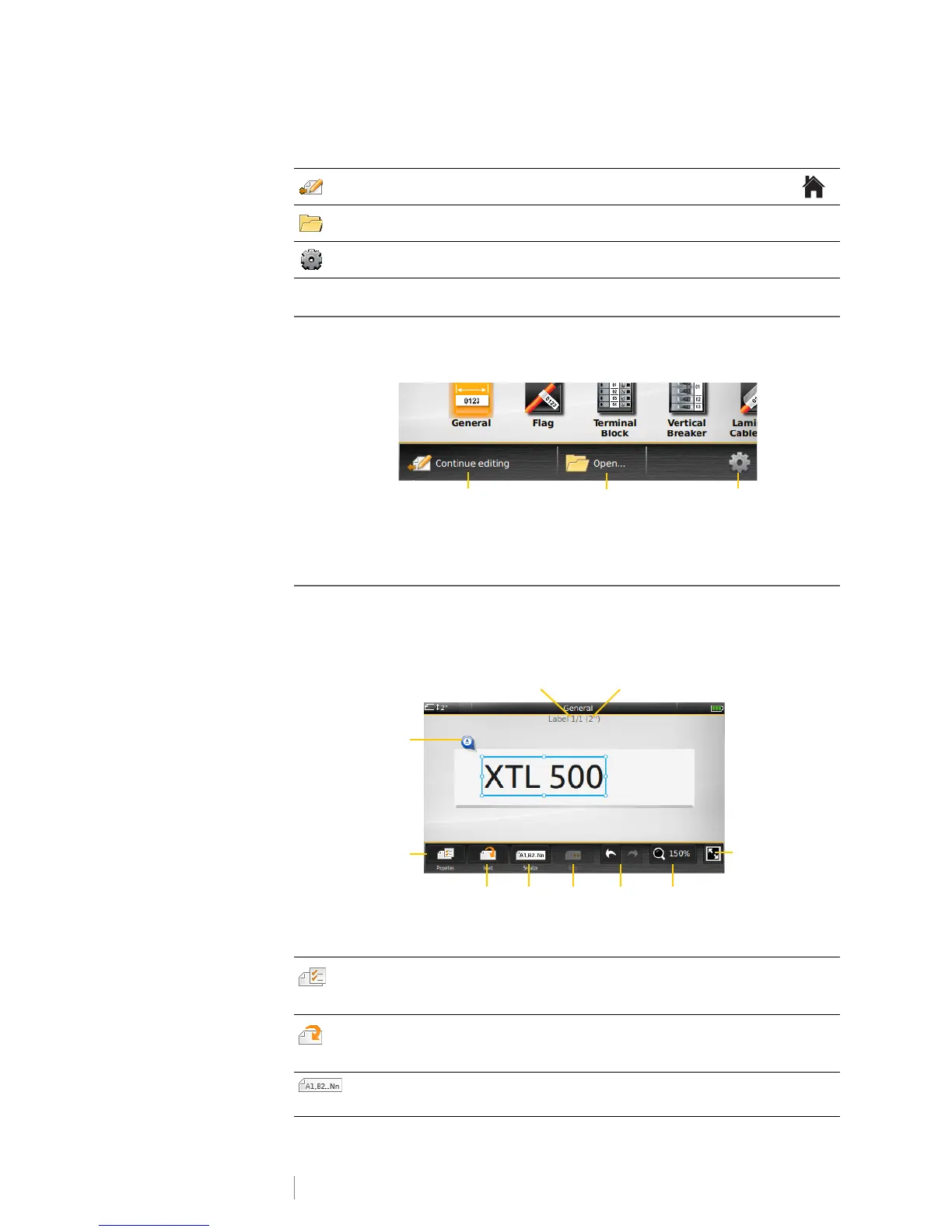
The Home screen contains the following three actions:
Action Bar
The Action bar below each screen contains actions that are specific to your
current task. For example, the Home screen contains the following actions:
Tap an icon to select that action.
Label Editor
Each label application contains a custom editor for the type of label you are
creating. At the bottom of the label editor are feature buttons which are enabled
when that feature is available based on your label type and content.
Continue editing
Return to the label you were editing before pressing .
Open a saved label file
Open a previously saved label file.
Settings
Change the label maker settings.
Properties
Change the properties for the label. Available for all label types where
properties can be customized. See the properties available for each label
type in Using the Label Applications on page 14.
Insert
Add a text box, a barcode, an image, a symbol, or a shape on the label.
The objects available depend on the label type selected. See Working
with Objects on a Label on page 31.
Serialize
Automatically fill panel labels, or automatically create a series of single
labels. See Creating a Series of Labels on page 35.
Continue editing the
current label
Open a
saved label
Go to
Settings
Set label
properties
Insert text box,
barcode, image,
symbol, or shape
Create a
series of
labels
Go to
next
label
Undo/
Redo
Zoom
in on
label
View full
screen
Add text
formatting
Current label/Number of labels Label length







 To Next Page