29
XTL
™
500
User Guide
Aligning the Text
The text on your label can be aligned left, center, or right, vertically and
horizontally.
To align the text
1 Select a text box.
2 Tap and .
Or, on the keypad, press + .
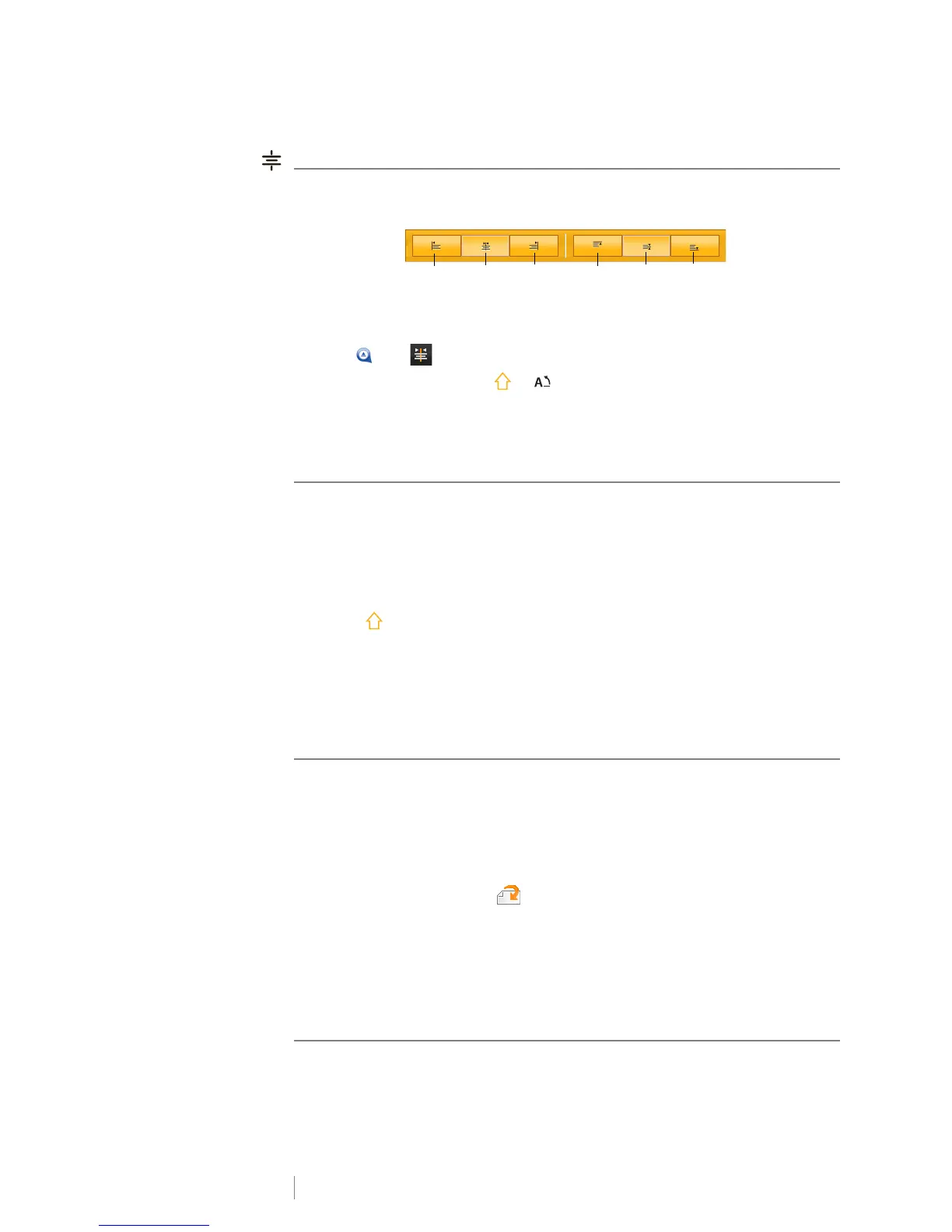
The Text Alignment tool appears.
3 Tap an alignment.
Inserting Punctuation
Punctuation characters can be inserted on your label. Once inserted, the
character is treated the same as any other text.
Refer to Symbols on page 54 for the complete list of punctuation characters
available.
To insert a punctuation
1 Press + any numeric key.
The Symbols tool appears.
2 Tap a character to insert that character on the label.
The currently selected character is inserted at the cursor position and the
Symbols tool disappears after a few seconds.
Inserting Symbols
Fractions and other symbols can be inserted on your label. Once inserted, the
symbol becomes a character and is treated the same as text. You can apply bold
and underline to most symbols.
Refer to Symbols on page 54 for the complete list of symbols available.
To insert a symbol
1 From the edit screen, tap .
2 Tap Symbol and a category.
3 Tap the desired symbol to add it to the label at the cursor position.
Symbols can also be inserted from the Symbols tool as described in Inserting
Punctuation above.
Inserting International Characters
The label maker supports the extended Latin character set. Similar to using a
mobile phone, holding down a letter key will display all the variations of that letter.
Align
left
Align
center
Align
right
Align
top
Align
middle
Align
bottom







 To Next Page