3
XTL
™
500
User Guide
Removing and Replacing the Battery
The LiPo battery is designed to provide years of
service. In the unlikely situation that you need to
replace the battery, a replacement battery can
be ordered from www.dymo.com.
Make sure the power adapter and USB cable
are disconnected before handling the LiPo
battery.
To remove the battery
1 Press and hold for approximately five
seconds to turn the power completely off.
2 Disconnect the power adapter and USB
cable.
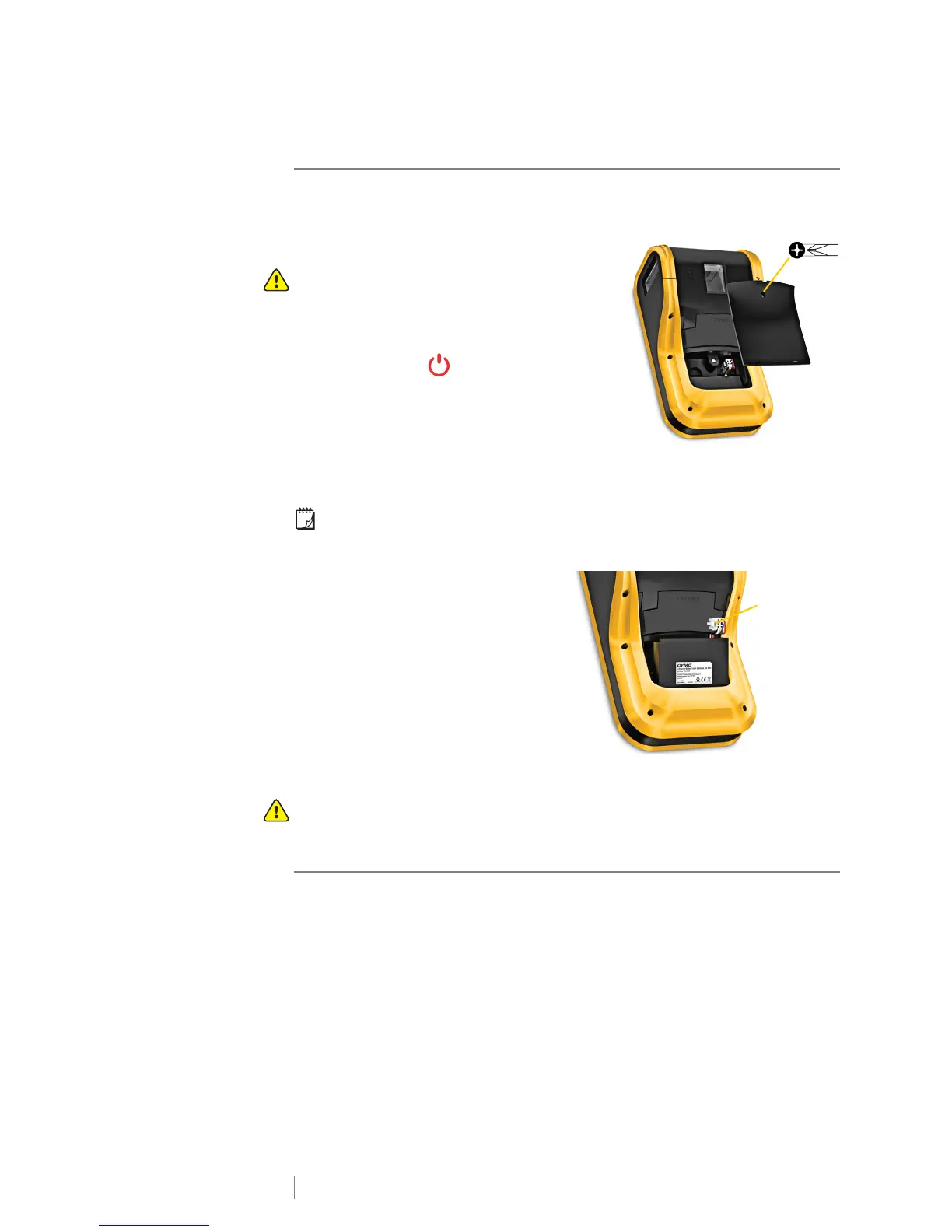
3 Using a #1 Phillips head screwdriver,
loosen the screw holding the battery cover
in place. See Figure 4.
The screw is attached to the battery cover. Do not remove the screw
completely from the cover.
4 Lift off the cover.
5 Pinch the sides of the battery
connector to release and gently
pull up to disconnect the battery.
See Figure 5.
6 Remove the battery.
7 Insert the new battery and gently
press the connector into place.
8 Replace the cover over the battery
compartment.
9 Tighten the screw only until the
battery cover is secure.
Make sure to read the LiPo Safety Precautions found on page 56.
About Labels
The label maker uses DYMO XTL
®
label cartridges in label widths of 1/4”, 3/8”,
1/2”, 3/4”, 1”, 1 1/2”, or 2” (6 mm, 9 mm, 12 mm, 19 mm, or 24 mm, 41 mm, or
54 mm). Labels are available as continuous tape or pre-sized labels for specific
applications.
The label cartridge that is inserted in the label maker determines the type of labels
you can create and print. For example, if you have a 1” continuous label cartridge
inserted, you will not be able to create a heat-shrink tube or laminated cable wrap
label.
See Using the Label Applications on page 14 for information about the types of
labels you can use with each label application.
Visit www.dymo.com for information on obtaining labels for your label maker.
Pinch and
pull up
Figure 5







 To Next Page