30
XTL
™
500
User Guide
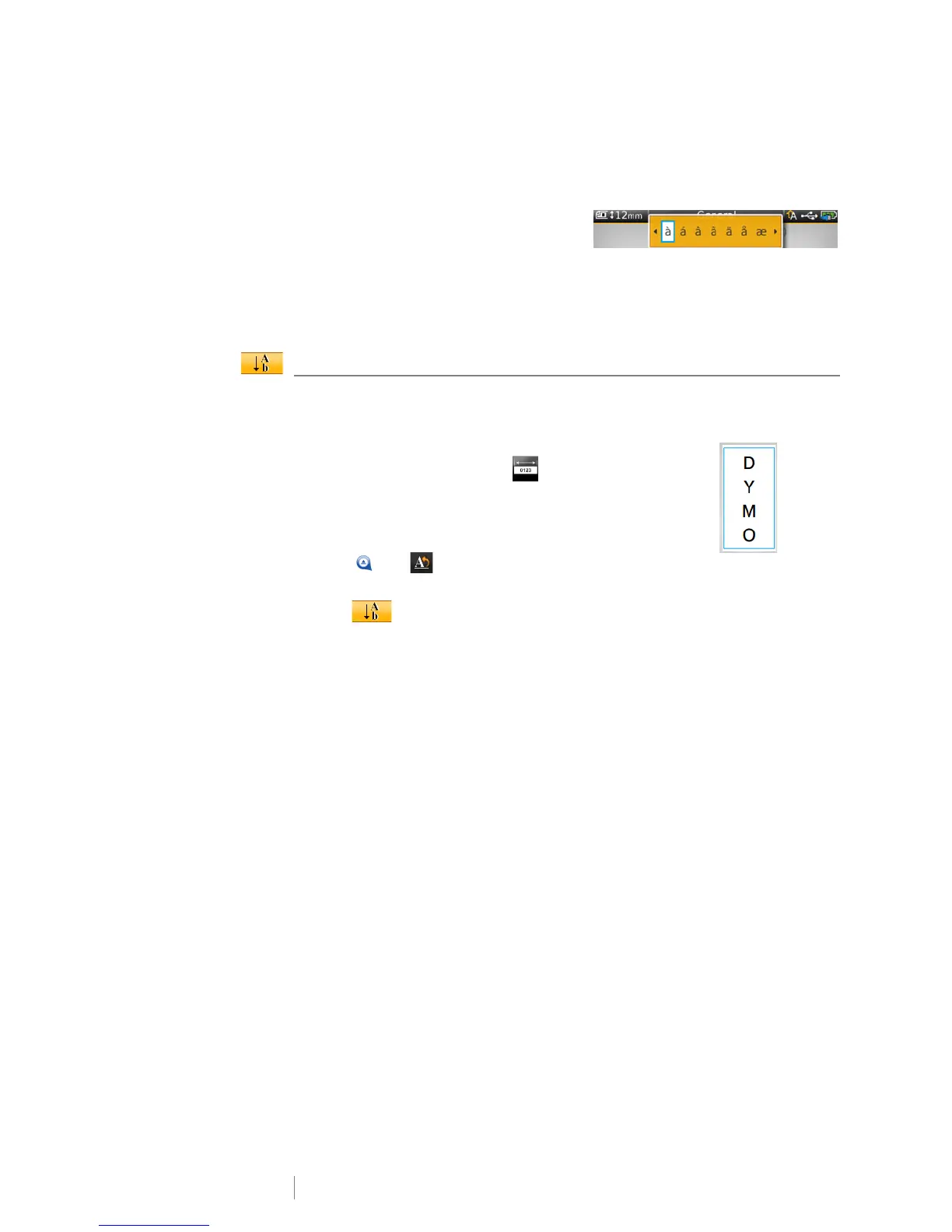
The order in which the variations appear depends on the language you have
selected. For example, if French is selected as the language and you hold down
the letter a, you will see à á â ã ä å and so on through all the variations available.
To insert a character
1 Press and hold an alphanumeric key.
The Diacritical tool appears and the
selected character is added to the label at the cursor position.
2 Tap a character to insert that character on the label.
The symbol is inserted and the Diacritical tool disappears after a few seconds.
Creating a Vertical Label
You can create a vertical label with the text in a horizontal or vertical orientation.
The instructions in this section are for a general label type.
To create a vertical label
1 From the Home screen, tap General.
2 Select Portrait as the label orientation.
3 Select the label length.
4 Add your text and formatting.
5 Tap and .
The Text Orientation tool appears.
6 Tap to change the text to a vertical orientation.
Vertical text on a
portrait label







 To Next Page