28
XTL
™
500
User Guide
Changing the Text Style
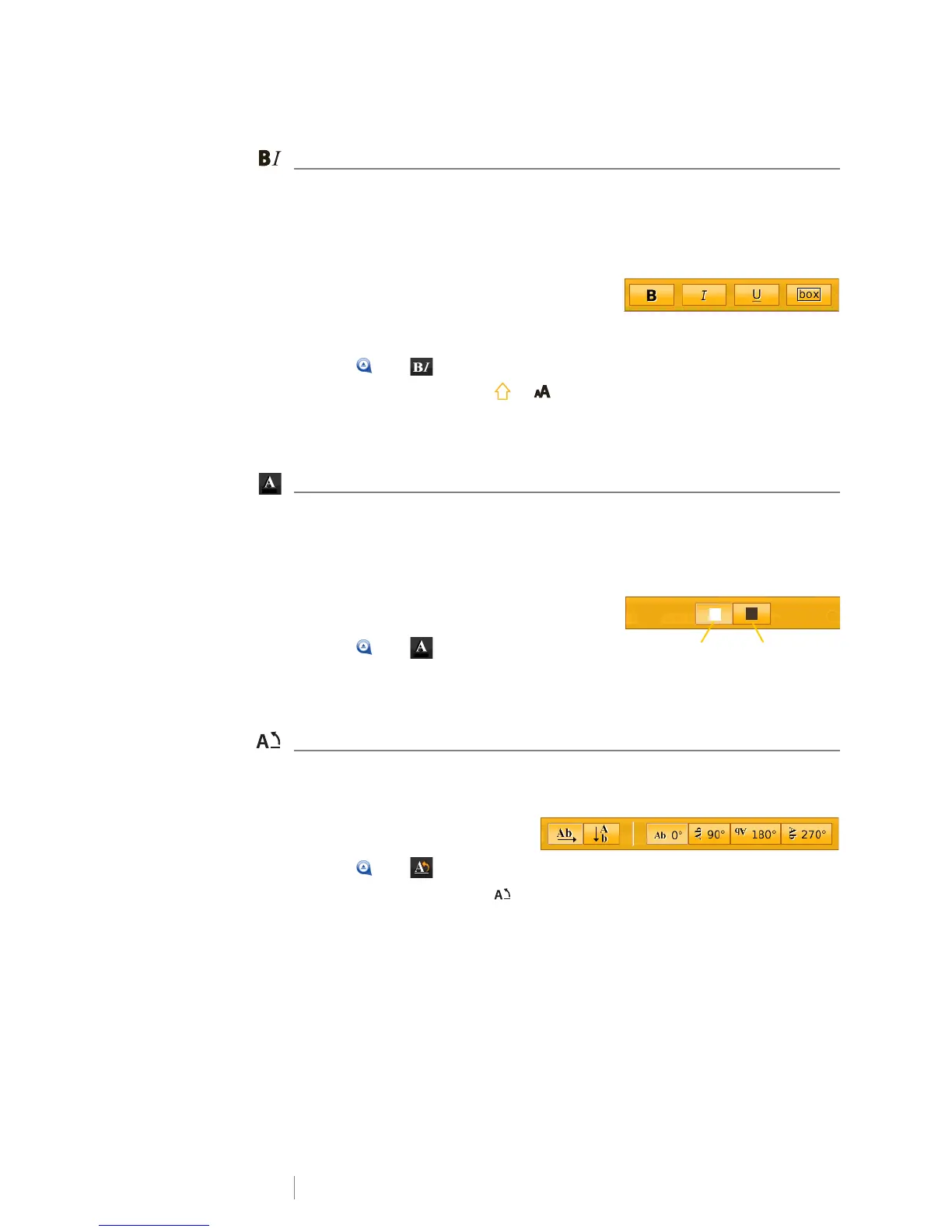
You can add bold, italic, and underline to your text. You can also add a box
around all the text in the selected text box.
See Using the Label Applications on page 14 for how changes to the text style
are applied to each type of label.
To change the text style.
1 Select some text.
To apply the style to all the text, select the
text box.
2 Tap and .
Or, on the keypad, press + .
The Text Style tool appears.
3 Tap one or more styles.
Changing the Text Color
You can change the text color on the label from the foreground color to the
background color. This can be useful when layering objects. For example, if you
add a rectangular shape object and want to place contrasting text on top of the
rectangle.
To change the color
1 Select a text box.
2 Tap and .
The Text Color tool appears.
3 Tap the color for the selected text.
Rotating the Text
The text on your label can appear horizontally or vertically. You can also rotate the
text in 90 degree increments.
To rotate the text
1 Select a text box.
2 Tap and .
Or, on the keypad, press .
The Text Orientation tool appears.
3 Select an orientation and/or a rotation.
To create a vertical label, see Creating a Vertical Label on page 30.







 To Next Page