32
XTL
™
500
User Guide
3 Tap the image you want to insert.
4 Move or resize the image as desired.
To change the image
1 Tap an image and press .
The image categories list appears.
2 Select a new image.
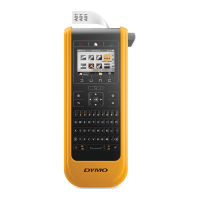
Inserting a Barcode
The label maker can generate the following types of barcodes.
This User Guide assumes that you already understand the differences between
barcode types and have a plan in place to incorporate barcodes into your
organization. If you need to learn more about barcodes, many excellent how-to
books are available at local libraries and book stores.
Code 128 is the default barcode type. You can choose another type as your
default barcode. See Setting the Default Barcode on page 43.
You can add a barcode to the following label types: general, flag, heat-shrink
tube, and laminated cable wrap. If a barcode already exists on a template, the
barcode can be edited.
By default the barcode text appears below the barcode. You can choose to show
the text above the barcode or hide the text. Showing barcode text is not available
for PDF 417 and QR codes.
QR codes can contain the following information:
Text only
Phone number
Email
SMS text message
Web page URL
To add a barcode
1 From the edit screen, tap and then tap Barcode.
2 Select the barcode type.
3 Optionally, select the Show barcode text check box to show or hide the text.
4 Enter the barcode data and tap Done.
5 Move or resize the barcode as desired.
To change the barcode text position
1 Tap to select the barcode and press .
2 Make sure the Show text check box is selected.
3 Tap one of the following:
• Text above barcode
• Text below barcode
Code 128 Codabar EAN 8
Code 39 EAN 13 UPC A
Code 39 w/Mod 43 PDF 417 QR







 To Next Page