EMS Operation
5-8 SkyView SE Pilot’s User Guide - Revision I
has exceeded 15 PSI for the first time after being powered on. This allows you to view the fuel
used value from your last flight before engine start.
The Time Remaining info item (displayed as TIME REM) displays how much time is estimated
remaining before the aircraft is out of fuel.
The Fuel Efficiency info item (displayed as NM/GAL) displays how efficiently the aircraft is using
fuel with respect to the speed it is traveling over the ground (this also can be displayed as
MI/GAL, KT/GAL, KM/LTR).
The Fuel Range info item (displayed as RANGE) displays the distance the aircraft can travel at its
current GPS ground speed before it is out of fuel.
Fuel Menu (Adjusting the Fuel Computer)
To obtain accurate data, you must reset the fuel computer every time you add fuel
to the aircraft. SkyView can assist with this through the Fuel Auto Detect setting
described in this section.
Fuel computer adjustments are made using the FUEL feature on Button 2 of SkyView SE’s main
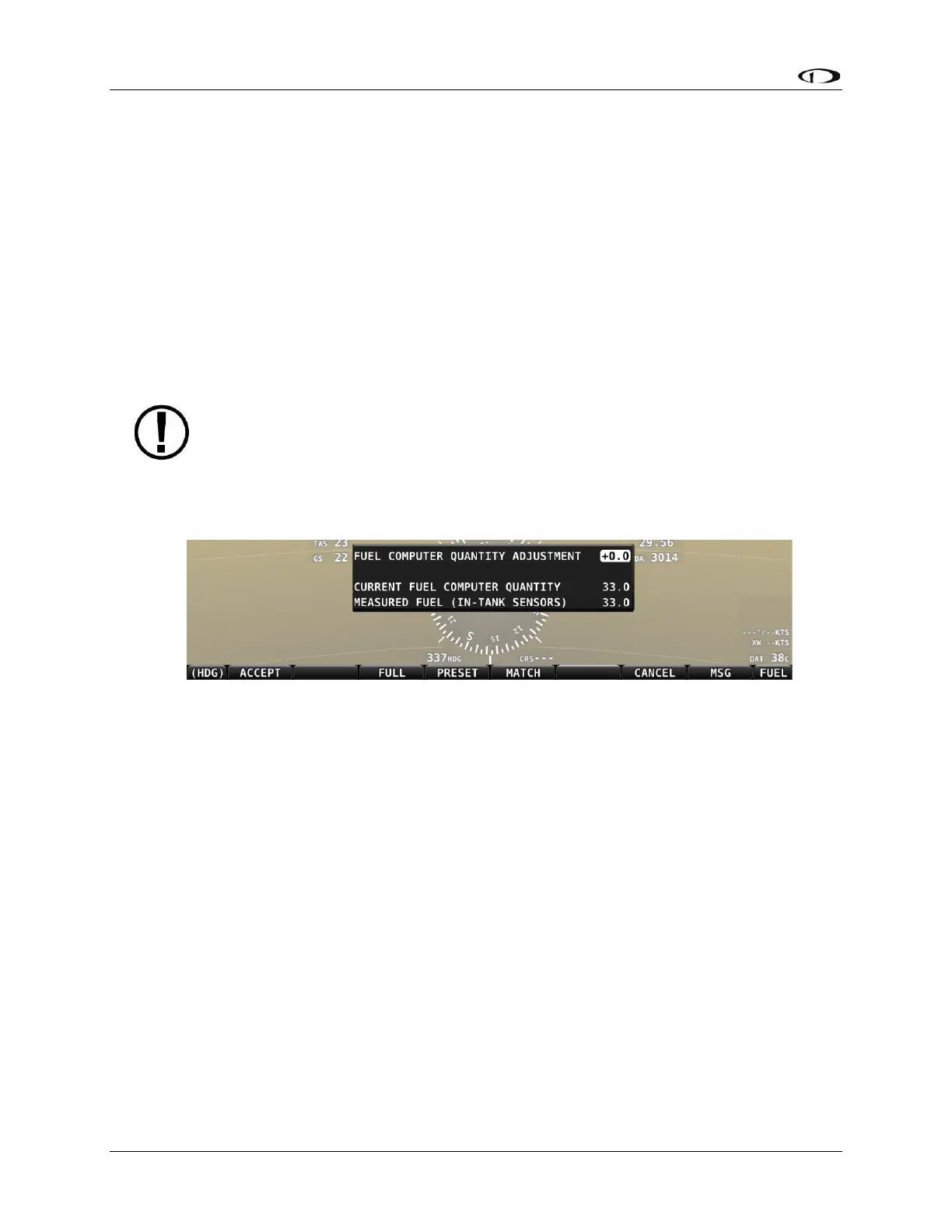
menu. When FUEL is pressed, the window in Figure 40 is displayed:
Figure 40 – Fuel Computer and Fuel Menu
• “Fuel Computer Quantity Adjustment” is the amount of fuel that you have told the fuel
computer to presently add or subtract from the previous total fuel state.
• “Current Fuel Computer Quantity” is the total amount of fuel on board as far as the fuel
computer knows. This is the number that ultimately needs to be correct in order for the
fuel computer to accurately perform its calculations.
• “Measured Fuel (In-Tank Sensors)” is the amount of fuel measured by the resistive or
capacitance senders, if installed. If these are well-calibrated, then the Total Fuel and the
Measured Fuel lines should be very close to each other.
• If no fuel sensors are installed or calibrated, “Measured Fuel” and “Levels Mismatch”
will not be displayed.


 To Next Page