Autopilot Operation
7-2 SkyView SE Pilot’s User Guide - Revision I
Top Bar Autopilot Status Area
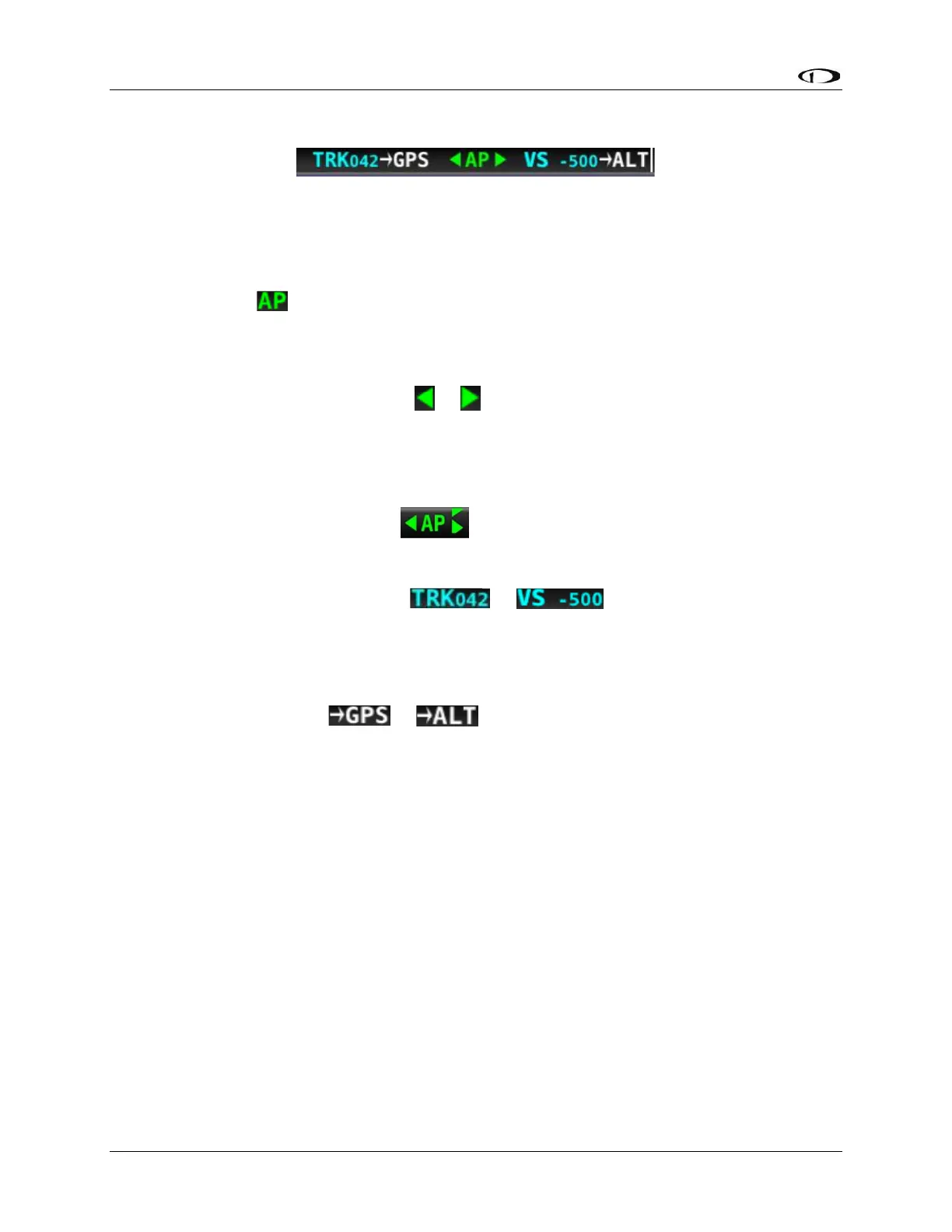
Figure 44 – Example Top Bar with Autopilot Status
The status of SkyView SE’s autopilot is presented in the left portion of the top Status Bar Area.
The various enunciations which may be presented are described below:
Center AP Text
o AP is displayed in green when either or both AP axes’ servos are engaged.
o AP flashes in yellow when the autopilot has been disengaged within the last 10
seconds.
Roll and Pitch Axes Engaged Arrows or
o A green arrow to the left and right of the green AP center text points at the axis
or axes for which the servo is engaged.
o Flashes in yellow when the autopilot has been disengaged within the last 10
seconds.
o Arrows scroll up/down during Pitch Auto-Trim and left/right during Roll
Auto-Trim.
Roll and Pitch Axis Information
o Active Mode and Target or
▪ The current mode and the mode’s target for each axis for which the
autopilot is providing guidance.
▪ Flashes for 10 seconds when an armed mode is sequenced and has
become the active mode.
o Armed Mode or
▪ The mode to which the autopilot will automatically transition when the
capture criteria for the new mode is satisfied.
Other Autopilot Status Information
In addition to the modes that are engaged and armed, the Top Bar and the area around it can
communicate other important Autopilot status information.
Pitch Trim Nose Up / Down Alert
When the autopilot is flying the aircraft in the pitch axis, a Pitch Trim alert can appear. This
alerts you when the pitch servo detects excessive load on the elevator which would result in an
out-of-trim condition when the autopilot is disengaged. To eliminate the excessive trim forces
that the autopilot is trying to overcome, trim the nose of the aircraft in the direction indicated:
up or down. Adjust the trim in small increments and wait a few seconds between adjustments
to see whether the adjustment is sufficient to remove the out-of-trim indication. If you have roll


 To Next Page