Autopilot Operation
7-8 SkyView SE Pilot’s User Guide - Revision I
Similarly, Autopilot servo slips may still be observed, particularly when in turbulence. Note that
Auto-Trim is not active in the moments that the air loads are overpowering the servos when a
servo slip annunciation is being shown.
If persistent servo slip alerts are accompanied by trim up/down/left/right alerts, the Auto-Trim
feature many not be able to achieve its goals. This could be due to an Autopilot or Auto-Trim
configuration issue, a broken trim motor, or another issue.
Simplified Autopilot Operation and Controls
Autopilot controls in SkyView SE are extraordinarily simple. The autopilot has been optimized
for use in VFR-only aircraft.
SkyView SE’s main menu contains only two Autopilot controls, on Buttons 3 and 4.
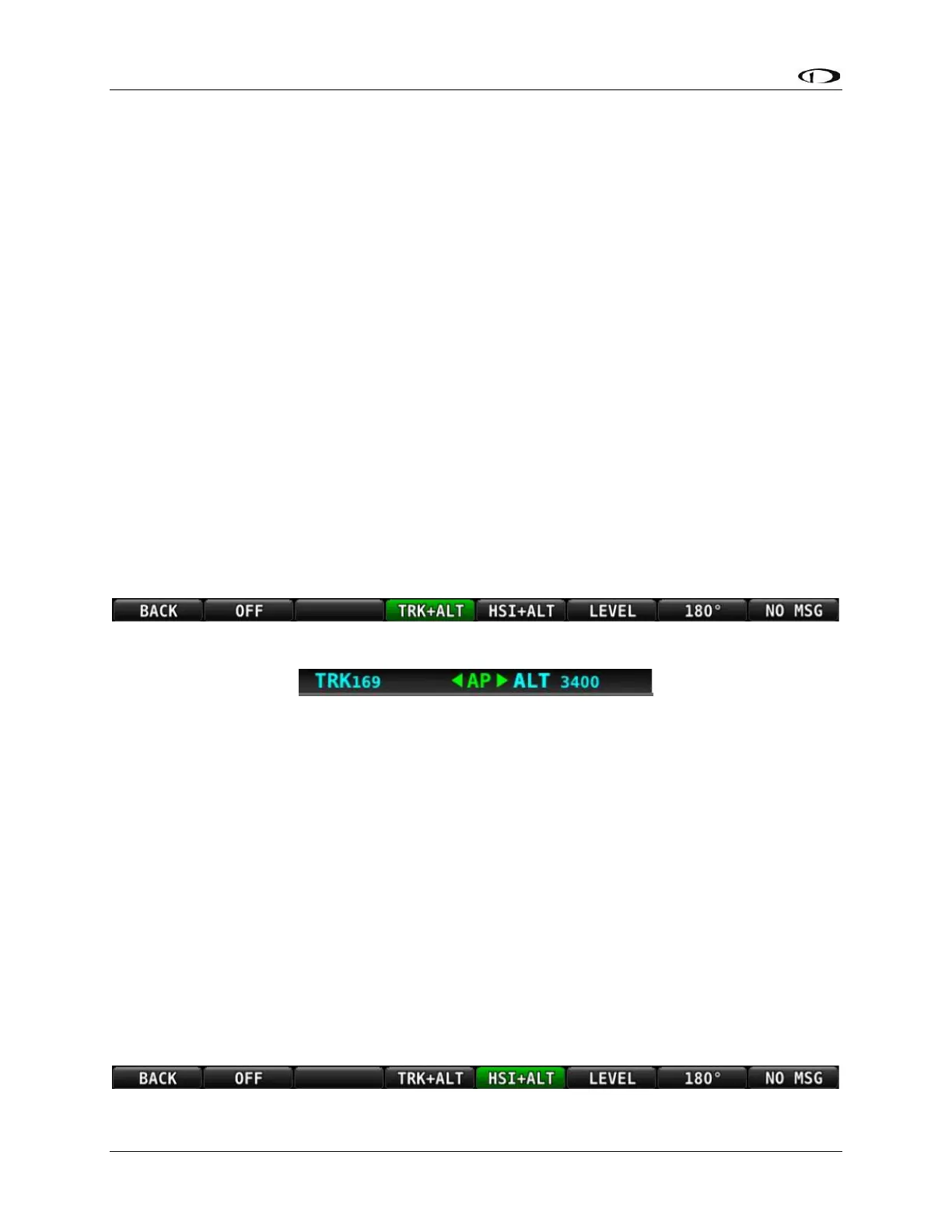
Button 3: TRK+ALT
The quickest and simplest way to engage the autopilot it by pressing Button 3: TRK+ALT. This
engages the autopilot in Track Hold and Altitude Hold modes simultaneously when both pitch
and roll servos are installed. If only a single servo is installed, pressing Button 3 will engage that
servo in the mode specific to its control axis.
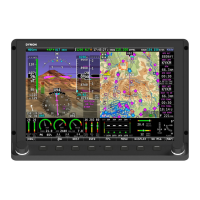
When engaged, the TRK+ALT button will highlighted in green, and the ground track and altitude
that the autopilot is flying is shown in the Top Bar.
Figure 58 – TRK+ALT Active
Figure 59 – Target Track and Altitude in Top Bar
To disengage the autopilot, press Button 3 again, turning the button black, or press the
autopilot disconnect switch.
TRK+ALT will be unavailable and grayed-out if there is not a valid GPS signal or if the autopilot is
outside of its allowable engagement speed ranges.
Button 4: HSI+ ALT
If an external VFR GPS navigator is configured and has an active waypoint program, pressing the
HSI+ALT button will engage the autopilot in HSI and Altitude Hold modes simultaneously when
two servos are installed. If only a Roll servo is installed, Button 4 will be labeled HSI and that
servo will be engaged. If only a pitch servo is installed, Button 4 will be blank and will have no
function.
When engaged, the HSI+ALT button will highlighted in green, and the HSI source and altitude
that the autopilot is flying is shown in the Top Bar.
Figure 60 – HSI+ALT Active


 To Next Page