81
↓ to select data type|
ENT|EXIT. Repeat these steps until you're fin-
ished customizing, then press
EXIT to return to the Sonar Page.
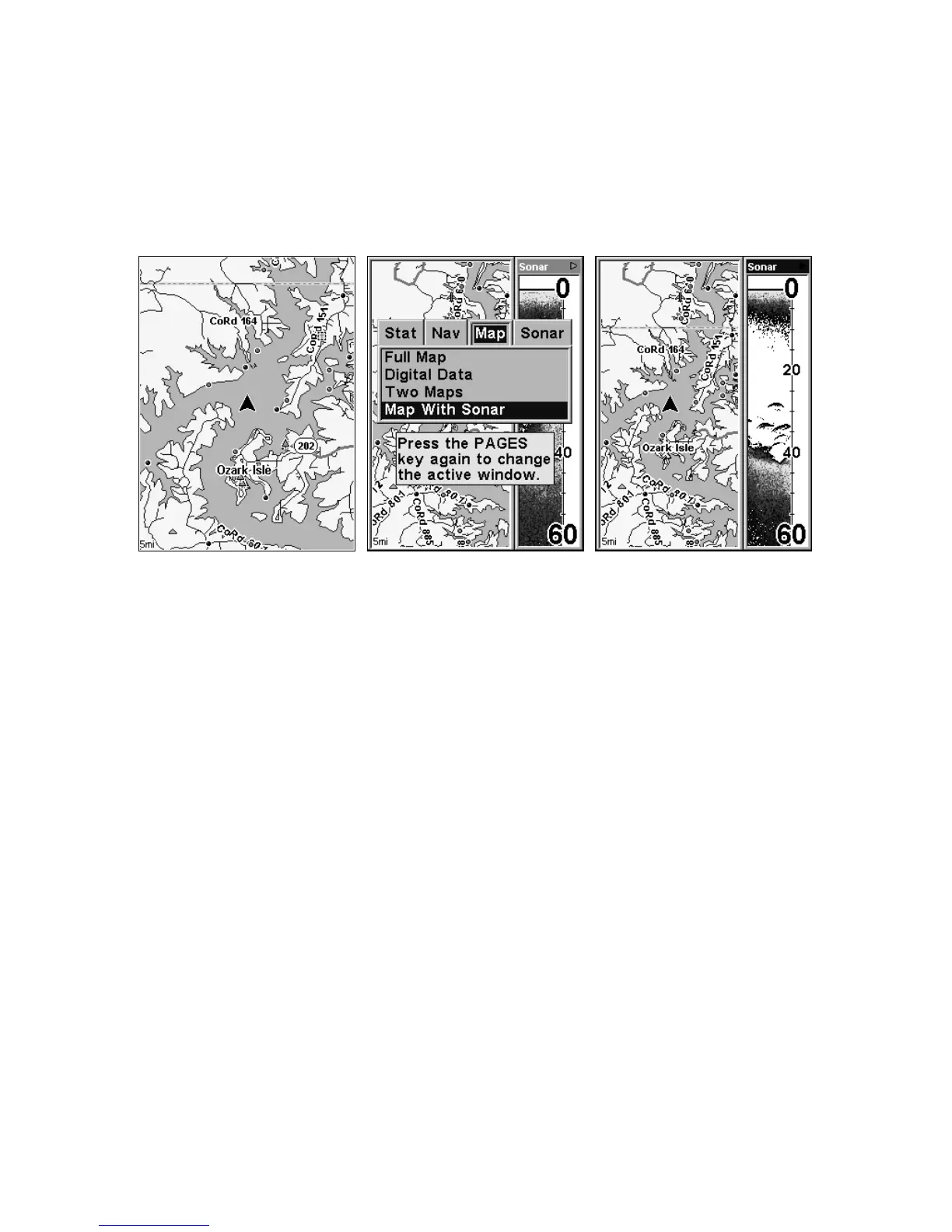
Map With Sonar Split Screen
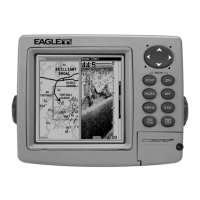
There is a page mode that splits the screen in half, with the map on the
left and the sonar on the right. This screen option can be found on the
Pages Menu under the Map Page category.
Map With Sonar split screen option. At far left, the full Map Page is
shown. The Pages Menu with the Map option list is shown in the
center. At right, the Map With Sonar split screen is shown.
When this screen is activated, you need to specify which side the Menu,
Zoom In and Zoom Out keys correspond to. To do this, press
PAGES|PAGES. The window with the black title bar at the top of the screen
is the active window. To switch back, just press
PAGES|PAGES again.
Sonar Simulator
This unit has a built-in simulator that lets you run it as if you were on
the water. All sonar features and functions are useable. To use the
simulator:
1. From the Sonar Page, press
MENU|MENU|↓ to SONAR SETUP|ENT|↓ to
SONAR SIMULATOR|ENT|EXIT. Repeat these steps to turn it off.



 To Next Page