Batch Readings Graph (T)
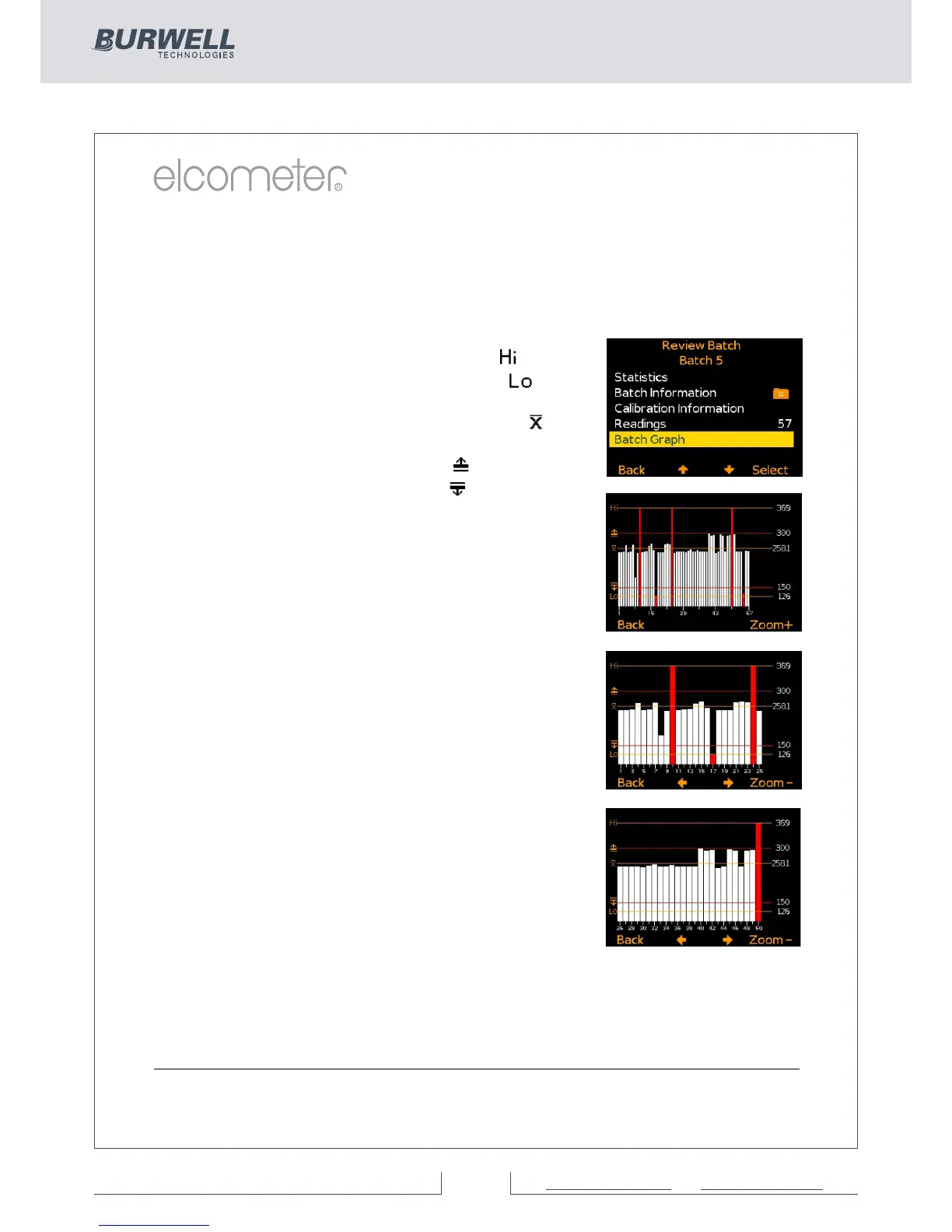
By selecting Batch/Review Batch/Batch Graph the user can review
all readings in the selected batch as a graph.
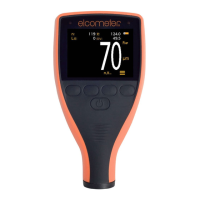
Up to five horizontal axes can be displayed representing different
values / statistics as follows:
Ÿ Highest reading in the batch “ ”
Ÿ Lowest reading in the batch “ ”
(for batches of more than one reading)
Ÿ Mean of readings in the batch “ ”
(for batches of more than one reading)
Ÿ High limit for the batch “ ”(when enabled)
Ÿ Low limit for the batch “ ”(when enabled)
The readings are displayed as white or red
vertical bars; white if a reading is within limits
(or no limits have been set), and red if outside
set limits.
If there are more readings in the batch than can be
displayed on a single screen, multiple readings will
be combined into one bar. Should a single reading
within the ‘combined bar’ be outside the enabled
limits, the whole bar w
ill be red.
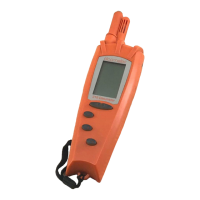
Pressing the Zoom+ softkey, allows each
individual reading to be displayed, thereby
showing the individual readings outside the
limits.
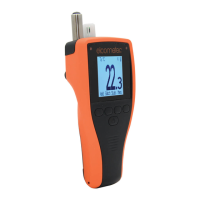
When zoomed in, the graph will always display
the first 25 readings. Pressing the ç softkey
will display the last 25 readings taken.
Subsequent presses of the ç softkey will scroll
backwards, pressing the è softkey will scroll
forwards through the readings, 25 readings at
a time.
Pressing the Zoom- softkey returns to the original overview graph of
all readings in the batch.
To return the gauge to the Batch Review menu, press the Back softkey.
www.elcometer.com
31


 To Next Page