Control and Audio Connections
The K3S provides a full complement of station
control and audio interfaces on the KIO3B panel.
These interfaces are described in this section.
USB Port (Control and Audio)
The USB port can be used for computer-based
remote control. It also acts as the equivalent of a
built-in USB sound card, eliminating the need for
external converters and additional cables.
A single USB cable can handle all of these interface
requirements:
• commands from logging/contesting software
• line-level audio input/output (audio is digitized
by the KIO3B’s USB interface)
• PTT and CW keying (via “DTR” and “RTS”)
Most software applications will work with USB
instead of RS232. They will recognize the
transceiver’s USB port as a “COM” port, and/or as
a sound device, selectable from within the
application.
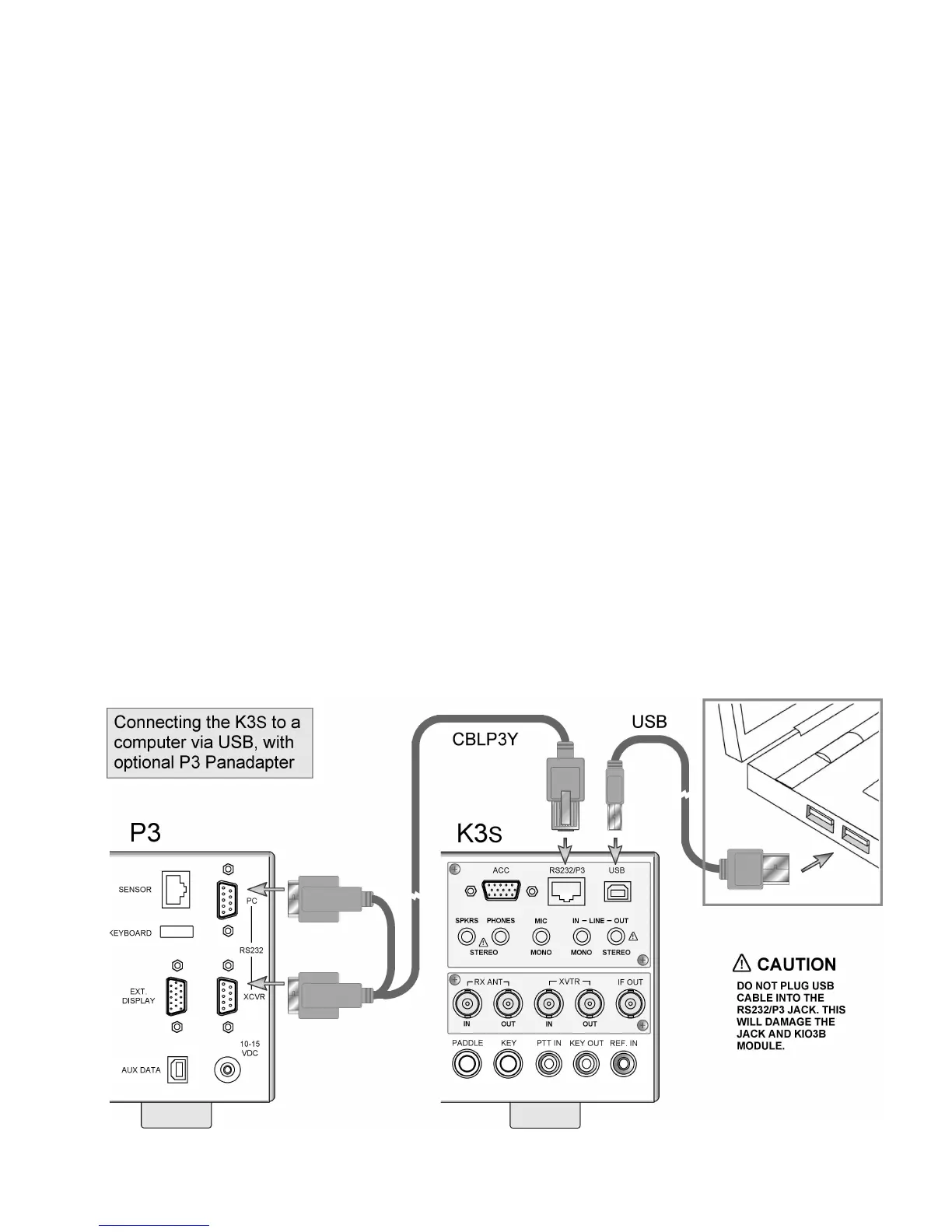
An Elecraft P3 Panadapter can be connected
directly to the K3S even when the USB port is used
with your computer. See details at right.
To connect a computer to the K3S via USB:
• Connect the supplied USB cable from the K3S
to any available USB port on your computer.
(See illustration below.)
• If you also have a P3, connect it to the
RS232/P3 port as shown, using an Elecraft
model CBLP3Y cable.
• Set the CONFIG:RS232 menu parameter to
USB. Exit the menu.
• With the USB cable plugged in and the K3S
turned on, determine which COM or sound
device ports have been assigned to the K3S.
This can be done from within applications. On
Windows PCs, an alternative is to locate the
Device Manager (Start > Control Panel >
System > Hardware), and view its list of Ports.
When you plug in the USB cable from the K3S,
a new COM port will appear in the list.
• If you plan to do PTT or CW keying from the
computer, see PTT and Keying (next page).
Optional: Using LINE IN/OUT jacks with USB
We recommend using the digital audio line-in/out
capability provided by the USB cable. The analog
LINE IN/OUT jacks can then remain unconnected.
See pg. 22 for further details on LINE IN/OUT.




 To Next Page