EasyManua.ls Logo

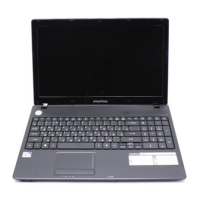
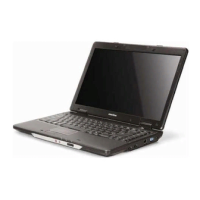
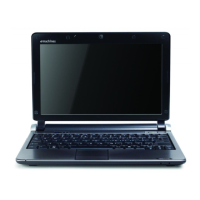
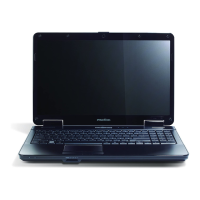
eMachines D720 Series - User Manual

eMachines D720 Series
174 pages
Print Icon
To Next Page IconTo Next Page
Loading...
eMachines D720/D520 Series
Service Guide
PRINTED IN TAIWAN
Service guide files and updates are available
on the ACER/CSD web; for more information,
please refer to http://csd.acer.com.tw

Table of Contents

Questions and Answers

  • E
    Erika BrownAug 14, 2025
    What to do if my eMachines D720 Laptop won't turn on?
    • P
      Patricia SanchezAug 14, 2025
      If your eMachines Laptop isn't powering on, first ensure the power cable is securely connected to both the laptop and the electrical outlet. Try removing any extension cables or surge protectors between the laptop and the outlet, and plug the laptop directly into a known good outlet. You can also try removing any external hardware that is not essential for the computer to boot to the failure point and any recently installed software. As well as, disable the power management settings in the BIOS to ensure they are not the cause of the problem.
  • C
    Christina MendozaAug 17, 2025
    How to fix a no display issue on my eMachines D720?
    • S
      Sabrina SmithAug 17, 2025
      If your eMachines Laptop screen is blank, ensure the laptop has power by checking if the fans start or the status LEDs light up. Make sure that the internal display is selected. Try connecting an external monitor and switch between displays by pressing Fn+F5. You can also try disconnecting power and all external devices, including docking stations, removing memory cards and CD/DVD discs, and then restarting the computer. Other solutions include draining stored power by removing the power cable and battery, holding the power button for 10 seconds, and reseating the memory modules.
  • T
    thoffmanAug 21, 2025
    Why is my eMachines D720 video display abnormal?
    • B
      brittanyrogersAug 21, 2025
      An abnormal video display on your eMachines Laptop can be due to several factors. First, adjust the brightness to its highest level and check that the display resolution is correctly configured. Make sure that the device is properly installed and there are no red Xs or yellow exclamation marks in the Device Manager. If you've recently updated the video driver, roll it back to the previous version or try removing and reinstalling it. If permanent lines or spots appear, the LCD might be faulty and should be replaced.
  • E
    Emily DuarteAug 25, 2025
    Why does my eMachines D720 Laptop have random loss of BIOS settings?
    • C
      Corey JohnsonAug 25, 2025
      Random loss of BIOS settings on your eMachines Laptop can occur for several reasons. If the computer is more than one year old, replace the CMOS battery. Run a complete virus scan. If the computer is experiencing HDD or ODD BIOS information loss, disconnect and reconnect the power and data cables between devices. If HDD information is missing from the BIOS, the drive may be defective and should be replaced.
  • M
    Mary HughesAug 27, 2025
    How do I troubleshoot sound problems on my eMachines Laptop?
    • J
      Jon KelleyAug 27, 2025
      To troubleshoot sound problems on your eMachines Laptop, start by rebooting the computer. Also, check that Speakers are selected as the default audio device. You can also configure the speakers by selecting Speakers and clicking Configure to start Speaker Setup and following the onscreen prompts. Ensure that all volume controls are set mid range. Additionally, verify that the audio device is properly installed in the Device Manager, and try rolling back or reinstalling the audio driver.
  • W
    whowardAug 30, 2025
    What to do if HDD is not operating correctly on eMachines D720?
    • G
      gonzalezkristinAug 30, 2025
      If the HDD on your eMachines Laptop isn't operating correctly, try disconnecting all external devices. Run a complete virus scan using up-to-date software. You can also run the Windows Vista Startup Repair Utility. Restart the computer and press F2 to enter the BIOS Utility to check the BIOS settings.
  • E
    Elizabeth LoveSep 3, 2025
    How to troubleshoot external mouse failure on eMachines D720?
    • K
      Kaitlyn FreemanSep 3, 2025
      To troubleshoot an external mouse failure on your eMachines Laptop, first try an alternative mouse. If the mouse uses a wireless connection, insert new batteries and confirm there is a good connection. If it's a USB connection, try an alternate USB port. You can also restart the computer.
  • C
    Cody VaughnSep 6, 2025
    How to fix internal microphone failure on eMachines D720 Laptop?
    • D
      David CarpenterSep 6, 2025
      To fix an internal microphone failure on your eMachines Laptop, check that the microphone is enabled. Right-click on the Recording tab and select Show Disabled Devices. Right-click on the microphone and select Enable. Select the microphone then click Properties and select the Levels tab.
  • B
    Beth CantuSep 9, 2025
    What to do if the drive is not detected on eMachines D720 Laptop?
    • A
      Amy LewisSep 9, 2025
      If a drive is not detected on your eMachines Laptop, restart the computer and press F2 to enter the BIOS Utility. Also, turn off the power and remove the cover to inspect the connections to the ODD.

Summary

System Specifications

Hardware Specifications

Detailed hardware specifications and configurations of the system.

System Utilities

BIOS Setup Utility

Guide to accessing and navigating the BIOS setup utility.

BIOS Flash Utilities

Procedures for updating the system BIOS using flash utilities.

Password Utilities

Steps to remove HDD and BIOS passwords.

Machine Disassembly and Replacement

Main Unit Disassembly

Procedures for disassembling main internal components like mainboard, CPU, and fan.

Troubleshooting

Common Problems

Overview of common issues and a table directing to solutions.

FRU (Field Replaceable Unit) List

FRU Part List

Comprehensive list of field-replaceable units with part numbers.

Model Definition and Configuration

eMachines D720 Series Specifications

General IconGeneral
BrandeMachines
ModelD720 Series
CategoryLaptop
LanguageEnglish

Related product manuals