EasyManua.ls Logo

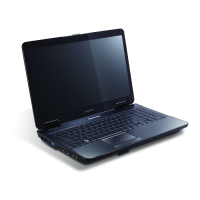
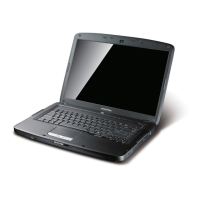
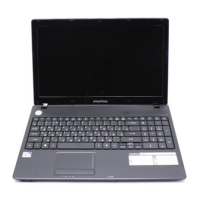
eMachines E732 - User Manual

eMachines E732
192 pages
Print Icon
To Next Page IconTo Next Page
Loading...
eMachines E732/E732G/E732Z/E732ZG
Service Guide
PRINTED IN TAIWAN
Service guide files and updates are available
on the ACER/CSD web; for more information,
please refer to http://csd.acer.com.tw

Table of Contents

Questions and Answers

  • P
    Philip BellAug 15, 2025
    What to do if eMachines Laptop doesn't power on?
    • B
      Bethany DavisAug 16, 2025
      If your eMachines Laptop doesn’t power on, try these steps one at a time: First, ensure the power cable is securely connected to both the laptop and the electrical outlet. Remove any extension cables or surge protectors between the laptop and the outlet, and plug the laptop directly into a known good outlet. Then, disconnect the power, open the casing, and check for any obstructions in the thermal unit and fan airways. Also, remove any external and non-essential hardware that isn't necessary for booting. Finally, uninstall any software that you've recently installed.
  • P
    Philip JamesAug 19, 2025
    What to do if eMachines Laptop shuts down intermittently?
    • K
      Kyle GonzalezAug 19, 2025
      If your eMachines Laptop powers off unexpectedly, try the following steps one at a time: Check that the power cable is properly connected to the laptop and the electrical outlet. Remove any extension cables or surge protectors between the laptop and the outlet. Plug the laptop directly into a known good electrical outlet. Disconnect the power and open the casing to check that the thermal unit and fan airways are free of obstructions. Remove all external and non-essential hardware. Remove any recently installed software.
  • T
    Terry MaldonadoAug 21, 2025
    What to do if eMachines E732 has no display?
    • C
      Charles CrawfordAug 21, 2025
      If your eMachines Laptop display isn't working, try these steps one at a time: First, ensure the internal display is selected by pressing Fn+F5. Check that the laptop has power (fans running, status LEDs lit). Drain any stored power by removing the power cable and battery, then hold the power button for 10 seconds. Reconnect the power and reboot. Connect an external monitor and switch displays using Fn+F5. Disconnect power and all external devices, including docking stations. Remove any memory cards and CD/DVDs, then restart the laptop. Reseat the memory modules. Remove the drives. If the laptop boots correctly after these steps, add the devices back one by one until you find the cause.
  • N
    Nicholas CookAug 25, 2025
    How to fix abnormal video display on eMachines E732?
    • P
      Paul MaddoxAug 25, 2025
      If your eMachines Laptop displays video abnormally, try the following steps one at a time: First, reboot the laptop. Adjust the brightness to the highest level and make sure the laptop isn't running on battery alone. Check the display resolution by right-clicking on the desktop, selecting Personalize, then Display Settings, and adjusting the resolution slider. Roll back the video driver to the previous version if updated. Remove and reinstall the video driver. Check the Device Manager to ensure the device is properly installed, without any errors or conflicts.
  • M
    Mr. Gary BeckAug 28, 2025
    Why does eMachines Laptop randomly lose BIOS settings?
    • M
      Matthew UnderwoodAug 28, 2025
      If your eMachines Laptop is intermittently losing BIOS information, try these steps one at a time: If the laptop is over a year old, replace the CMOS battery. Run a complete virus scan with updated software. If the laptop is losing HDD or ODD BIOS information, disconnect and reconnect the power and data cables. If settings are still lost, replace the cables. If HDD information is missing, the drive may be defective and should be replaced. Replace the Motherboard.
  • S
    Shane HowardAug 30, 2025
    What to do if HDD is not operating correctly on eMachines E732 Laptop?
    • C
      Christina ShahAug 30, 2025
      If the HDD in your eMachines Laptop isn't working correctly, try these steps one at a time: Disconnect all external devices. Run a full virus scan using up-to-date software. Run the Windows 7 Startup Repair Utility from the operating system DVD. Check the BIOS settings to ensure they are correct and that the CD/DVD drive is the first boot device. Ensure all cables and jumpers on the HDD and ODD are correctly set. Remove any recently added hardware and software. Run Windows Disk Defragmenter and Check Disk (chkdsk /r). Restore system and file settings from a known good date using System Restore. Replace the HDD.
  • G
    Gabrielle HullSep 2, 2025
    What to do if ODD is not operating correctly on eMachines E732?
    • C
      Cynthia TranSep 2, 2025
      If the ODD in your eMachines Laptop isn't working correctly (e.g., CDs/DVDs don't play, discs don't burn, drive not found, tray doesn't eject, noisy), try these general solutions one at a time: Reboot the laptop and retry the operation. Try using an alternate disc. Check that the ODD device is displayed in the Devices with Removable Storage panel under Start, Computer. Verify the device is listed in Device Manager (Start, Control Panel, System and Maintenance, System, Device Manager).
  • M
    Mary LaneSep 5, 2025
    How to fix sound problems on eMachines Laptop?
    • A
      alexandermistySep 6, 2025
      If you're experiencing sound problems with your eMachines Laptop, try these steps one at a time: Reboot the laptop. Check the Device Manager to ensure the audio device is properly installed without errors. Roll back or reinstall the audio driver. Ensure all volume controls are set to mid-range and the volume is not muted, including in the Mixer. Navigate to Start, Control Panel, Hardware and Sound, Sound, and ensure Speakers are selected as the default audio device. Configure the speakers using the Speaker Setup. Remove any recently installed hardware or software. Restore system settings using System Restore. Reinstall the Operating System.
  • B
    Brandon CareySep 9, 2025
    How to solve microphone problems on eMachines E732?
    • C
      Charles ZavalaSep 9, 2025
      If your internal or external microphone isn't working correctly on your eMachines Laptop, check that the microphone is enabled. Go to Start, Control Panel, Hardware and Sound, Sound, and select the Recording tab. Right-click and select 'Show Disabled Devices' to see if the microphone is listed but disabled; if so, enable it. Select the microphone, click Properties, and go to the Levels tab to increase the volume to the maximum. Test the microphone by selecting it and clicking Configure, then Set up microphone, and follow the prompts.
  • M
    Martin RodriguezSep 12, 2025
    How to fix external mouse failure on eMachines Laptop?
    • C
      Caitlin ToddSep 12, 2025
      If an external mouse fails to work with your eMachines Laptop, try these steps one at a time: Try using an alternative mouse. If it's wireless, replace the batteries and ensure a good connection. If it's USB, try a different USB port. Test the mouse in another program. Reinstall the program experiencing the issue. Restart the laptop. Remove any recently added hardware or software. Restore system settings using System Restore. Check the Event Viewer for errors. Roll back or reinstall the mouse driver. Check Device Manager for proper installation and lack of errors.

Summary

System Specifications

Features

Summary of the computer's many features.

Hardware Specifications and Configurations

Detailed technical specifications of the computer hardware.

System Memory

Information on memory controller, size, type, and speed.

Hard Disk Drive Interface

Specifications for different capacities of hard disk drives.

USB Port

Details about the USB chipset, compliance, and number of ports.

Video Interface

Specifications for video chipset, package, and interface types.

System Utilities

BIOS Setup Utility

Hardware configuration program built into computer's BIOS.

BIOS Flash Utility

Procedures for updating the BIOS firmware.

Remove HDD;BIOS Password Utilities

Details about removing HDD/BIOS passwords.

Miscellaneous Utilities

Other system utility tools.

Machine Disassembly and Replacement

Disassembly Requirements

Lists necessary tools for disassembling the computer.

Pre-disassembly Instructions

Instructions to follow before starting the disassembly procedure.

External Modules Disassembly Process

Process for disassembling external components.

Main Unit Disassembly Process

Process for disassembling the main unit components.

LCD Module Disassembly Process

Process for disassembling the LCD module.

Troubleshooting

Common Problems

Guide to diagnose and resolve common computer problems.

Power On Issue

Actions to correct problems when the system does not power on.

No Display Issue

Actions to correct problems when the display does not work.

LCD Failure

Actions to correct LCD failures.

HDD Not Operating Correctly

Actions to correct Hard Disk Drive operation issues.

ODD Failure

Actions to correct Optical Disk Drive failures.

Wireless Function Failure

Actions to correct Wireless LAN failures.

Thermal Unit Failure

Actions to correct Thermal Unit failures.

Post Codes

Describes POST codes and their descriptions during POST.

Jumper and Connector Locations

Top View

Identifies jumpers and connectors on the top view of the mainboard.

Bottom View

Identifies jumpers and connectors on the bottom view of the mainboard.

Clearing Password Check and BIOS Recovery

Procedures for clearing BIOS password and recovering BIOS.

FRU (Field Replaceable Unit) List

eMachines E732 series Exploded Diagrams

Exploded diagrams of the computer components.

eMachines E732 series FRU List

List of all Field Replaceable Units (FRUs) for eMachines E732 series.

Screw List

List of screws with their specifications and part numbers.

Model Definition and Configuration

eME732

Configurations and models for eME732 series.

eME732 G

Configurations and models for eME732G series.

eME732 ZG

Configurations and models for eME732ZG series.

eME732 Z

Configurations and models for eME732Z series.

Online Support Information

Online Support Information

Information on online technical support services and resources.

Test Compatible Components

Adapter

Lists compatible AC adapters.

Battery

Lists compatible batteries.

CPU

Lists compatible CPUs.

HDD

Lists compatible Hard Disk Drives.

LCD

Lists compatible LCD panels and related parts.

ODD

Lists compatible Optical Disk Drives.

eMachines E732 Specifications

General IconGeneral
Display15.6" HD (1366 x 768)
Operating SystemWindows 7 Home Premium
Battery6-cell Li-ion
Wireless802.11b/g/n
Ports3 x USB 2.0, VGA, HDMI, Ethernet, Headphone, Microphone
Weight2.6 kg

Related product manuals