8 Chapter 1
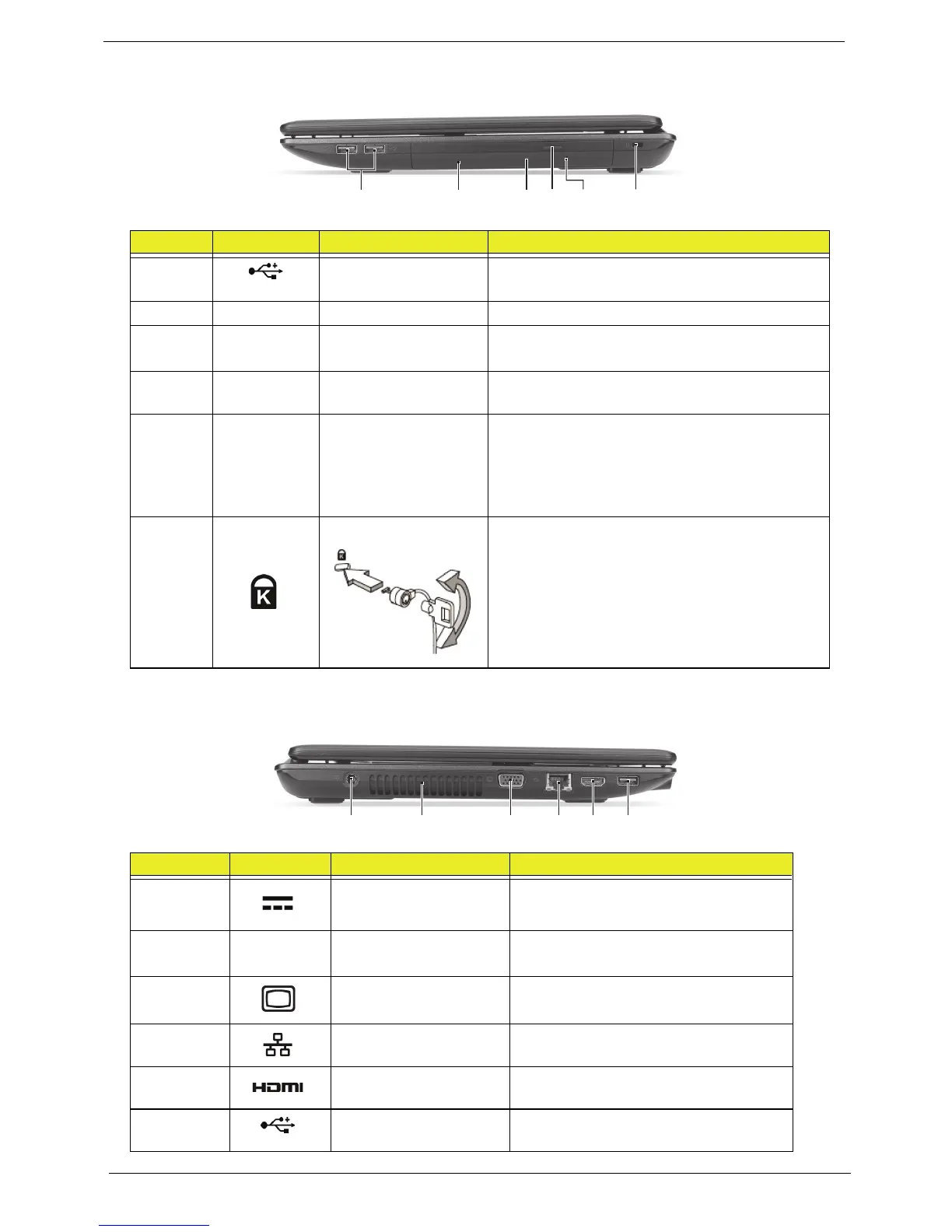
Right View
Left View
No. Icon Item Description
1
USB 2.0 ports Connect to USB 2.0 devices
(e.g., USB mouse, USB camera).
2 Optical drive Internal optical drive; accepts CDs or DVDs.
3 Optical disk access
indicator
Lights up when the optical drive is
active.
4 Optical drive eject
button
Ejects the optical disk from the drive.
5 Emergency eject
hole
Ejects the optical drive tray when the
computer is turned off.
Note: Insert a paper clip to the emergency eject
hole to eject the optical drive tray when the
computer is off.
6 Kensington lock slot Connects to a Kensington-compatible computer
security lock.
Note: Wrap the computer security lock cable
around an immovable object such as a table or
handle of a locked drawer. Insert the lock into the
notch and turn the key to secure the lock. Some
keyless models are also available.
No. Icon Item Description
1 DC-in jack Connects to an AC adapter.
2 Ventilation slots Enable the computer to stay cool,
even after prolonged use.
3 External display (VGA)
port
Connects to a display device (e.g.,
external monitor, LCD projector).
4 Ethernet (RJ-45) port Connects to an Ethernet 10/100/1000-
based network.
5 HDMI port Supports high-definition digital video
connections.
6 USB 2.0 port Connects to USB 2.0 devices (e.g.,
USB mouse, USB camera).



 To Next Page