If you do not have access to a DVD drive to install Upgrade Studio, visit the support page to
download the software. (http://www2.emersonprocess.com/en-US/brands/Field-
Communicator/Pages/support.aspx)
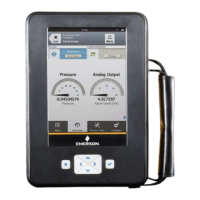
2.14.1 Connect the Trex unit to Upgrade Studio using USB
Prerequisites
CAUTION!
Remove the USB cable from the Trex unit before connecting to a device. Do not use USB
communication in a hazardous area.
Upgrade Studio cannot connect to multiple Trex units at one time. Only one connection via USB
is supported.
To help ensure proper communication between the Trex unit and the PC, do not use a USB 2.0
cable that is longer than 2 meters.
Procedure
1. Ensure the Trex unit is powered on.
2. Connect the microUSB cable to the top of the Trex unit, and then to the PC where
Upgrade Studio is installed.
Note
The USB driver is installed when you install Upgrade Studio.
3. In Upgrade Studio, click Activate Units or Install Updates.
4. If you do not see the Trex unit, select Show All Trex units from the drop-down bar.
Upgrade Studio connects to the Trex unit and the
icon appears on the
screen.
2.14.2 Create a Trex online user account
Upgrade Studio provides a link to a website to create a user account. You need a user
account to:
• Activate the Trex unit. (A user account is needed for activation when Upgrade Studio
has an internet connection.)
• Download updates for the Trex unit or Upgrade Studio.
• View the support contract information for the Trex unit.
• Access the Trex online store, if it is available in your area.
AMS Trex Device Communicator overview
User Guide 41


 To Next Page
 Loading...