23
Event Settings - Guide
Step 3: Set the Event
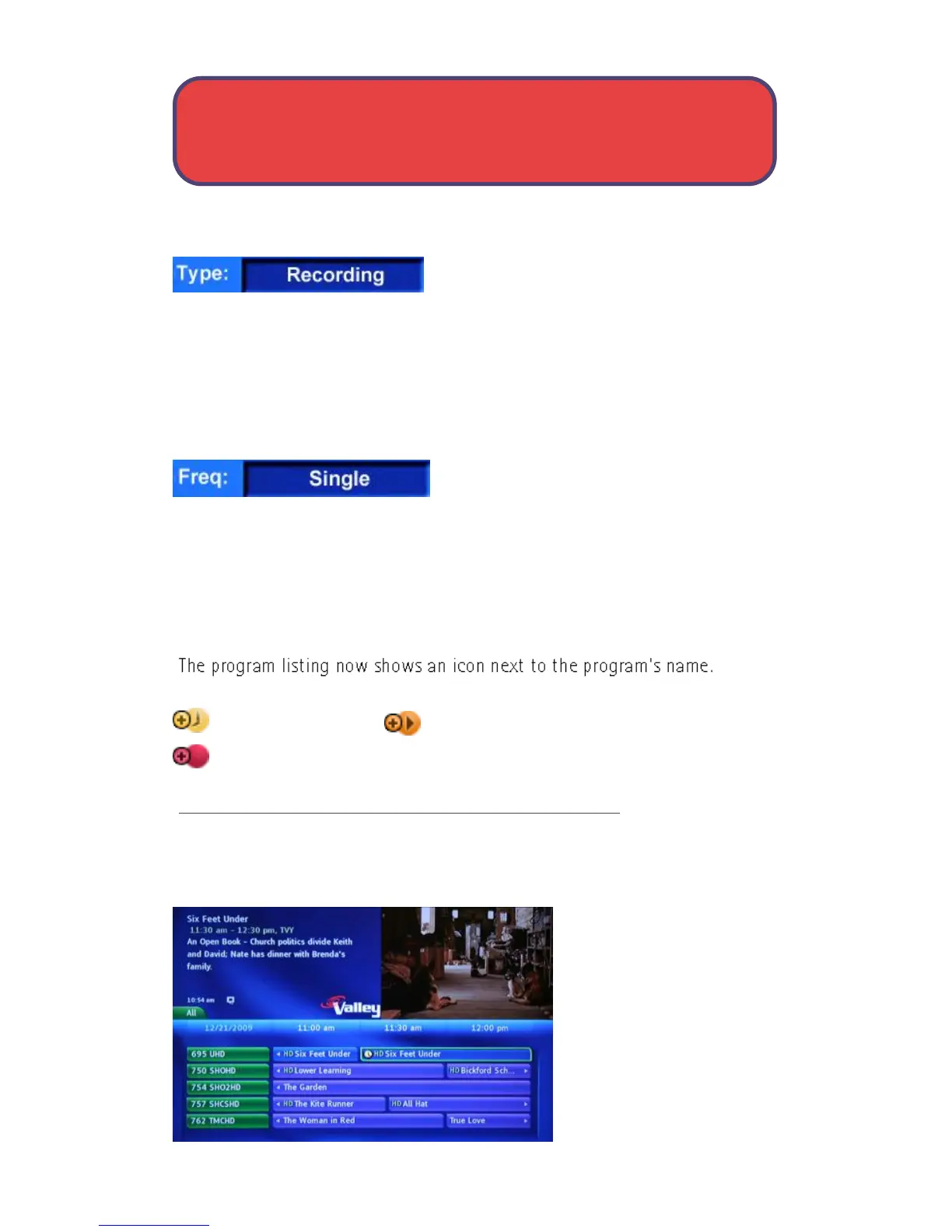
Highlight the box next to Type: and press
OK. The highlight will become up and
down arrows. Press the up and down direction buttons until you see the
event type you want (Recording, Autotune, Reminder), then press OK.
NOTE: The Set Recording option will not be available unless you
subscribe to PVR/DVR and your set top box supports PVR/DVR service.
Step 4: Set Event Frequency
Highlight the box next to Freq: and press
OK. The highlight will become up and
down arrows. Press up and down until you see the frequency you want
(Single, Every M-F, Weekly), then press OK.
Step 5: Return to Guide
Once you have set the event frequency, highlight OK on the Schedule Even
screen and press OK. You will be returned to Guide.
Multi-Reminder set
Multi-Auto Tune set
Multi-Recording set
Your multi-event will recur as scheduled until you cancel it.
Cancel An Auto Tune, Reminder or Recording
You can cancel any scheduled event you have previously set directly from
the Guide.
Step 1: Pick the Program
Highlight the program
with the scheduled event
you want to cancel and
press OK.



 To Next Page