29
Lock & Unlock - PVR/DVR
While watching your recording, you can use any of the PVR/DVR control
buttons on your remote just as you would if watching a videotape or PVD.
Step 4: Return to Live TV
When the recording ends, you will be returned to live TV.
If you want to return to the PVR/DVR Menu before your recording has
ended, press the Stop.
Lock or Unlock a Recording
Locking a recording prevents the system from deleting a program to make
space for new recordings.
Note: You can still manually delete a locked recording. Locking only
prevents the system from automatically deleting it. When manually
deleting a locked program, you will be asked to confirm the deletion.
Step 1: Pick A Recording
Highlight the recording you want to lock and press OK
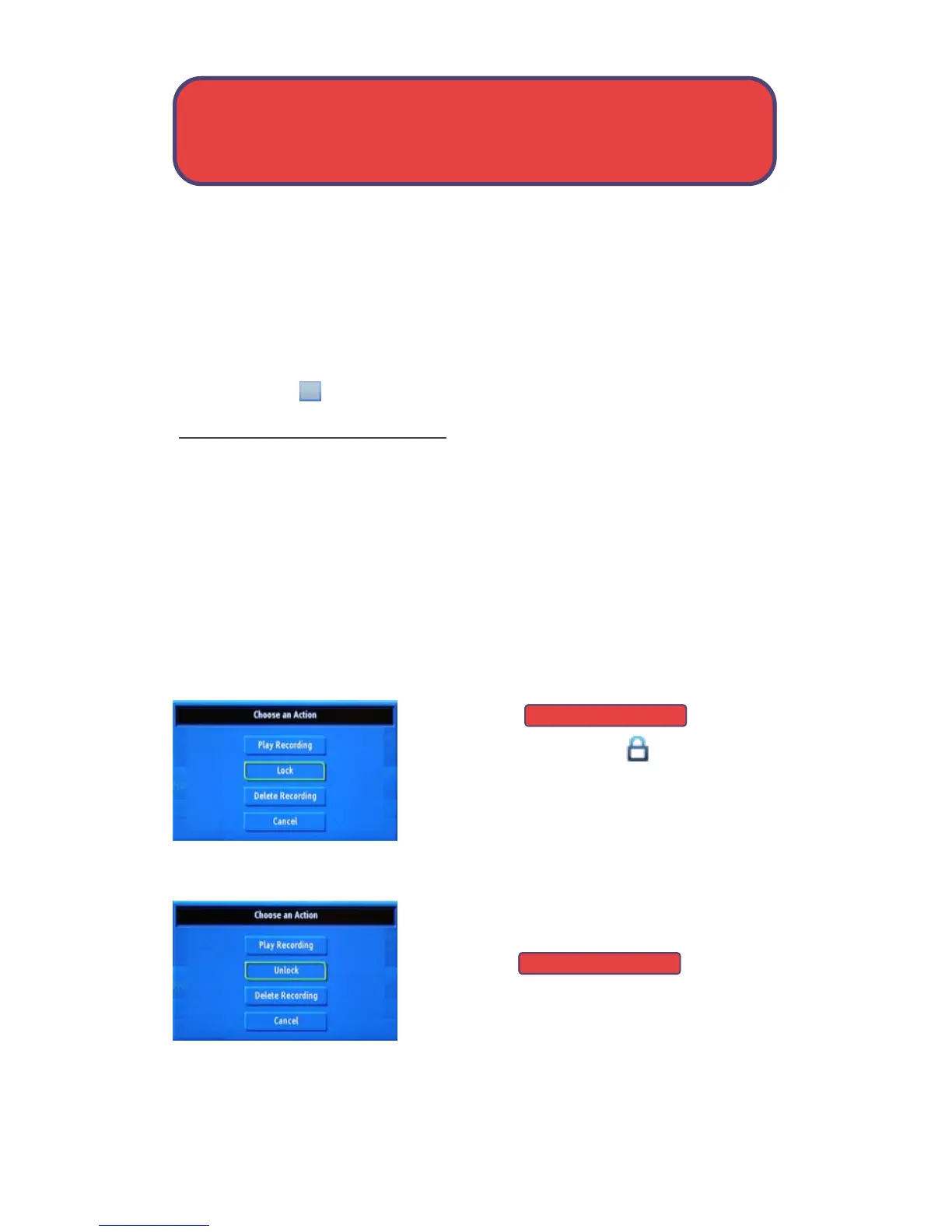
Step 2a: Lock the Recording
Highlight and
press OK.
Once a program is locked, a appears to the
left of the recording date.
Step 2b: Unlock the Recording
If you select a locked program in Step 1, the
lock option will instead be Unlock.
Highlight and press OK.
When the program is unlocked, the padlock
icon is removed.
Lock
Unlock



 To Next Page