31
Canceling or Scheduling - PVR/DVR
Cancel A Recording Event
Step 1: Pick A Recording Event
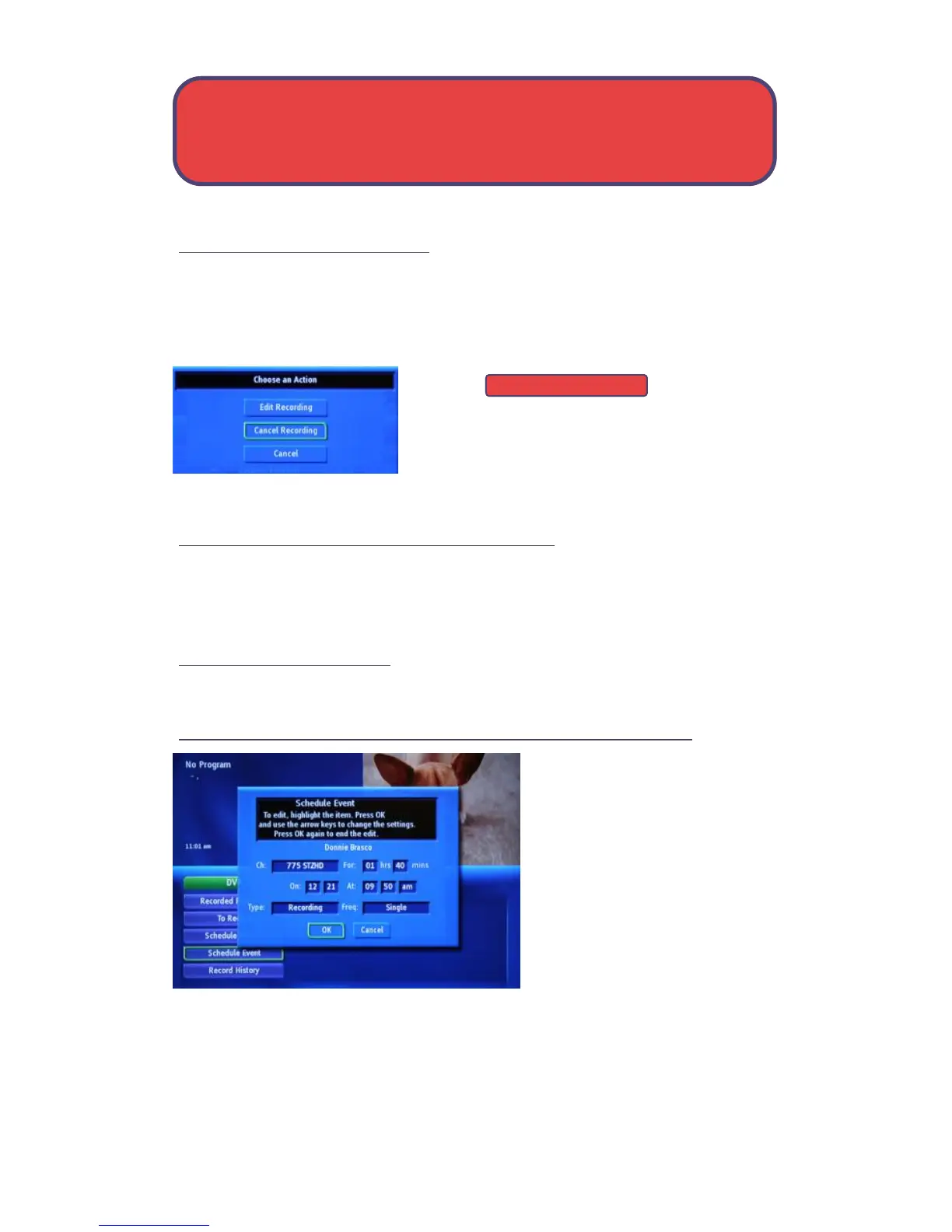
Highlight the recording event you want to cancel and press OK.
Step 2: Cancel The Recording Event
Highlight and press OK.
Step 3: Recording Canceled
Once you have deleted the recording event,
the entry for that recording event is removed
from the list, you will then be prompted to confirm.
Schedule A Recording (or other) Event
You can schedule a recording, reminder or auto tune event from the PVR/
DVR menu. When doing so from the PVR/DVR menu no information about
the event is entered for you.
Go To Schedule Event
Highlight Schedule Event and press OK.
Schedule A Recording, Reminder or Auto Tune Event
Once you choose schedule
event from the PVR/DVR menu,
the schedule event window
appears.
Use the same controls for each
setting:
Highlight the setting you want
to change and press OK.
Use the left and right arrow
buttons to change the setting. Press OK to enter your change.
Cancel Recording



 To Next Page