Home
Epson
All in One Printer
EcoTank L6550 Series
Page 359
Epson EcoTank L6550 Series - Page 359
459 pages
Manual
To Next Page
To Next Page
To Previous Page
To Previous Page
Loading...
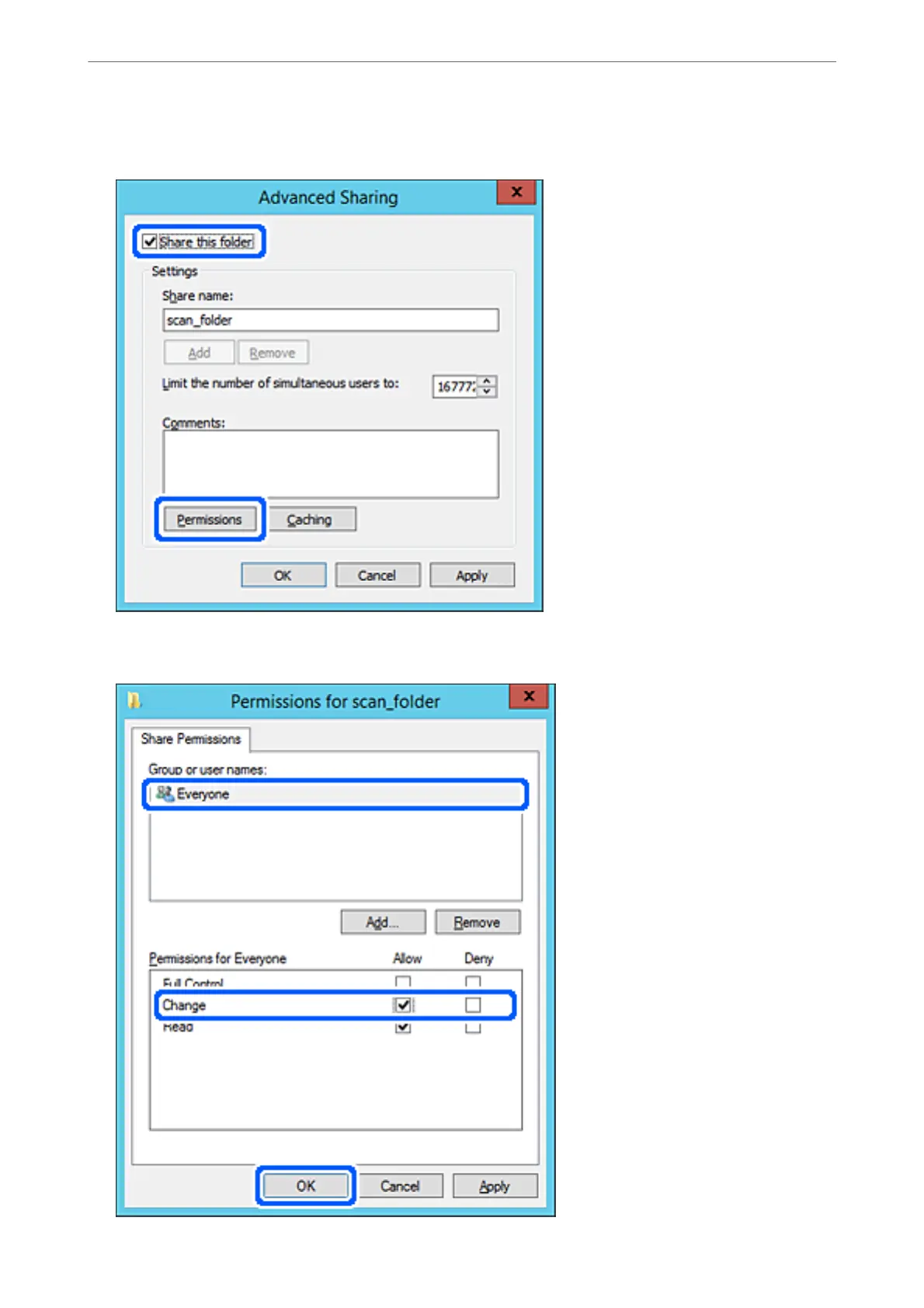
6.
Se
lec
t
Share this f
older
, and then click
Pe
r
m
i
s
s
i
o
n
s
.
7.
Se
lec
t
Ever
yon
e
group o
f
Group or us
er names
, s
elect
Allow
on
Ch
an
ge
, and then click
OK
.
Administr
ator Information
>
Settings to Use the Printer
>
Setting a Shared Network F
older
359
358
360
Table of Contents
Main Page
Table of Contents
2
Guide to this Manual
7
Introduction to the Manuals
7
Searching for Information
7
Printing Only the Pages You Need
8
About this Manual
8
Marks and Symbols
8
Notes on Screenshots and Illustrations
9
Operating System References
9
Trademarks
10
Copyright
11
Important Instructions
12
Safety Instructions
13
Safety Instructions for Ink
14
Printer Advisories and Warnings
14
Advisories and Warnings for Setting up the Printer
14
Advisories and Warnings for Using the Printer
15
Advisories and Warnings for Using the Touchscreen
15
Advisories and Warnings for Using the Printer with a Wireless Connection
15
Advisories and Warnings for Transporting or Storing the Printer
16
Protecting Your Personal Information
16
Part Names and Functions
17
Front
18
Inside
20
Rear
21
Guide to the Control Panel
22
Control Panel
23
Home Screen Configuration
23
Guide to the Network Icon
25
Menu Screen Configuration
25
Job/Status Screen Configuration
26
Entering Characters
27
Viewing Animations
27
Loading Paper
29
Paper Handling Precautions
30
Paper Size and Type Settings
30
List of Paper Type
31
Loading Paper
31
Loading Pre-Punched Paper
32
Loading Long Papers
33
Placing Originals
34
Placing Originals
35
Originals that Are Not Supported by the ADF
36
Inserting and Removing a Memory Device
37
Inserting an External USB Device
38
Removing an External USB Device
38
Sharing Data on a Memory Device
39
Printing
40
Printing Documents
41
Printing from a Computer - Windows
41
Printing from a Computer - Mac os
64
Printing Documents from Smart Devices (Ios)
72
Printing Documents from Smart Devices (Android)
74
Printing on Envelopes
75
Printing on Envelopes from a Computer (Windows)
75
Printing on Envelopes from a Computer (Mac OS)
76
Printing Photos
76
Printing JPEG Files from a Memory Device
76
Printing TIFF Files from a Memory Device
77
Printing Web Pages
78
Printing Web Pages from a Computer
78
Printing Web Pages from Smart Devices
78
Printing Using a Cloud Service
79
Registering to Epson Connect Service from the Control Panel
80
Copying
81
Available Copying Methods
82
Copying Originals
82
Copying on 2-Sides
82
Copying by Enlarging or Reducing
83
Copying Multiple Originals Onto One Sheet
84
Copying in Page Order
85
Copying Originals Using Good Quality
85
Copying ID Card
86
Basic Menu Options for Copying
86
Color Mode
86
Density
86
Paper Setting
87
Reduce/Enlarge
87
Original Type
87
2-Sided
87
Advanced Menu Options for Copying
88
Multi-Page
88
Original Size
88
Finishing
88
Orientation (Original)
88
Image Quality
89
Binding Margin
89
Reduce to Fit Paper
89
Remove Shadow
89
Remove Punch Holes
89
ID Card Copy
89
Scanning
90
Available Scanning Methods
91
Scanning Originals to a Network Folder
91
Destination Menu Options for Scanning to a Folder
92
Scan Menu Options for Scanning to a Folder
93
Scanning Originals to an Email
94
Recipient Menu Options for Scanning to an Email
95
Scan Menu Options for Scanning to an Email
95
Scanning Originals to a Computer
97
Scanning Originals to a Memory Device
98
Basic Menu Options for Scanning to a Memory Device
98
Advanced Menu Options for Scanning to a Memory Device
99
Scanning Originals to the Cloud
100
Basic Menu Options for Scanning to the Cloud
100
Advanced Menu Options for Scanning to the Cloud
101
Scanning Using WSD
102
Setting up a WSD Port
102
Scanning Originals to a Smart Device
104
Faxing
105
Before Using Fax Features
106
Overview of this Printer's Fax Features
106
Feature: Sending Faxes
106
Feature: Receiving Faxes
107
Feature: PC-FAX Send/Receive (Windows/Mac OS)
108
Features: Various Fax Reports
109
Feature: Status or Logs for Fax Jobs
109
Feature: Fax Box
110
Feature: Security When Sending and Receiving Faxes
110
Features: Other Useful Features
110
Sending Faxes Using the Printer
111
Selecting Recipients
111
Various Ways of Sending Faxes
112
Receiving Faxes on the Printer
118
Receiving Incoming Faxes
119
Receiving Faxes by Making a Phone Call
120
Saving and Forwarding Received Faxes
122
Viewing Received Faxes on the Printer's LCD Screen
123
Menu Options for Faxing
124
Recipient
124
Fax Settings
124
More
126
Menu Options for Fax Box
128
Inbox/Confidential
128
Stored Documents
130
Polling Send/Board
131
Checking the Status or Logs for Fax Jobs
134
Displaying Information When Received Faxes Are Unprocessed (Unread/Not Printed/Not Saved/Not Forwarded)
134
Checking Fax Jobs in Progress
136
Checking the Fax Job History
136
Reprinting Received Documents
136
Sending a Fax from a Computer
137
Sending Documents Created Using an Application (Windows)
137
Sending Documents Created Using an Application (Mac OS)
139
Receiving Faxes on a Computer
141
Checking for New Faxes (Windows)
141
Checking for New Faxes (Mac OS)
143
Canceling the Feature that Saves Incoming Faxes to the Computer
143
Maintaining the Printer
144
Checking the Status of Consumables
145
Improving Print, Copy, Scan, and Fax Quality
145
Adjusting the Print Quality
145
Checking and Cleaning the Print Head
146
Running Power Cleaning
147
Preventing Nozzle Clogging
149
Aligning the Print Head (Control Panel)
149
Cleaning the Paper Path for Ink Smears
150
Cleaning the Scanner Glass
150
Cleaning the ADF
151
Cleaning the Printer
153
Cleaning Spilled Ink
154
Checking the Total Number of Pages Fed through the Printer
154
Checking the Total Number of Pages Fed through the Printer (Control Panel)
155
Saving Power
155
Saving Power (Control Panel)
155
Installing or Uninstalling Applications Separately
155
Installing the Applications Separately
156
Adding the Printer (for Mac os Only)
158
Uninstalling Applications
158
Updating Applications and Firmware
160
Transporting and Storing the Printer
162
Solving Problems
168
The Printer Does Not Work as Expected
169
The Printer Does Not Turn on or off
169
Power Turns off Automatically
169
Paper Does Not Feed Properly
169
Cannot Print
174
Cannot Start Scanning
190
Cannot Send or Receive Faxes
202
Error Code Is Displayed on the Status Menu
216
Cannot Operate the Printer as Expected
220
A Message Is Displayed on the LCD Screen
225
Paper Gets Jammed
226
Preventing Paper Jams
227
It Is Time to Refill the Ink
227
Ink Bottle Handling Precautions
227
Refilling the Ink Tanks
228
It Is Time to Replace the Maintenance Box
232
Maintenance Box Handling Precautions
232
Replacing a Maintenance Box
232
Printing, Copying, Scanning, and Faxing Quality Is Poor
234
Print Quality Is Poor
234
Copy Quality Is Poor
243
Scanned Image Problems
250
The Quality of the Sent Fax Is Poor
252
Received Fax Quality Is Poor
254
Cannot Solve Problem after Trying All Solutions
255
Cannot Solve Printing or Copying Problems
255
Adding or Replacing the Computer or Devices
257
Connecting to a Printer that Has Been Connected to the Network
258
Using a Network Printer from a Second Computer
258
Using a Network Printer from a Smart Device
259
Re-Setting the Network Connection
259
When Replacing the Wireless Router
259
When Changing the Computer
260
Changing the Connection Method to the Computer
261
Making Wi-Fi Settings from the Control Panel
263
Connecting a Smart Device and Printer Directly (Wi-Fi Direct)
265
About Wi-Fi Direct
265
Connecting to an Iphone, Ipad or Ipod Touch Using Wi-Fi Direct
266
Connecting to Android Devices Using Wi-Fi Direct
269
Connecting to Devices Other than Ios and Android Using Wi-Fi Direct
271
Disconnecting Wi-Fi Direct (Simple AP) Connection
275
Changing the Wi-Fi Direct (Simple AP) Settings such as the SSID
275
Checking the Network Connection Status
276
Checking the Network Connection Status from the Control Panel
276
Printing a Network Connection Report
277
Printing a Network Status Sheet
283
Checking the Network of the Computer (Windows Only)
283
Product Information
285
Paper Information
286
Available Paper and Capacities
286
Unavailable Paper Types
291
Consumable Products Information
291
Ink Bottle Codes
291
Maintenance Box Code
292
Software Information
292
Software for Printing
292
Software for Scanning
296
Software for Faxing
296
Software for Package Creation
297
Software for Making Settings or Managing Devices
298
Software for Updating
300
Settings Menu List
301
General Settings
301
Print Counter
321
Supply Status
321
Maintenance
321
Language
323
Printer Status/Print
323
Contacts Manager
323
User Settings
324
Product Specifications
324
Printer Specifications
324
Scanner Specifications
325
ADF Specifications
326
Fax Specifications
326
Using Port for the Printer
327
Interface Specifications
329
Network Specifications
329
Supported Third Party Services
332
Memory Device Specifications
332
Supported Data Specifications
333
Dimensions
333
Electrical Specifications
334
Environmental Specifications
334
Installation Location and Space
335
System Requirements
335
Regulatory Information
336
Standards and Approvals
336
Restrictions on Copying
337
Administrator Information
339
Connecting the Printer to the Network
340
Before Making Network Connection
340
Panel
342
Settings to Use the Printer
344
Using the Print Functions
344
Setting up Airprint
350
Configuring a Mail Server
351
Setting a Shared Network Folder
355
Making Contacts Available
371
Preparing to Scan
382
Making Fax Features Available
384
Making Basic Operation Settings for the Printer
399
Problems When Making Settings
402
Managing the Printer
404
Introduction of Product Security Features
404
Administrator Settings
405
Restricting Available Features
413
Disabling the External Interface
415
Monitoring a Remote Printer
416
Backing up the Settings
418
Advanced Security Settings
419
Security Settings and Prevention of Danger
419
Controlling Using Protocols
421
Using a Digital Certificate
425
SSL/TLS Communication with the Printer
430
Encrypted Communication Using Ipsec/Ip Filtering
431
Connecting the Printer to an IEEE802.1X Network
443
Solving Problems for Advanced Security
446
Where to Get Help
453
Technical Support Web Site
454
Contacting Epson Support
454
Before Contacting Epson
454
Help for Users in Europe
454
Help for Users in Australia
454
Help for Users in New Zealand
455
Help for Users in Indonesia
456
Help for Users in Malaysia
457
Help for Users in the Philippines
458
Help for Users in Singapore
458
Help for Users in Thailand
459
Help for Users in Vietnam
459
Related product manuals
Epson EcoTank L6171
4 pages
Epson EcoTank L810
4 pages
Epson EcoTank L5296
288 pages
Epson EcoTank L8160 Series
284 pages
Epson EcoTank L14150 Series
337 pages
Epson EcoTank M2140
4 pages
Epson EcoTank ET-2726
161 pages
Epson EcoTank ET-3830
8 pages
Epson EcoTank ET-8500 Series
284 pages
Epson EcoTank ET-3800 Series
254 pages
Epson EcoTank ET-15000 Series
337 pages
Epson Expression ET-2700 EcoTank
180 pages













 To Next Page