68
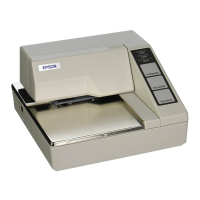
Starting the test print on cut sheet paper
Follow the steps below to start a test print on the cut sheet paper.
1
Close all covers.
2
While pressing the Cleaning button, turn on the printer. (Keep pressing
the Cleaning button until the Document LED starts flashing.)
The printer goes into the insertion waiting status for cut sheet paper.
3
Insert the cut sheet paper.
The printer starts printing the current status of the printer on the cut sheet paper.
After ejecting the cut sheet paper, the printer goes into the paper in sertion waiting status
again and again until printing the current status of the printer and a test print of a roll
ing
pattern using only the built-in character set complete.
After printing the following message, the printer is initialized and returned to the normal
mode.
*** completed***
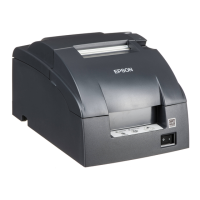
Starting the status print and test print on the roll paper
Follow the steps below to start a status print and test print on the roll paper.
1
Install the roll paper.
2
Close all covers.
3
While pressing the Feed button, turn on the printer. (Keep pressing the
Feed button until the printer starts printing.)
The printer starts printing the current status of the printer on the roll paper.
4
To start the test print, press the Feed button (less than 1 second).
The printer prints a rolling pattern on the roll paper, using only the built-in character set.
After printing the following message, the printer is initialized and returned to the normal
mode.
*** completed***



 To Next Page
 Loading...